Quick Answer: To create a WiFi QR code, go to [La.Bio] and click 'Create QR'. Select 'WiFi' under the Static QR section. Enter your Network Name (SSID), your Password, and choose the Encryption type (usually WPA/WPA2). Click 'Generate QR', download it, and print it for your guests.
Stop Spelling Out Complicated Passwords
We have all been there. You have guests over for dinner, or customers sitting down in your cafe, and the inevitable question comes up: "What is the WiFi password?"
You then have to spend the next five minutes spelling out a long, complicated string of characters: "It’s a capital S, then the number 4, then an underscore..." It is frustrating for you, and it is annoying for them. Often, they type it wrong the first time and you have to start over.
There is a better solution: A simple sticker on the wall or a card on the table.
With a WiFi QR Code, your guests simply open their camera, scan the image, and a notification pops up asking if they want to join the network. They tap "Join," and they are connected. It is tech magic that saves time and creates a seamless experience.
The best part? This technology works natively on the standard Camera app for iOS (iPhone) and almost all modern Android phones without needing a third-party app. By using [La.Bio], you can generate these codes as Static QRs, meaning the password data is stored safely inside the image itself for an instant, private connection.
Why use a Static QR Code for WiFi?

When creating a QR code for a WiFi network, it is essential to understand the technology behind it. On [La.Bio], WiFi QR codes are Static. Here is why that matters for you and your guests:
Speed and Efficiency
Unlike dynamic codes that redirect users to a website URL, a Static QR code holds the information directly in the pattern itself. When a phone scans the code, it reads the raw data immediately. There is no loading time and no redirection. It is the fastest way to bridge the gap between the physical world and digital connectivity.Enhanced Privacy
Security is often a concern when sharing network credentials. Because these codes are Static, your WiFi password is never stored on a server database. The password exists only within the printed image of the QR code. This ensures that your network details remain private and are not accessible via the cloud.No Internet Needed to Scan
This is the most practical benefit. Usually, a user scans a WiFi code specifically because they do not have an internet connection yet. If the QR code required an internet connection to redirect to a link (like a Dynamic QR), the user would be stuck in a loop. Since the phone’s operating system interprets the Static code offline, it works perfectly even in a basement with zero signal.
Step by Step - Generating Your WiFi QR Code

Follow these specific steps to create your functional WiFi QR code. We will be using the Static QR widget to ensure the connection works offline.
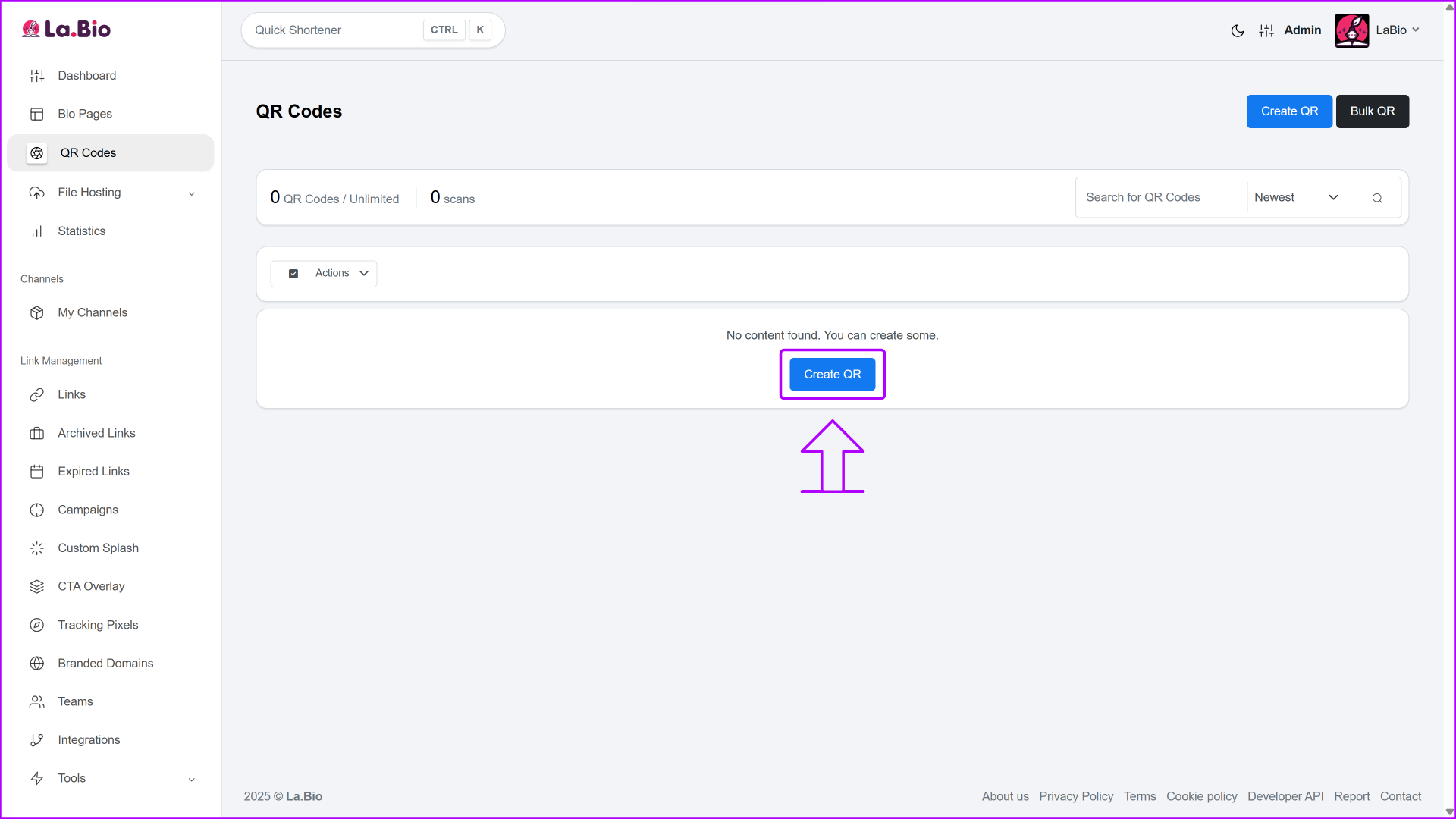
Step 1: Access the Dashboard
Log in to your [La.Bio] account and click on the "Create QR" button to open the generator.
Step 2:
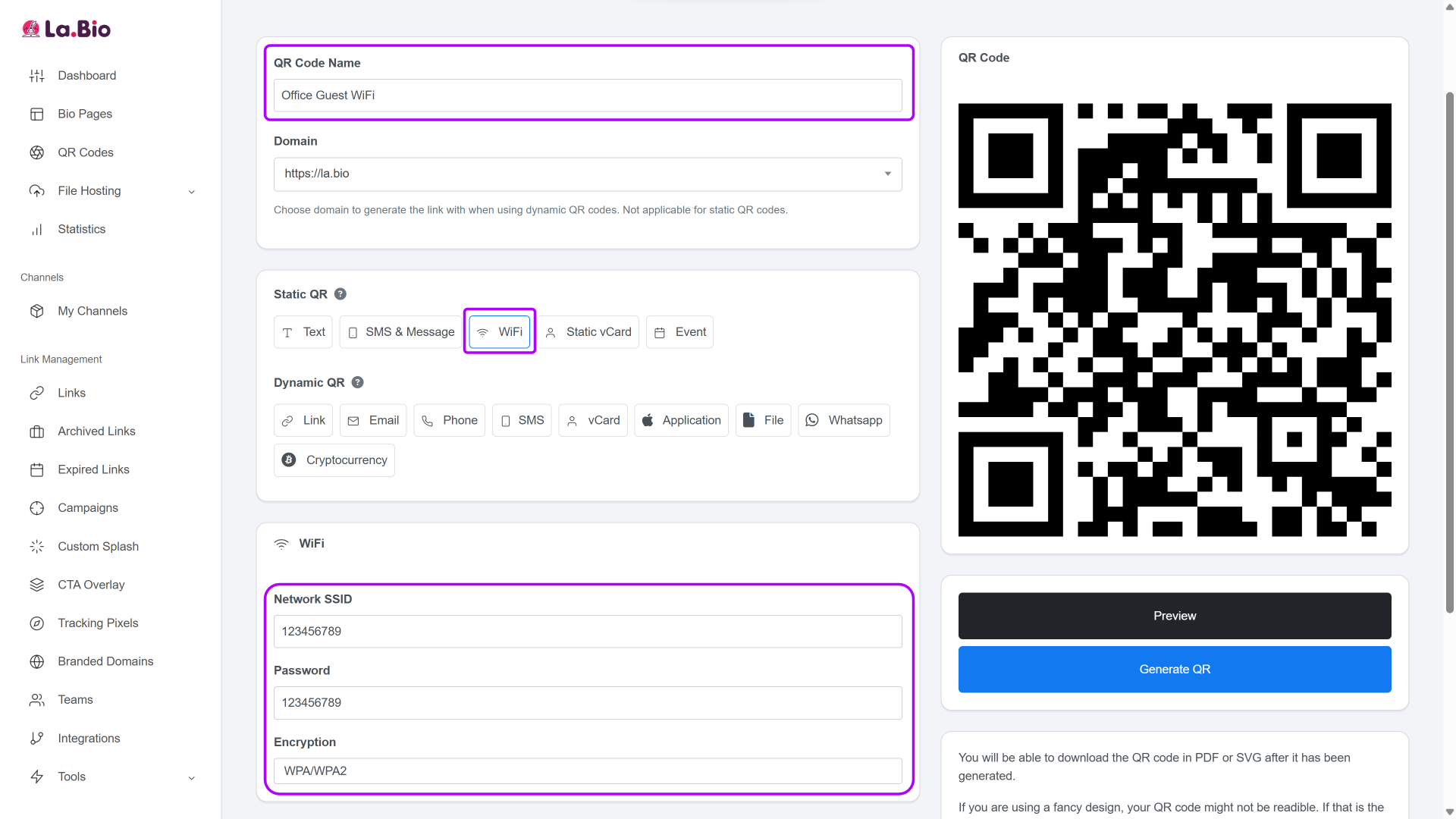
· Name Your Project: Give your QR code a recognizable name, such as "Office Guest WiFi" or "Home Kitchen." This helps you organize your codes if you manage multiple locations, though this name will not be visible to your guests.
· Select the Static WiFi Type: Look for the section labeled "Static QR". It is important to choose this category because WiFi codes do not require server tracking. Click on the WiFi icon to open the configuration settings.
· Enter Network Details: This is the most critical step. You must input the data exactly as it is configured on your router:
Network Name (SSID): Type the name of your WiFi network. Important: This is case-sensitive. If your network is "GuestWifi" and you type "guestwifi", the connection will fail.
Password: Enter your WiFi password carefully.
Encryption: Select WPA/WPA2. This is the standard security setting for 99% of modern routers. Only select "nopass" if you are running a completely open public network with no password.
Step 3: Customize the Design
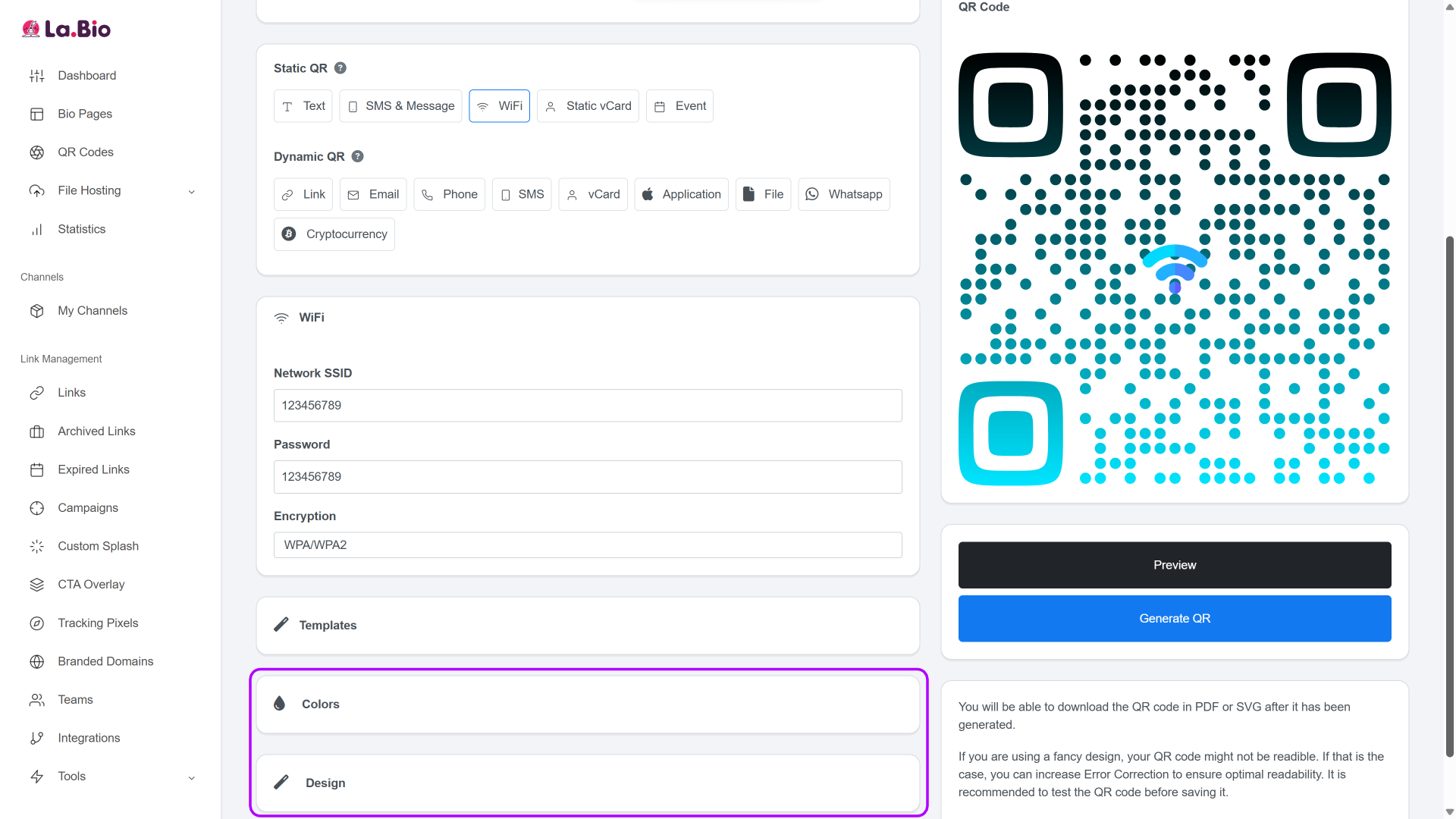
Move to the 'Design' tab. A plain black-and-white code works, but you can make it stand out. Add a WiFi icon in the center or adjust the colors to match your brand or interior design. High contrast (dark pixels on a light background) is best for scanning reliability.
Step 4: Generate and Download
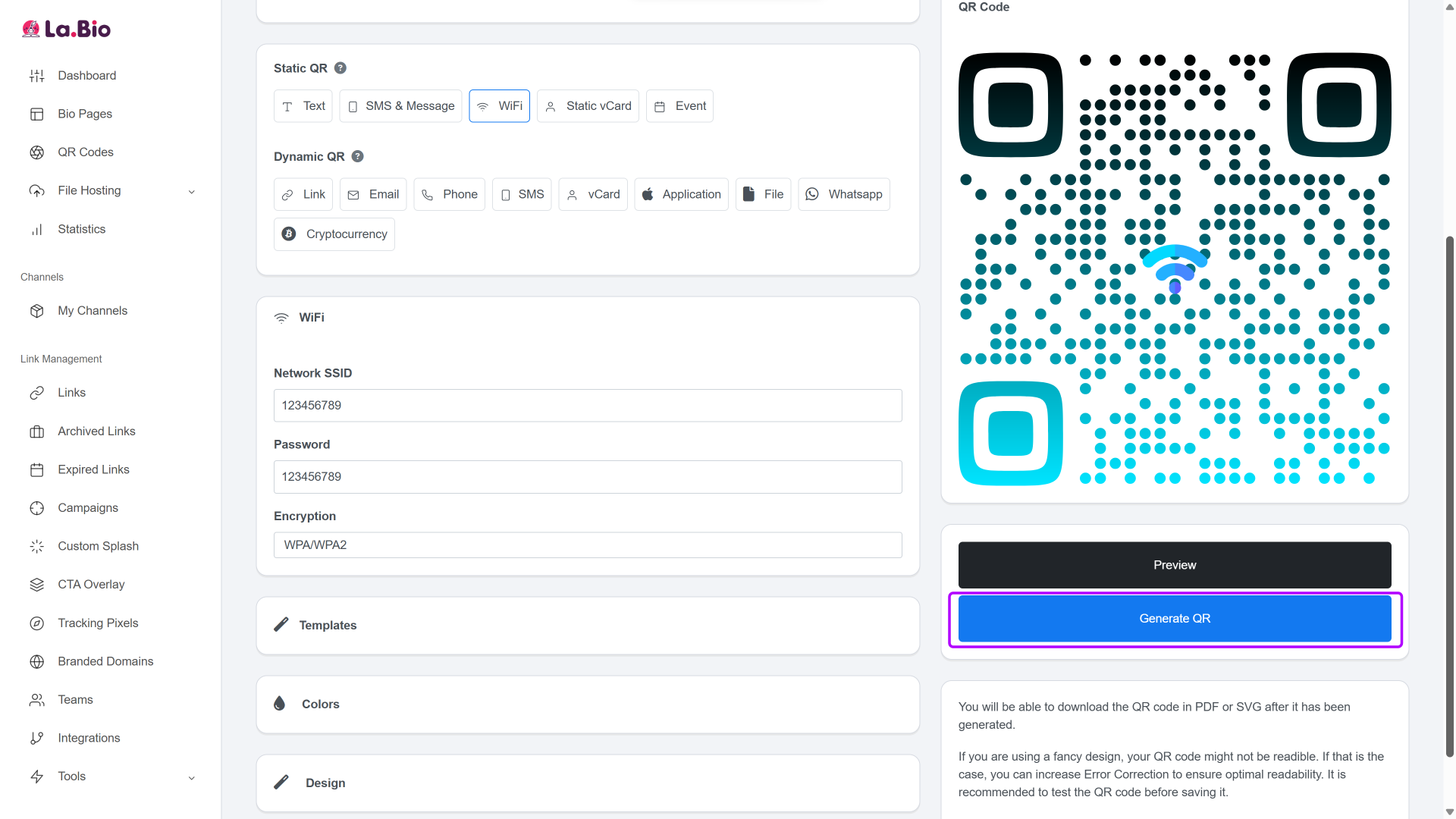
Click "Generate QR" to finish. We recommend downloading the file in SVG format. This vector format allows you to resize the image for large prints (like a poster) without it becoming blurry or pixelated.
Best Places to Display Your WiFi QR
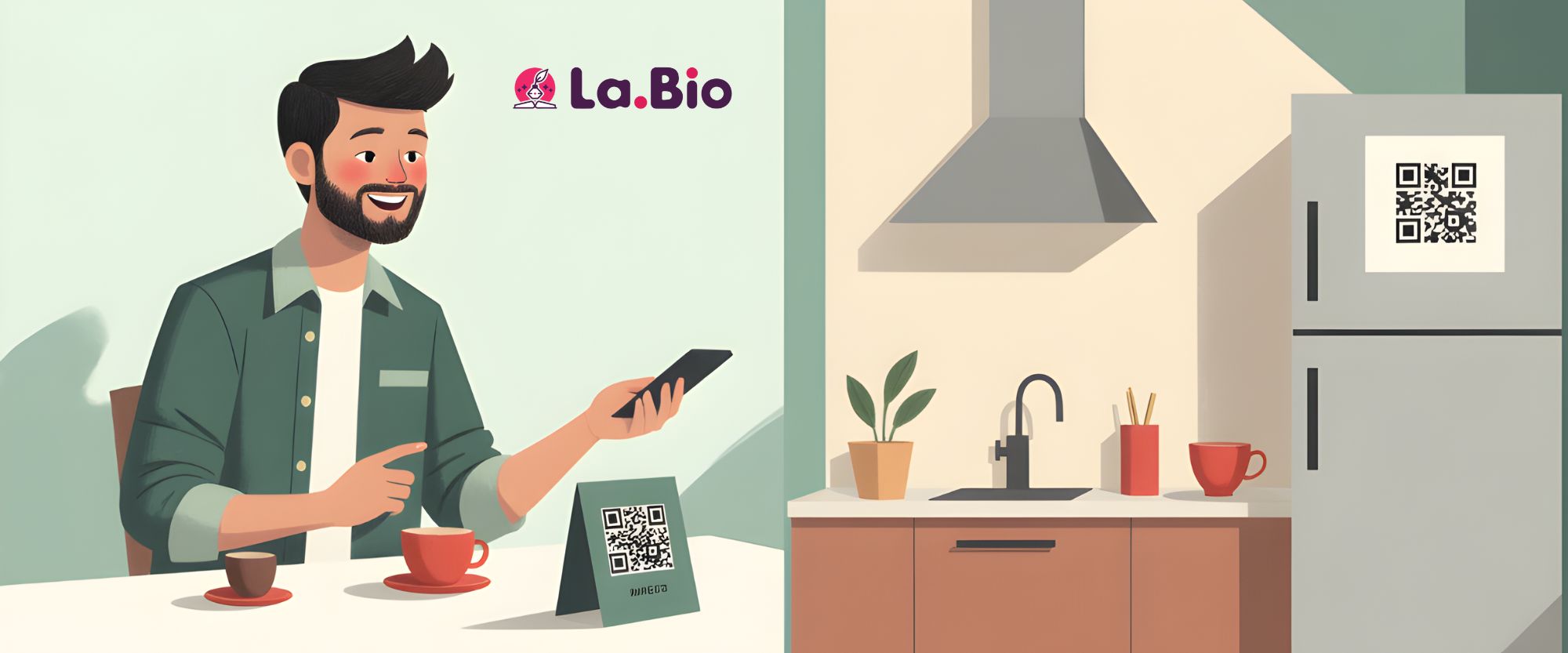
Once you have generated your static QR code, the next step is placement. You want the code to be visible and accessible so people don't have to ask for it. Here are the most effective spots:
Airbnb & Short-Term Rentals
The first thing guests do when they check in is look for an internet connection. Place a sticker on the refrigerator or print the code on the first page of your Welcome Book. This small detail elevates the guest experience and saves you from answering late-night texts asking for the password.Restaurants & Cafes
Print the QR code on table tents, coasters, or at the bottom of the menu. This significantly reduces the workload on your servers, who no longer have to recite the password to every new table.
Pro Tip: Providing seamless connectivity creates a happy customer base. If you run a restaurant, putting a WiFi code on the table is great. But you should also ask for a review. You can leverage that moment of satisfaction to get more Google reviews and boost your local ranking.
Office Meeting Rooms
There is nothing worse than delaying the start of a presentation because a client cannot connect to the internet. Stick the WiFi QR code clearly on the whiteboard, the conference table, or near the room's display screen. It allows consultants and visitors to connect immediately without interrupting the flow of the meeting.
Frequently Asked Questions
Q: Is it safe to use a WiFi QR Code?
A: Yes, it is very safe. Because we use Static QR technology on [La.Bio], the information regarding your network (SSID and Password) is encoded physically into the dots and squares of the image. This data is not uploaded, tracked, or stored on our servers. It stays between the piece of paper and your guest's phone.
Q: What happens if I change my WiFi password?
A: This is the only trade-off with Static QR codes. Since the password is hard-coded into the image, the QR code cannot update itself automatically. If you change your router's password, the old QR code will stop working. You will need to log back into [La.Bio], generate a new code with the new credentials, and reprint it.
Q: Does it work for hidden networks?
A: Yes, but you must ensure the SSID you type into the generator matches your hidden network name exactly. However, for the smoothest guest experience, standard visible networks are recommended as they are less prone to connection errors.
Conclusion
Typing out complex passwords is a thing of the past. By creating a WiFi QR code, you remove friction and create a premium, modern experience for anyone entering your space. Whether for a busy restaurant, a cozy Airbnb, or a professional office, the ability to scan and connect in seconds is a small detail that makes a big difference.
Make connecting easy. Create your Free WiFi QR Code now on [La.Bio].