Quick Answer: To make a Google Maps QR Code, first find your location on Google Maps and copy the 'Share' link. Log in to La.Bio, click 'Create QR', and select the 'Link' icon under Dynamic QR. Paste the maps link, add a map pin logo in the design tab, and generate your code.
"Send me the location." It is one of the most common phrases in modern communication, yet it remains a friction point. Manually typing an address into a GPS is tedious and prone to human error. A simple typo can send a potential home buyer or a wedding guest to the wrong side of town, causing frustration before they even arrive.
The solution is simple: A Google Maps QR Code. Instead of typing coordinates, users simply scan the code, and their smartphone instantly launches their preferred navigation app (Google Maps, Waze, or Apple Maps) with the destination pre-loaded.
Whether you are a real estate agent trying to get drive-by traffic to an open house, an event planner organizing a wedding, or a business owner looking to increase foot traffic, a location QR code removes the guesswork. By using La.Bio, you upgrade this experience even further using Dynamic QR technology—allowing you to track how many people scanned your map and ensuring the code remains scannable even if the destination link is long and complex.
Step 1 - Get Your Location Link

Before you can create the code, you need the precise digital address. Accuracy is key here—especially for real estate listings or events in specific venues.
Open Google Maps: Launch the app on your phone or visit Google Maps on your desktop browser.
Find the Spot: Search for your specific business name or address.
Pro Tip for Real Estate: If the location is a new development, a vacant lot, or a park entrance without a street number, do not rely on the general address. Instead, drop a pin on the exact entrance by long-pressing the screen (on mobile) or clicking the exact spot (on desktop).
Click Share: Look for the "Share" icon (usually represented by an arrow or a standard share symbol) in the location menu.
Copy the URL: Select "Copy Link" to save the direct URL to your clipboard. You will need to paste this into La.Bio in the next step.
Step 2 - Generate the Dynamic QR Code
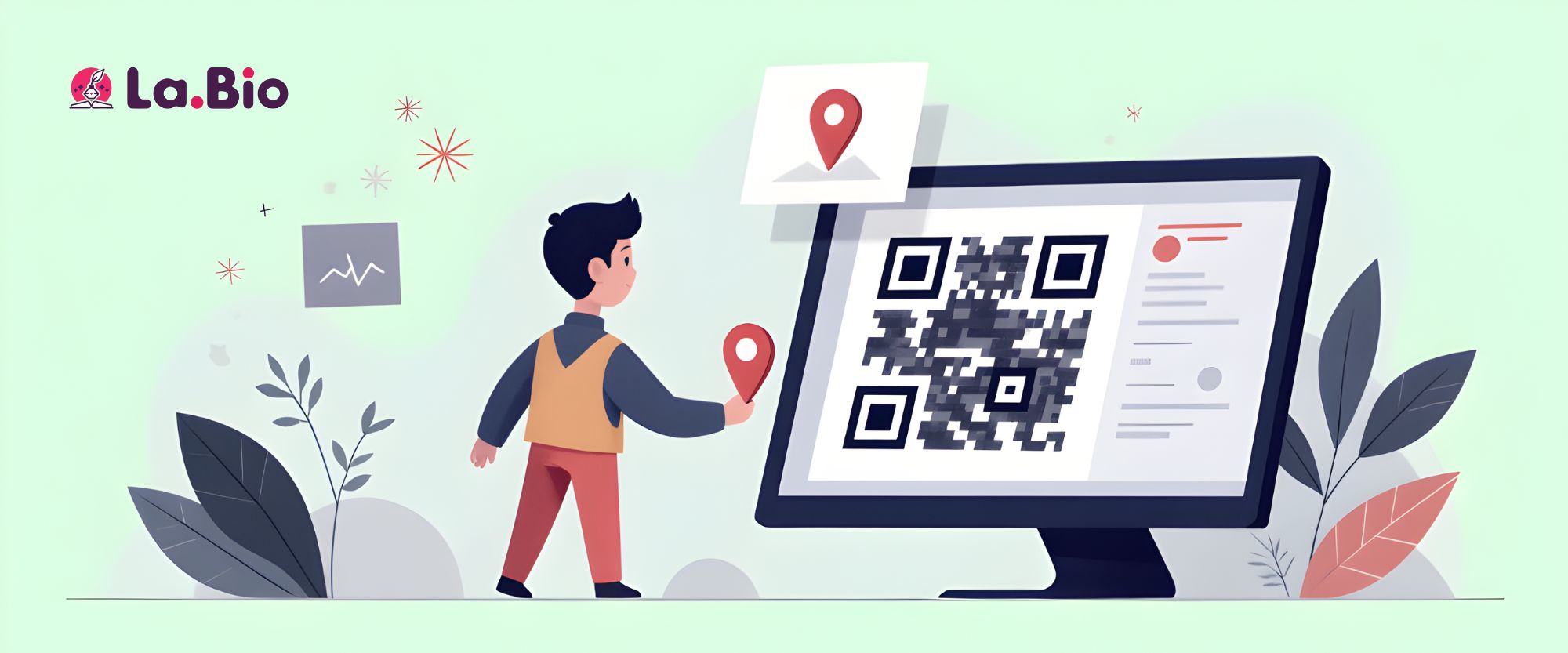
Follow this simple La.Bio workflow to turn your link into a professional, trackable asset.
Step 1: Log in to your La.Bio account and click on the "Create QR" button to begin.
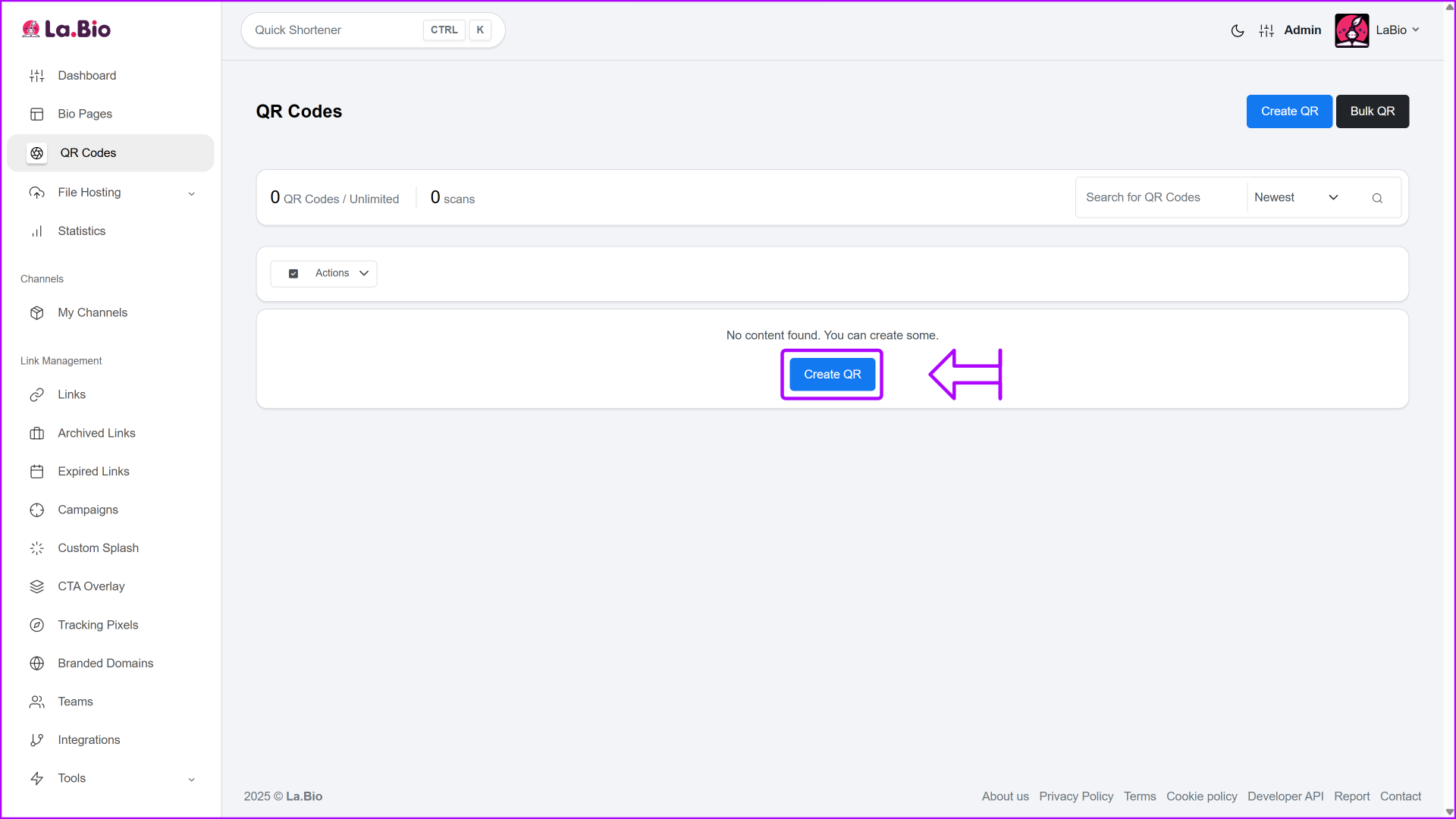
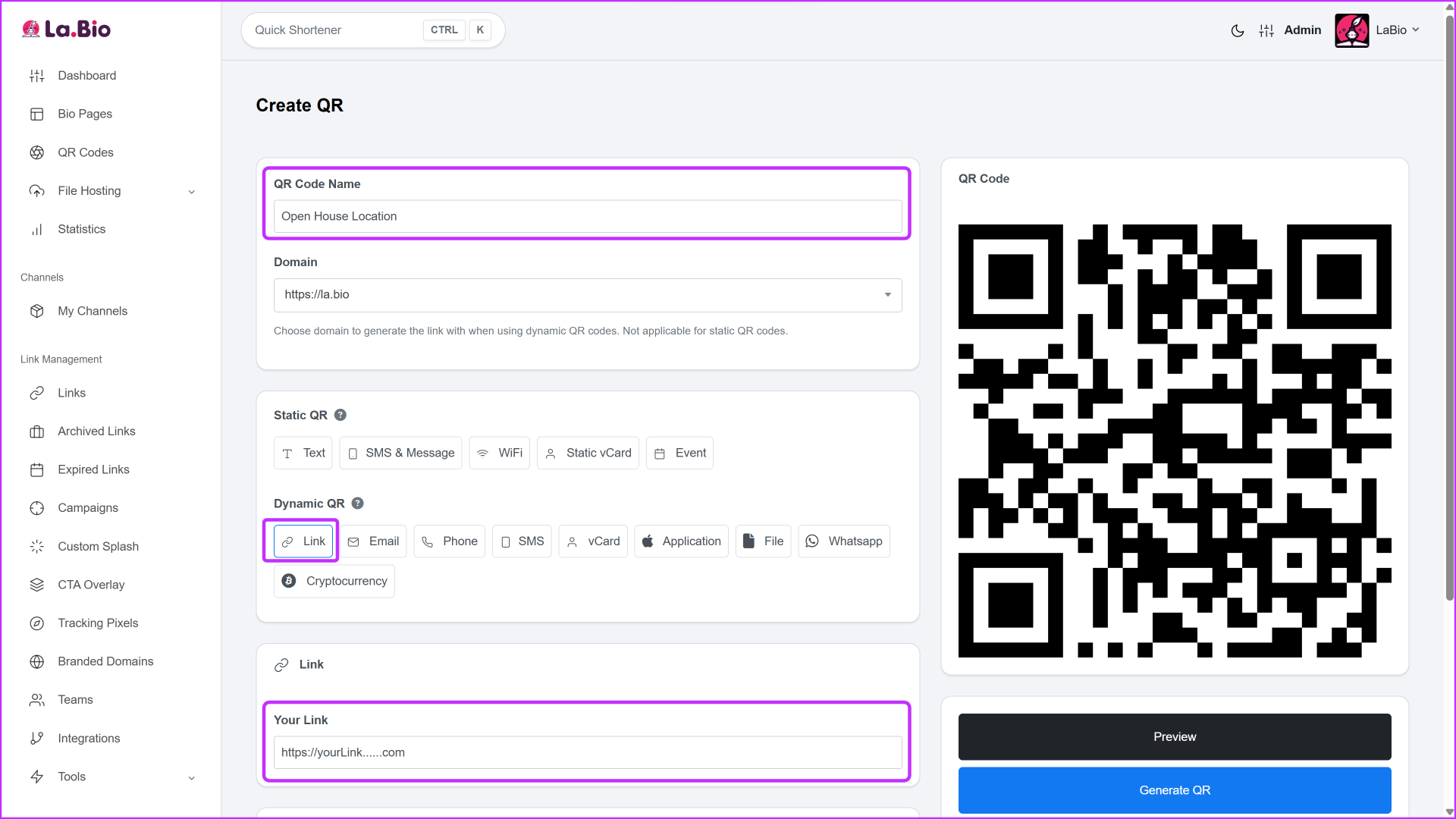
Step 2: Configure your destination. First, Name your QR Code (e.g., "Open House Location") for easy internal organization. Next, under the "Dynamic QR" section, select the "Link" icon.
Note: Using Dynamic allows you to track exactly how many people found your location via the code.
Paste the Google Maps link you copied earlier into the URL field.
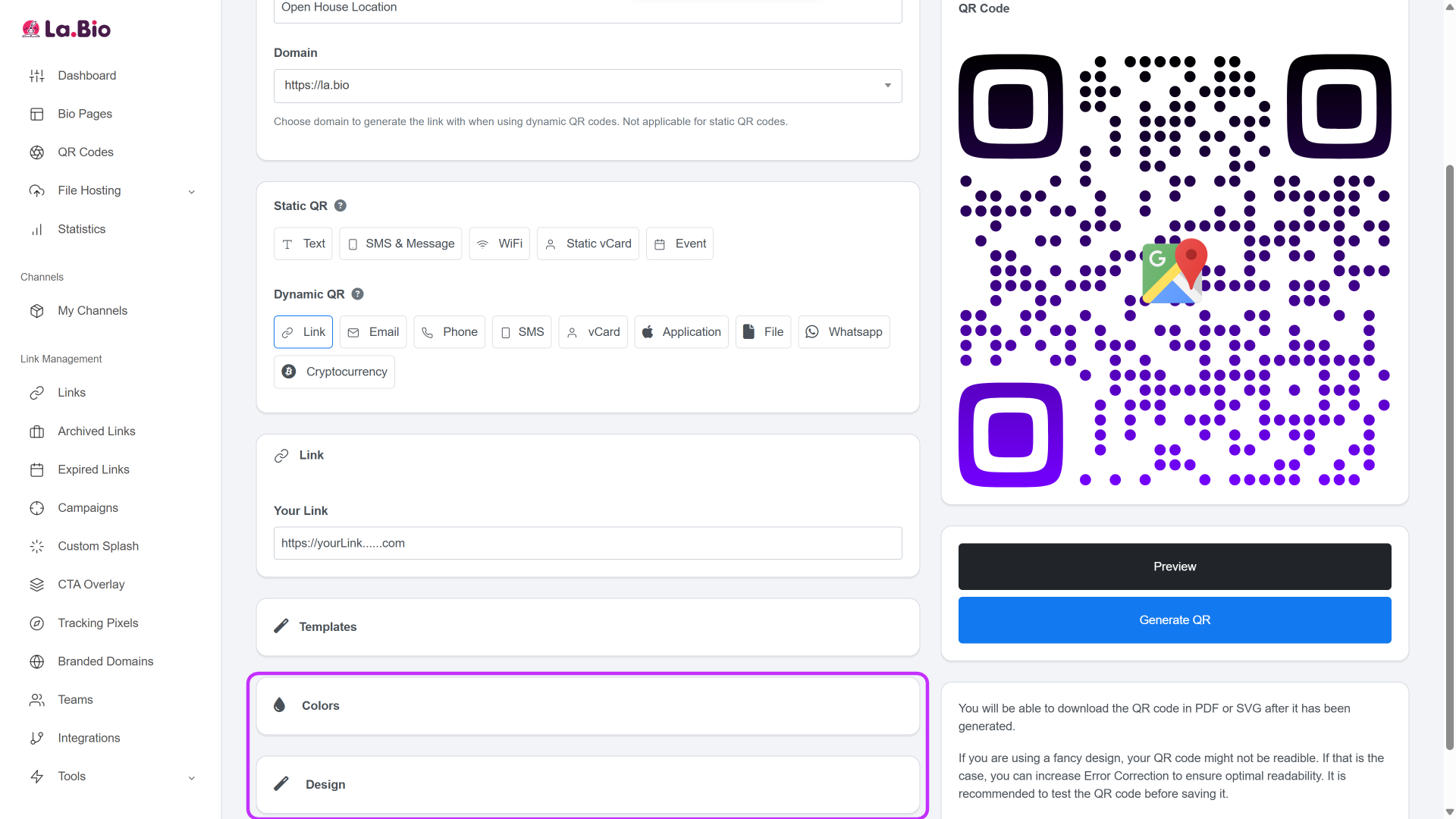
Step 3: Add visual context. Go to the 'Design' or 'Colors' tab. Design Tip: Upload a "Map Pin" icon or the Google Maps logo to the center of the image. This ensures users instantly know the code is for navigation before they even scan it.
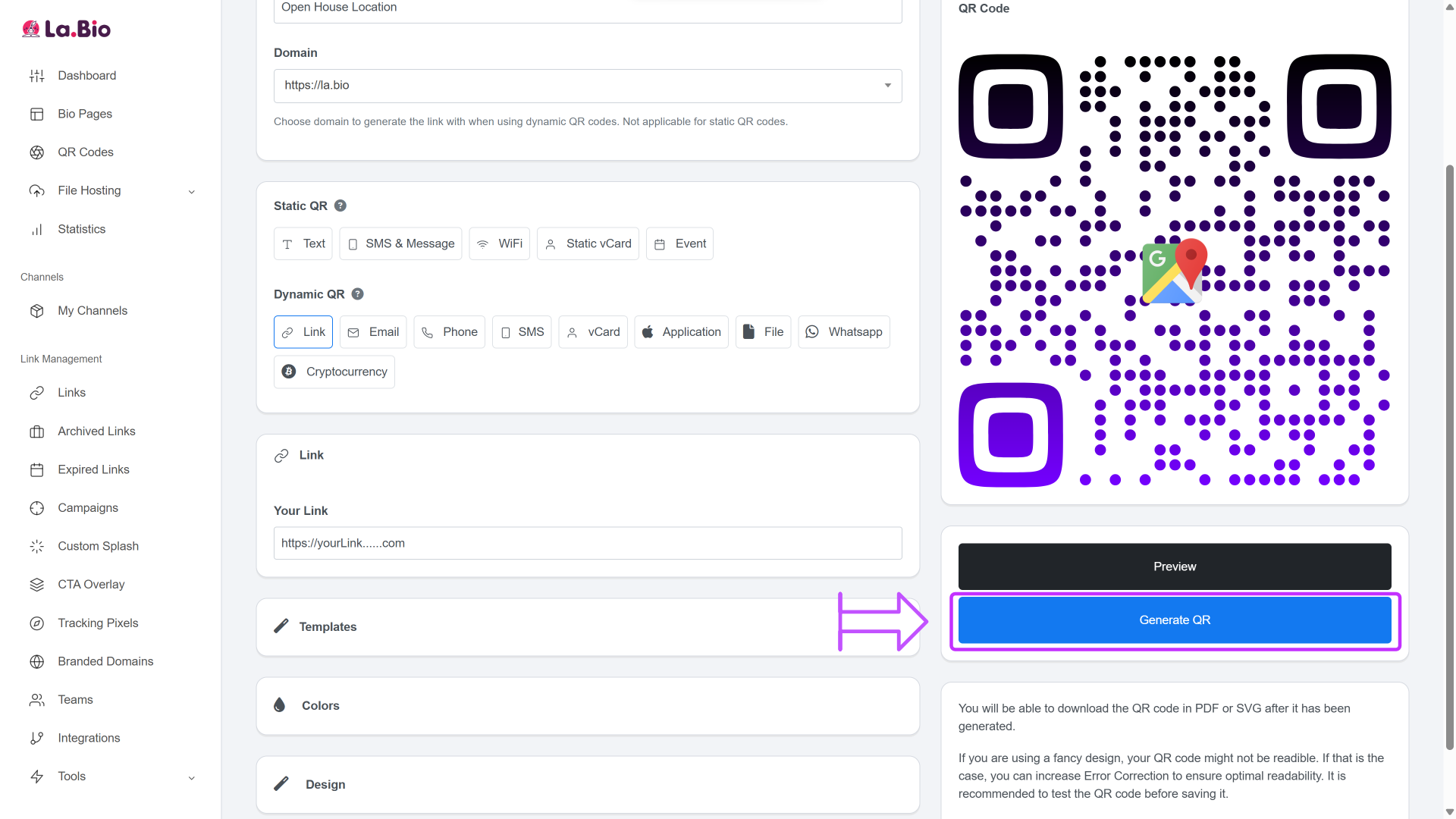
Step 4: Click "Generate QR" and download your file. We recommend downloading the SVG format if you plan to use the code on large prints, such as real estate signs or banners, to ensure perfect quality.
Smart Ways to Use Location QR Codes
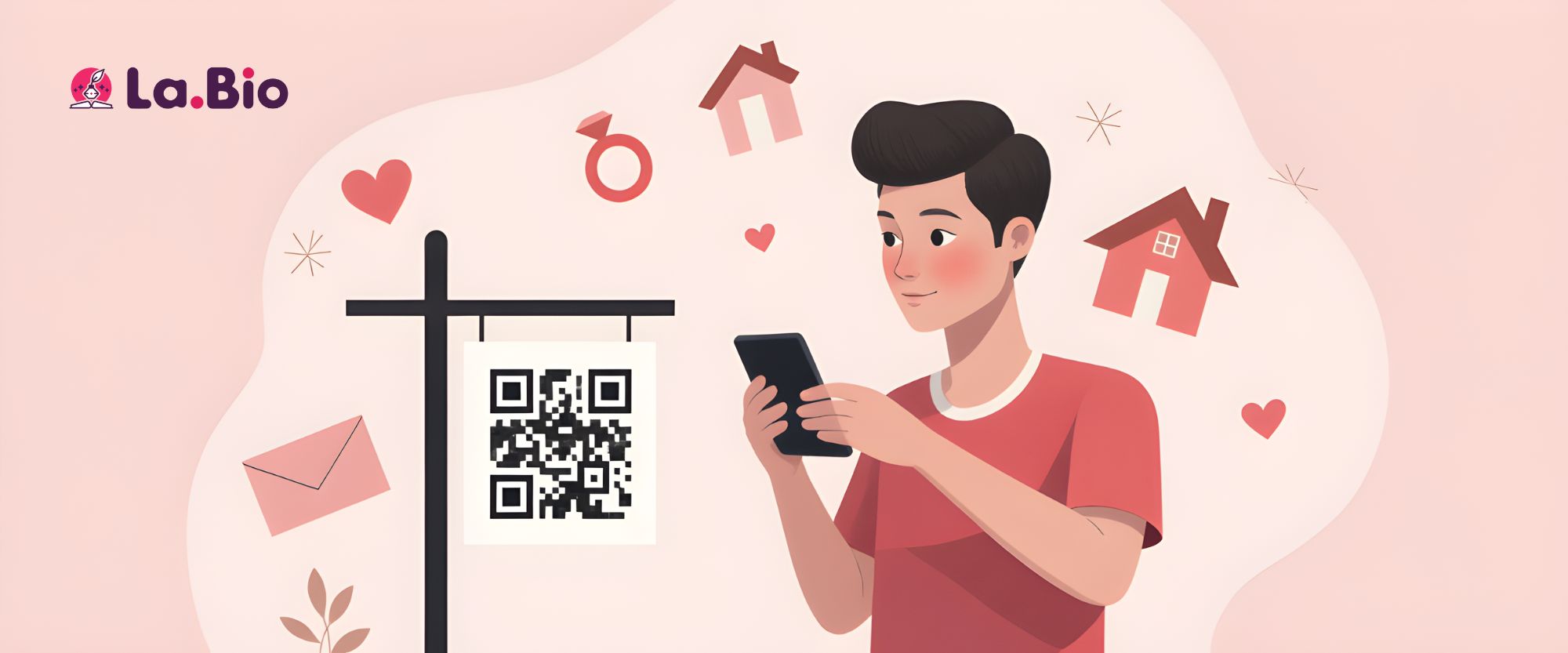
Real Estate Marketing
Place the code directly on your "For Sale" sign riders. Drive-by traffic often spots a house they like but they cannot safely type an address while driving. By scanning the code, they can save the specific location to their phone instantly or get turn-by-turn directions to your open house without the hassle of manual entry.
Weddings & Events
Venue locations can be difficult to find, especially for rustic weddings or pop-up events in large parks. Print the QR code on your physical invitation or save-the-date cards. This guarantees your guests arrive at the correct specific entrance, rather than a general zip code center, significantly reducing those stressful last-minute "I'm lost" phone calls.
Airbnb & Short-Term Rentals
Include the location code in your digital welcome guide or arrival PDF. It streamlines the check-in process for travelers who are unfamiliar with the area and relying on rental cars or taxis.
Enhance the Guest Experience
Once your guests arrive at your location, the very first thing they will ask for is the internet connection. You can streamline this experience just as easily as the navigation. Check our guide on how to share your WiFi password via QR code to make their arrival completely seamless.
Frequently Asked Questions
Will it open Apple Maps on an iPhone?
Yes, in most cases. When a user scans the QR code, their smartphone recognizes it as a location link. If they have the Google Maps app installed, it will typically open there. If not, the phone will usually ask which navigation app they prefer to use, or open the location in the default map application (like Apple Maps) or a mobile browser. It works universally across Android and iOS devices.
Can I change the location address later?
Yes, but only if you use a Dynamic QR Code through La.Bio. If you move your office, change the venue of your event, or realize the map pin was slightly off, you can simply log in to your dashboard and update the destination URL. The QR code image itself remains the same, meaning you do not need to reprint your signs or invitations.
Conclusion
Getting a customer or guest to your physical location shouldn't be a hurdle. Every second they spend typing an address or figuring out which "Main Street" is the right one is a second of friction you can eliminate.
By using a Dynamic Google Maps QR Code, you guide them right to your door with a single scan. It is professional, efficient, and prevents the frustration of getting lost.
Make your location easy to find. Create your Map QR Code for free now.