Quick Answer: To create a one-click Zoom QR code, first enable 'Embed passcode in invite link' in your Zoom settings. Copy this long invite URL. Log in to La.Bio, click 'Create QR', select 'Link' (Dynamic), and paste the URL. Print this code, and users can scan to join instantly without typing a password.
The Scenario:
Picture this: You rush into a conference room for an important daily standup. The meeting has already started. The Meeting ID is scrawled faintly on a whiteboard in the corner. You fumble with your phone, trying to type in a 10-digit number, only to realize you also need a complex 6-digit passcode. You type it wrong. You try again. By the time you finally join, you’ve missed the opening remarks. This friction is a productivity killer in hybrid work environments.
The Upgrade:
Now, imagine the upgrade. You walk to the same meeting room, but instead of typing, you see a sticker on the door or the conference table. You pull out your phone, scan the code, and the Zoom app launches immediately, logging you straight into the session. No typing, no errors, no delay.
The Tech:
This isn't magic; it is smart link management. It works by encoding the specific Zoom "Invite Link"—which has the password already encrypted within it—directly into a QR code. When you combine this with [La.Bio]’s dynamic QR technology, you create a seamless, touchless entry system that modernizes your office space.
Step 1 - Get the Right Zoom Link (Crucial Step)
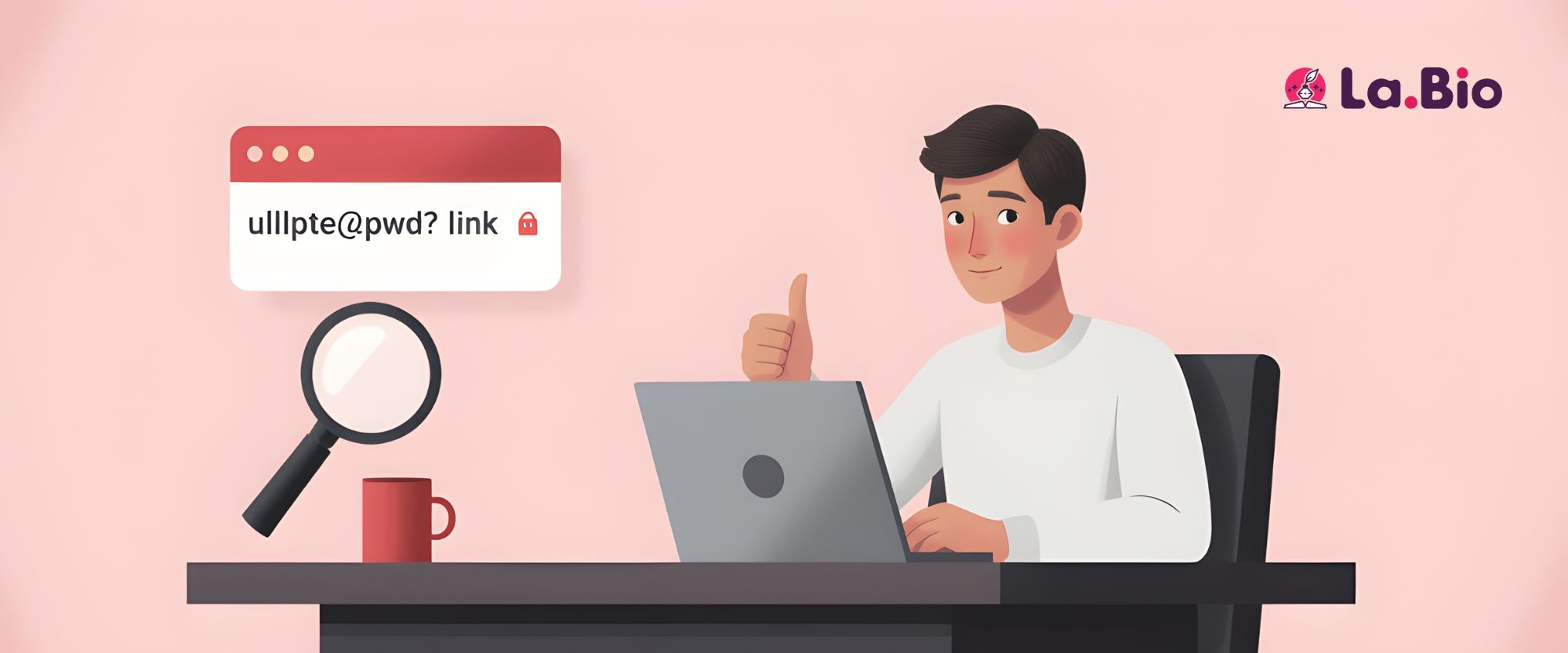
Before generating your code, you must ensure you are using the correct URL. If you simply encode a generic link to your personal meeting room (PMI) without checking your settings, users will scan the code and still get hit with a "Enter Meeting Passcode" prompt. That defeats the purpose of a quick scan.
To create a truly touchless experience, you need the "One-Click" join link. Here is how to find it:
Check Your Global Settings: Log in to the Zoom web portal (zoom.us) and navigate to Settings. Scroll down to the Security section and ensure the option Embed passcode in invite link for one-click join is toggled ON. This encrypts the password into the URL itself.
Locate Your Meeting: Go to your "Meetings" tab and select the scheduled meeting (or your Personal Meeting Room) you want to share.
Copy the Invite Link: Look for the "Invite Link" field. It should be a long URL that contains a question mark followed by "pwd=" and a string of random characters (e.g., .../j/123456?pwd=xYz123...).
Note: You must use this long version of the link. If you use the short link, the passcode won't be included, and your colleagues will be stuck typing on their screens.
Step 2 - Turn the Link into a Dynamic QR Code
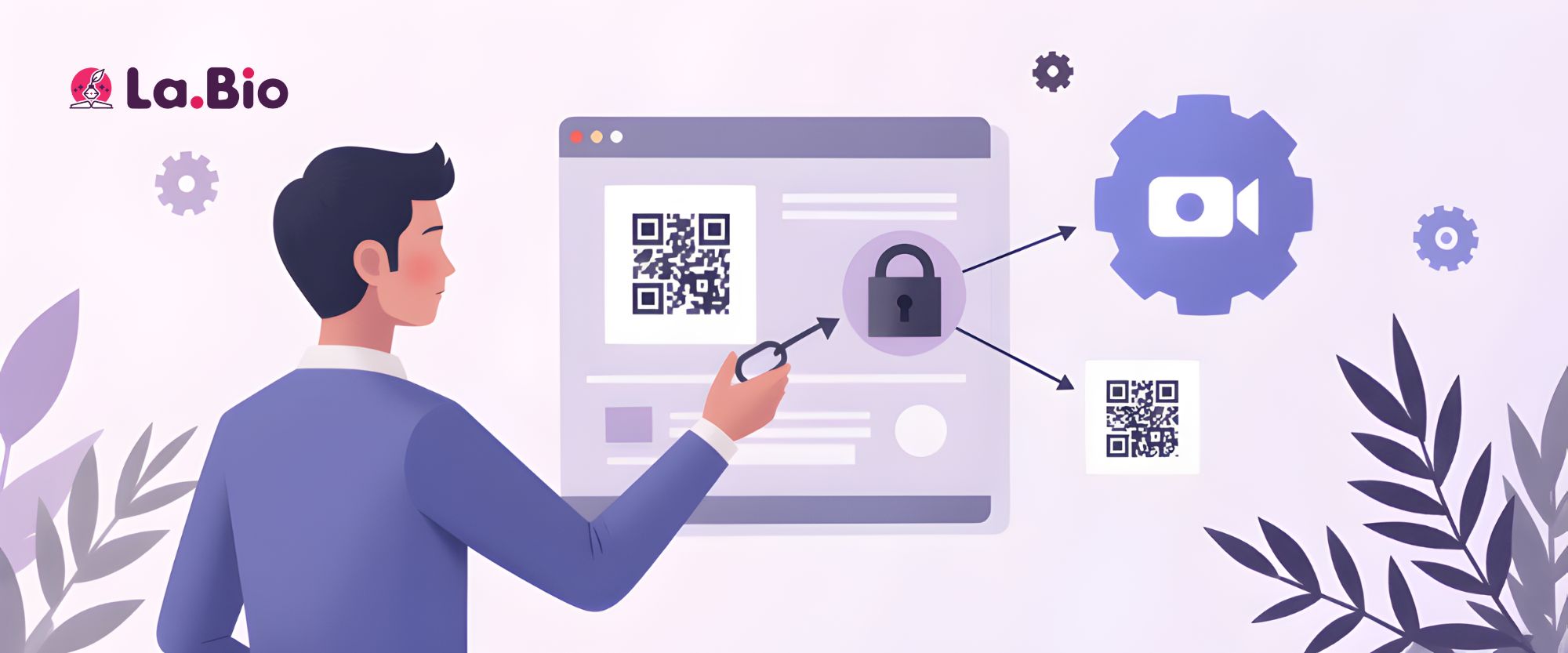
Now that you have the "One-Click" URL, it’s time to package it into a scannable format using [La.Bio].
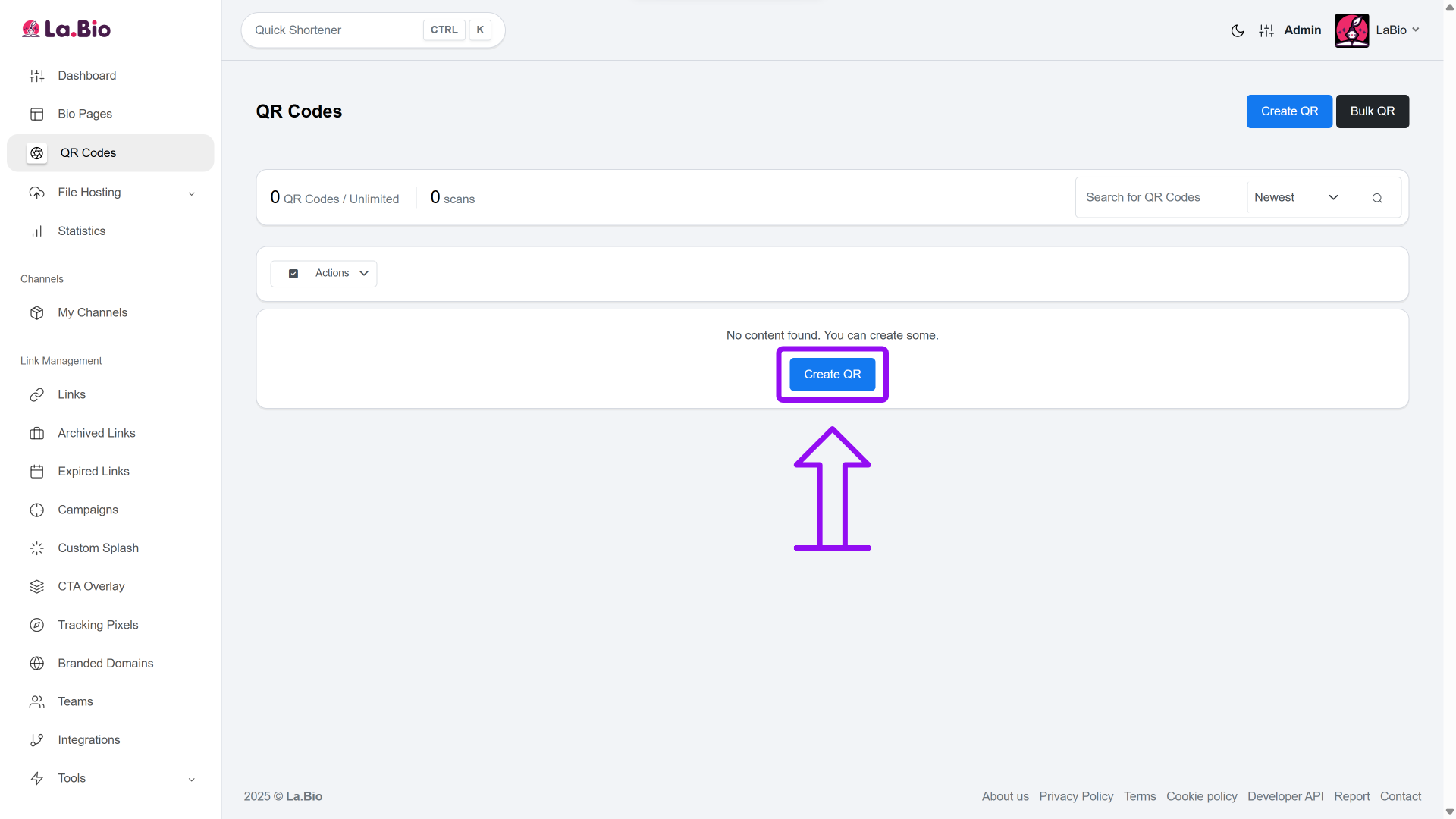
Log In and Start: Sign in to your [La.Bio] dashboard and click the "Create QR" button.
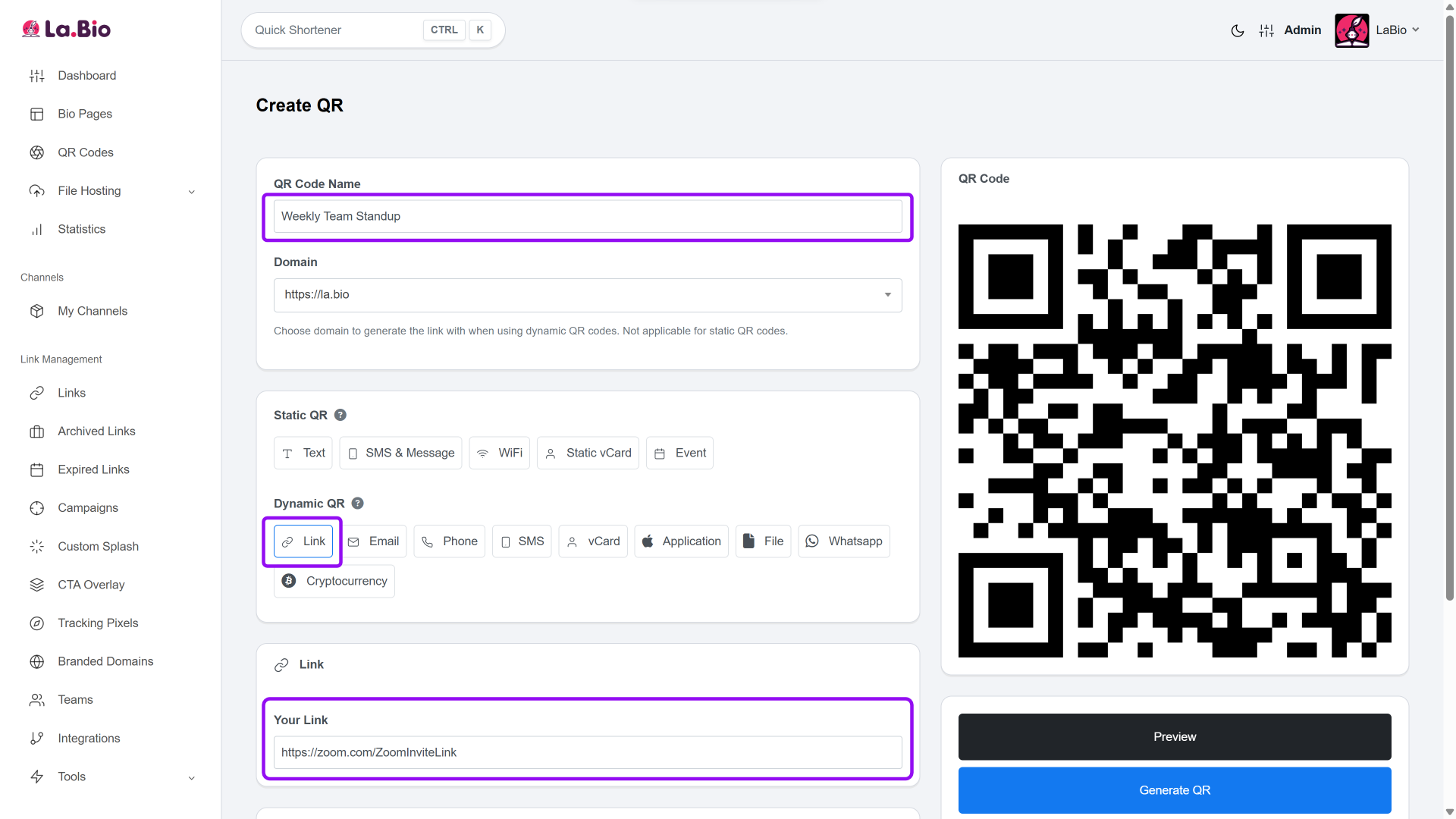
Name Your Code: Give your QR code a recognizable name, such as "Weekly Team Standup" or "Conference Room A." This helps you track scan analytics later.
Select Dynamic Link: Under the QR types, select the "Link" icon within the Dynamic QR section.
ü Pro Tip: Always choose Dynamic for meeting rooms. If your Zoom link changes (or you switch to Google Meet later), you can simply update the URL in your [La.Bio] dashboard. The printed QR sticker on the wall remains the same, saving you from re-printing and re-sticking codes.
Paste the URL: Paste the long Zoom Invite Link (the one with the ?pwd= section) into the URL field.
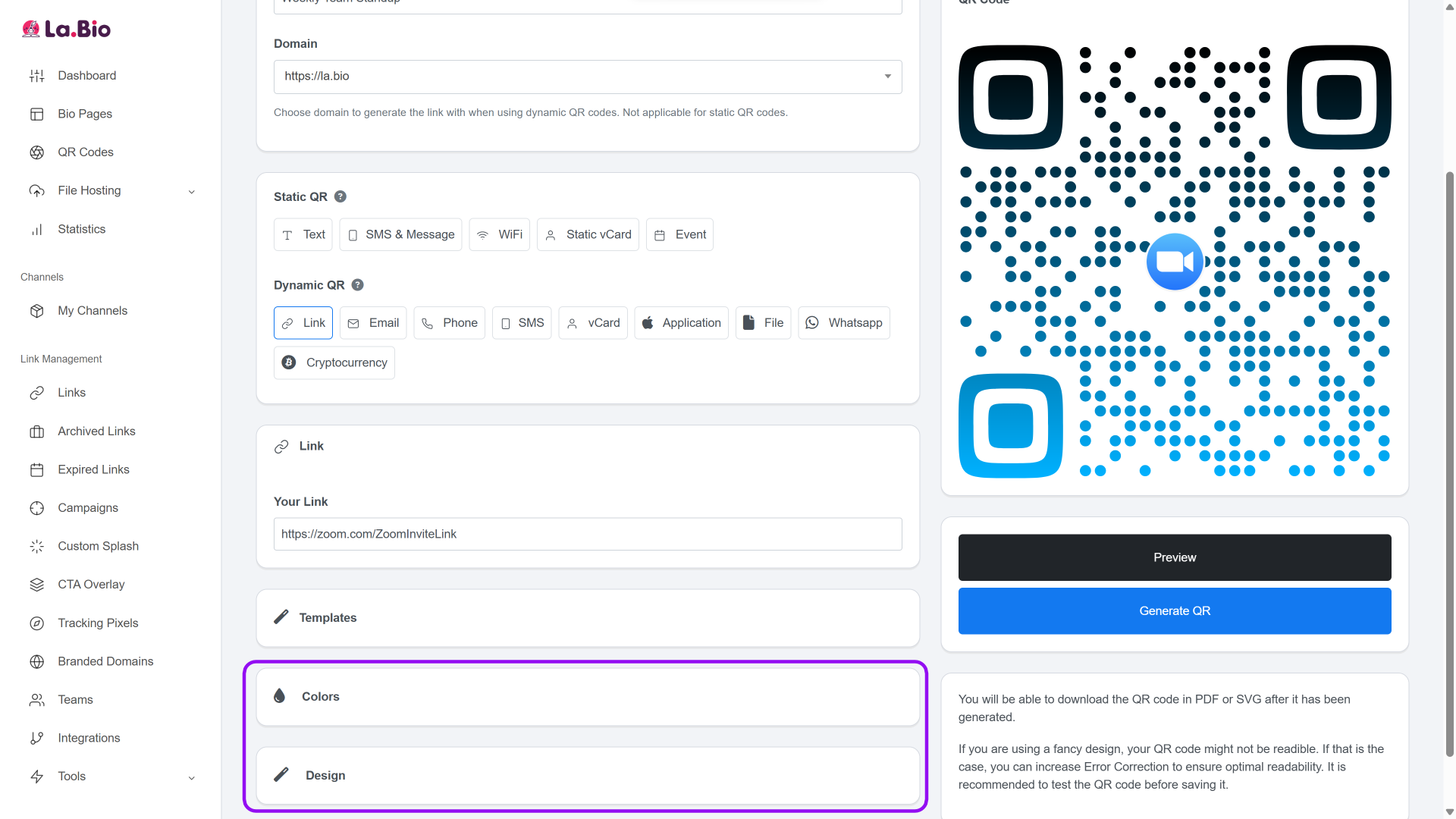
Customize the Design: In the Design tab, you can customize the colors to match your office branding. Crucially, upload the Zoom logo and place it in the center of the code. This is vital for user experience—it tells people exactly which app will open when they scan.
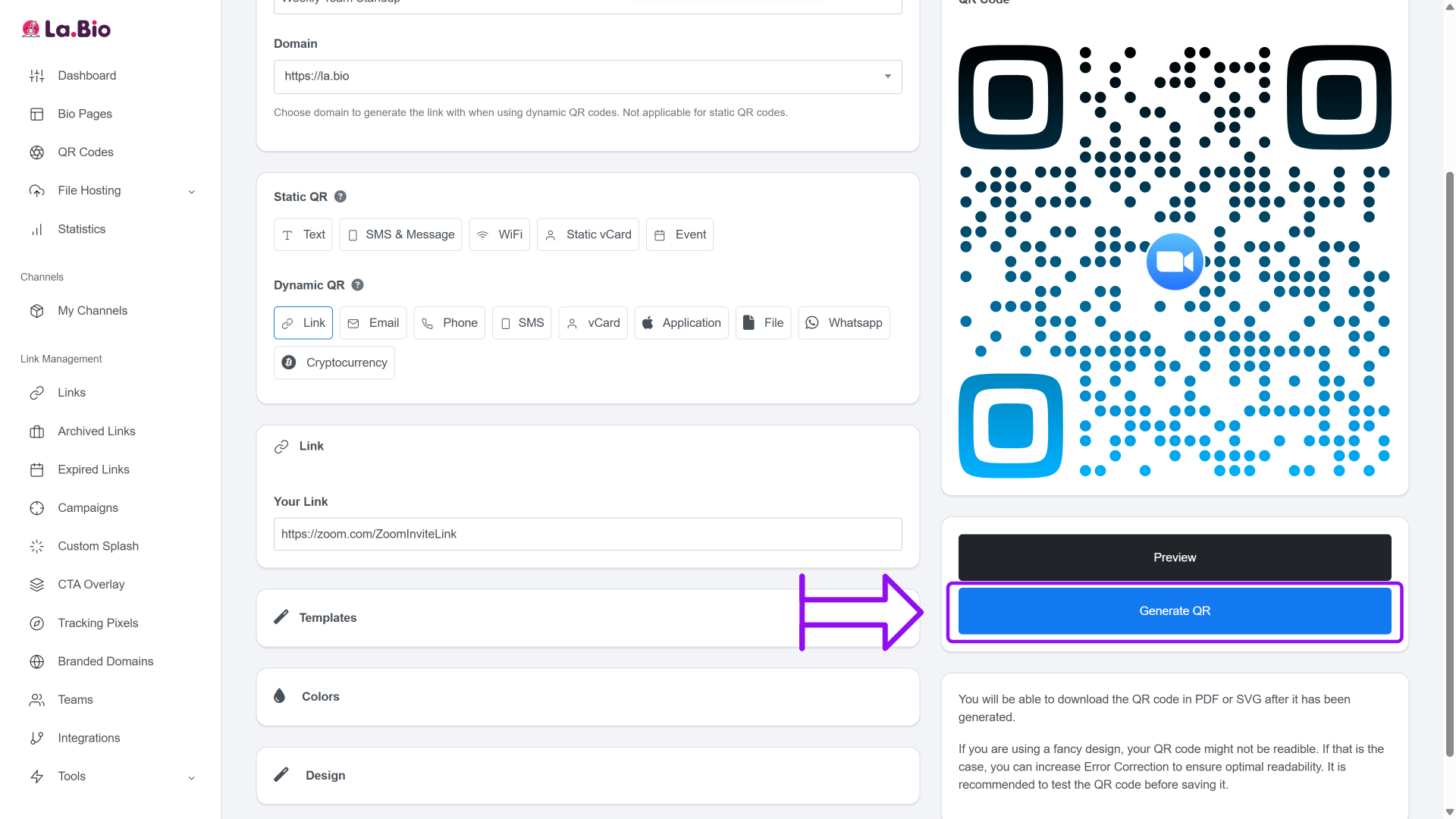
Generate and Download: Click "Generate QR", test it with your phone camera to ensure it opens Zoom instantly, and then download the file in high quality (PNG or SVG) for printing.
Best Places to Use Zoom QR Codes
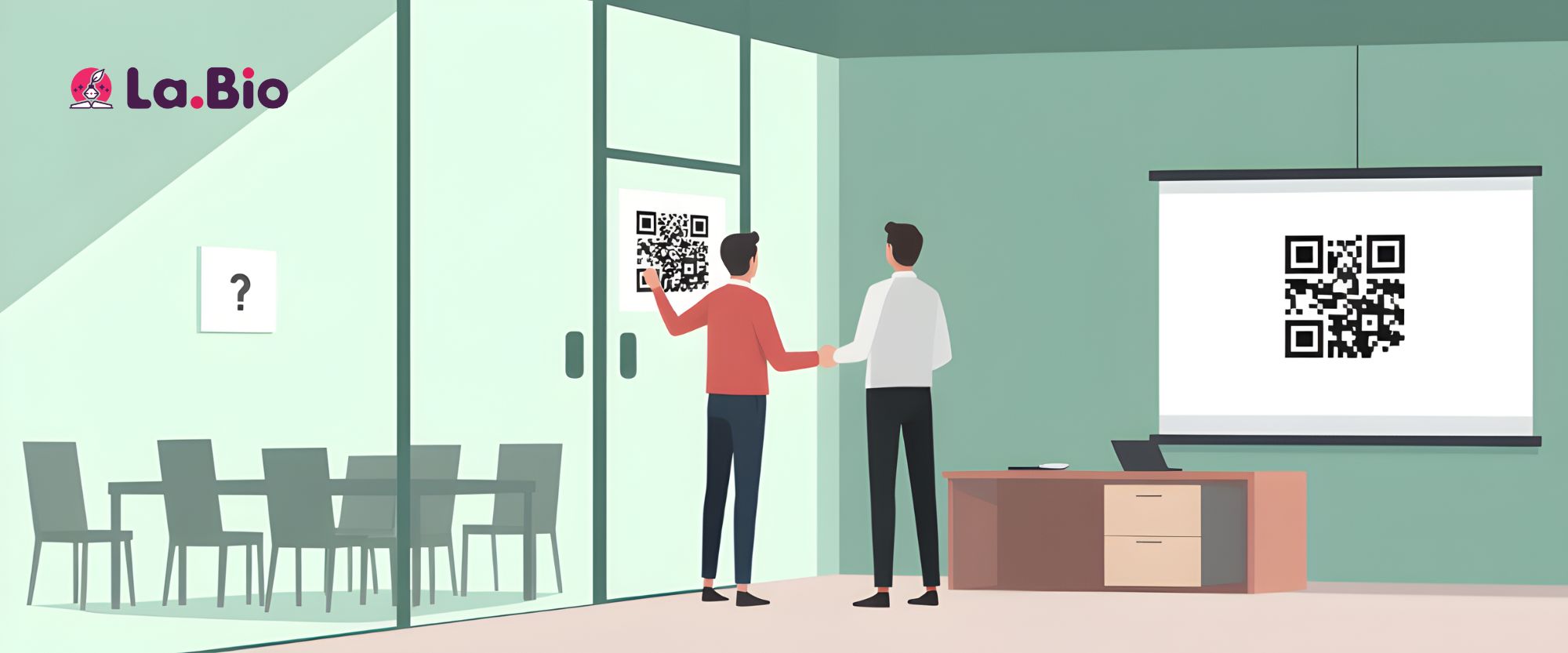
Once you have your code, placement is key. Here are the most effective spots to use them for maximum productivity:
Meeting Room Doors & Tables: This is the classic use case. Place a laminated QR sticker on the conference room door or the center of the meeting table. It allows colleagues to walk in, scan, and join the specific "Room ID" instantly without searching their email or calendar invites.
Printed Invitations & Flyers: Whether it is a hybrid company town hall, an employee onboarding packet, or a physical event flyer, adding a QR code makes the transition from paper to digital video seamless. It bridges the gap between the real world and your virtual event.
Presentation Slides: If you are presenting to a large group, place the QR code on your opening title slide. This allows attendees to quickly join the Zoom session on their mobile devices—acting as a second screen—so they can participate in polls or view shared content up close.
Pro Tip for Organizers: If you are hosting a webinar or a client consultation, you often need people to reserve a specific time slot before they even get the Zoom link. In that scenario, you should first [create a booking QR code] for your calendar to manage the schedule effectively.
Frequently Asked Questions
Q: Does the user need the Zoom app installed to scan the code?
A: For the smoothest experience, yes. Most smartphone cameras will recognize the link, but having the Zoom app installed ensures that the link opens the meeting interface directly. If the user does not have the app, the link will open in their mobile browser, which often requires them to download the app anyway to access audio and video features properly.
Q: Is it secure to put a password-embedded link in a QR code?
A: Yes, provided you treat the QR code like a key. The password is encrypted within the link, meaning anyone who scans it can enter the meeting without a manual password. This is perfect for internal office use or private invites. However, do not post this specific QR code on social media unless you want the meeting to be public.
Conclusion
Hybrid work shouldn't be hard. By removing the friction of typing long Meeting IDs and complex passcodes, you save time for every single attendee. A "One-Click Join" QR code is a small tech upgrade that makes a massive difference in how professional and efficient your meetings feel.
Ready to upgrade your conference room?
Stop typing meeting IDs. Create your Zoom QR Code for free now.