Upgrade Your Payments: How to Create a Custom & Trackable Venmo QR Code
Venmo has become a go-to for quick and easy payments. Its built-in QR code feature is perfect for splitting dinner with a friend or paying back your roommate. It’s simple, fast, and gets the job done.
But what if you're using Venmo for your business, your side hustle, or your brand? When you’re accepting payments from customers, you need more data, more branding, and more flexibility. The basic, blue Venmo QR code just doesn't cut it.
This article will show you how to level up your payment process by creating a professional, custom Venmo QR code that offers powerful marketing and analytics features the native app leaves out.
The Limitations of the Native Venmo QR Code
While convenient for personal use, the standard QR code found inside the Venmo app is holding your business back. It was designed for simplicity, not for professional applications.
Here are the primary drawbacks:
No Customization: You are stuck with Venmo's branding, colors, and logo. This offers no opportunity to feature your own brand, which can confuse customers and dilute your brand identity.
No Analytics: You have no way of knowing how many people scan your code, where they scanned it, or when. This leaves you in the dark about the effectiveness of your marketing materials.
It's Static: If you ever change your Venmo username, every QR code you've printed on business cards, flyers, or posters becomes completely useless. You have to reprint everything, wasting time and money.
Basic Print Quality: The standard code is not designed for high-resolution printing. When scaled up for larger materials like banners or signs, it can become pixelated and unprofessional.
The 4 Advantages of Using a Professional Venmo QR Code Generator
Switching to a third-party Venmo QR code generator unlocks the marketing power your business needs to grow. It turns a simple payment tool into a data-driven touchpoint for your brand.
1. Full Brand Customization
First impressions matter. A custom QR code acts as a seamless extension of your brand. Instead of promoting Venmo, you're reinforcing your own business identity. Add your logo and match your brand colors to build trust and recognition. A customer seeing your branding on a QR code is more likely to feel secure and confident making a payment.
2. Powerful Scan Analytics
Data is the key to smart marketing. A professional QR code generator allows you to track every scan to measure engagement at events, on flyers, or on business cards. Know what's working! You can see how many scans you get, the locations of the scans, and the times they occurred. This data helps you understand which marketing channels are driving the most payments and where to focus your efforts.
3. The Power of Dynamic QR Codes
The modern business environment requires flexibility. Dynamic QR codes are the ultimate solution for this. You can update your payment link anytime without reprinting your QR code. Did you switch your primary payment app from Venmo to PayPal? No problem. Just log into your QR code generator's dashboard, paste the new link, and the QR code your customers are scanning will instantly redirect to the new destination.
4. High-Resolution Formats for Printing
Professional materials require professional quality. Advanced QR code generators allow you to download your code in SVG or EPS formats for perfect quality on everything from small stickers to large banners. This ensures your QR code is always sharp, scannable, and looks professional, no matter where you print it.
How to Create a Professional Venmo QR Code (Step-by-Step)
Creating a custom, trackable QR code is surprisingly simple. First, you'll need your unique Venmo payment link [https://venmo.com/u/your-username].
How to find your Venmo URL:
First, double‑check your Venmo username.
You can find it in the Venmo app or website—your profile page shows it right under your name.
Once you know your username (for example, @JaneDoe123) your link is simply:
https://venmo.com/u/JaneDoe123
Once you have your link, follow these simple steps on our QR code generator:
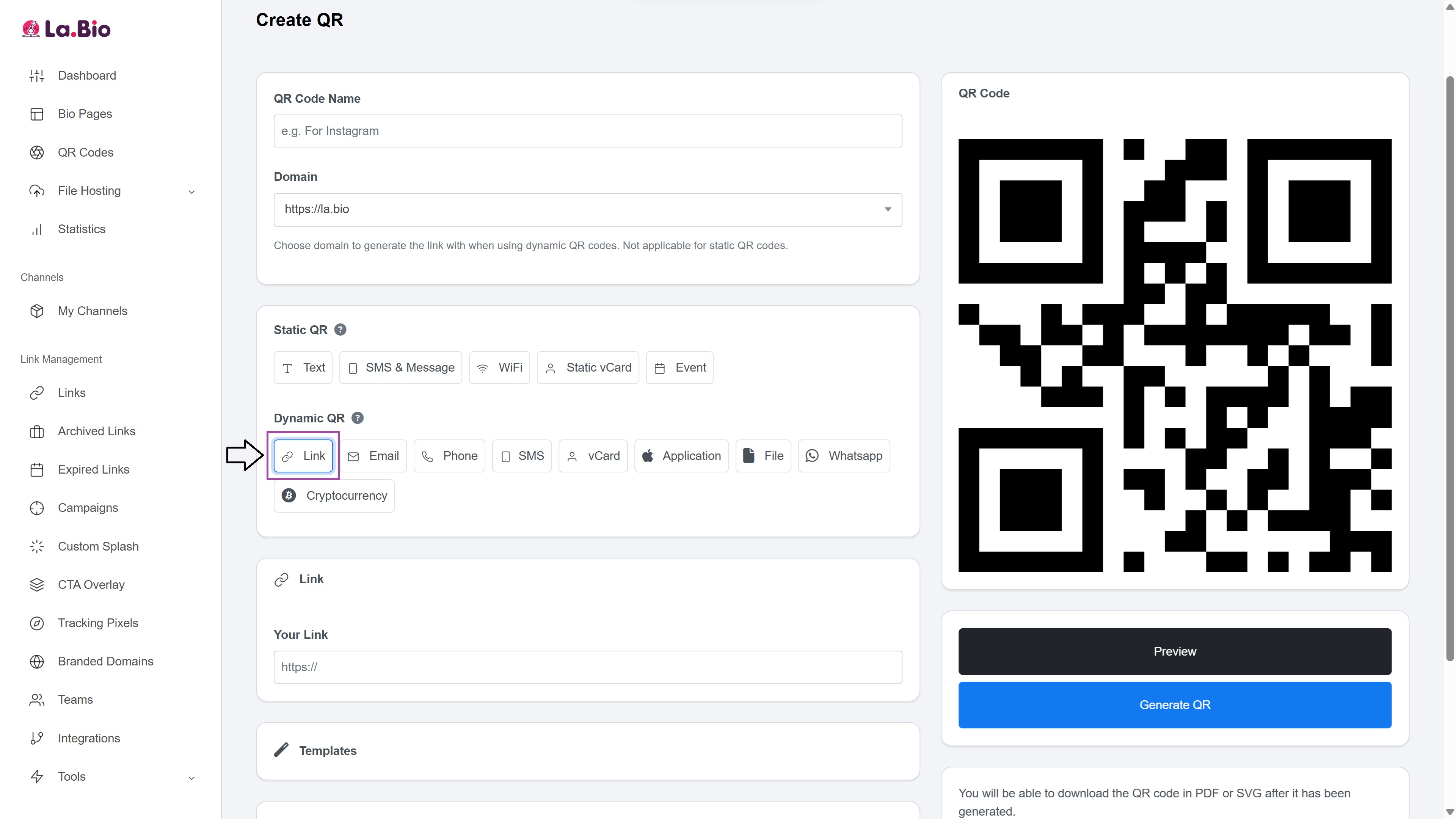
Select the "Link" or "URL" QR code type on our generator's dashboard.
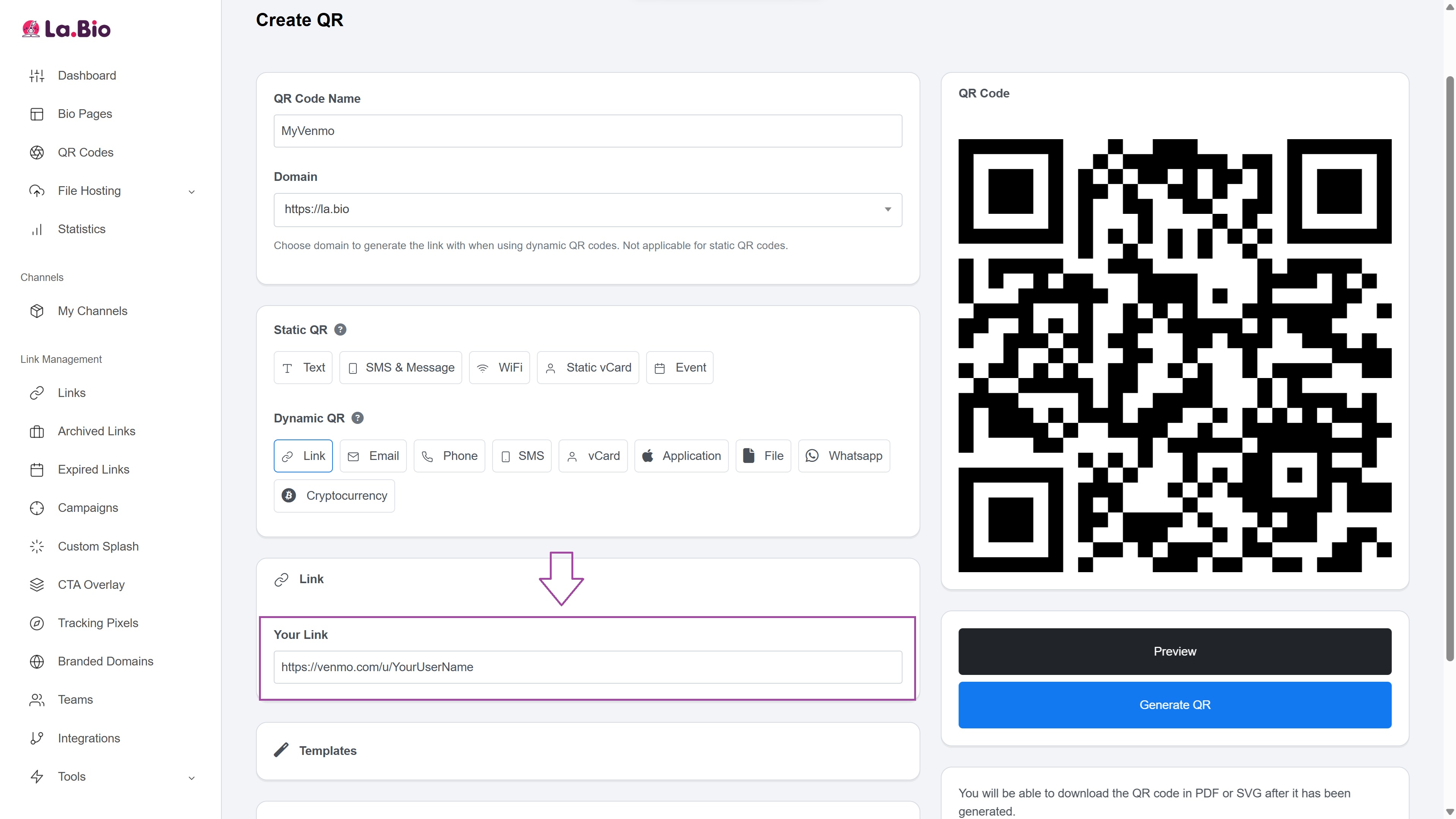
Paste your Venmo URL into the designated field.
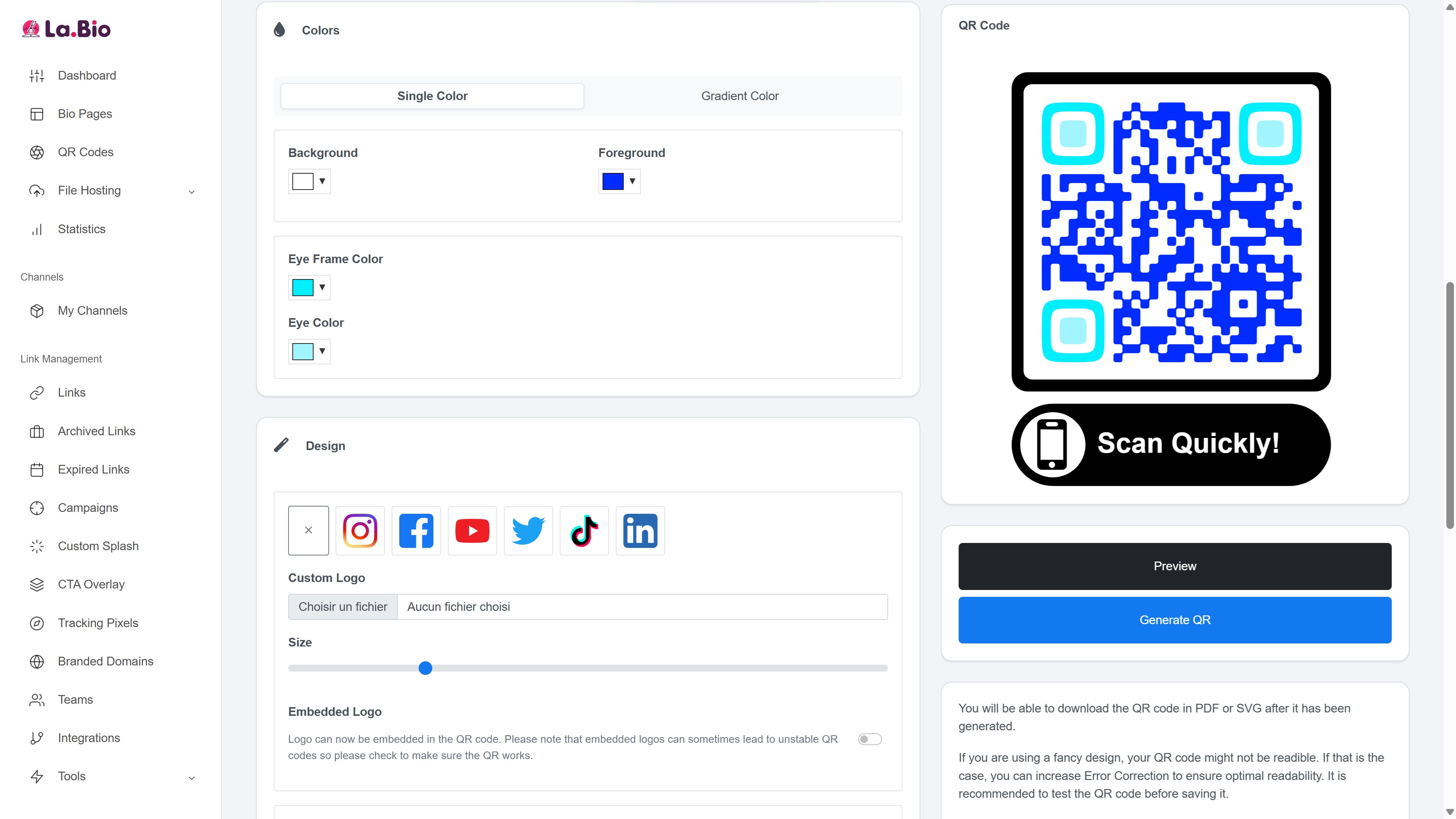
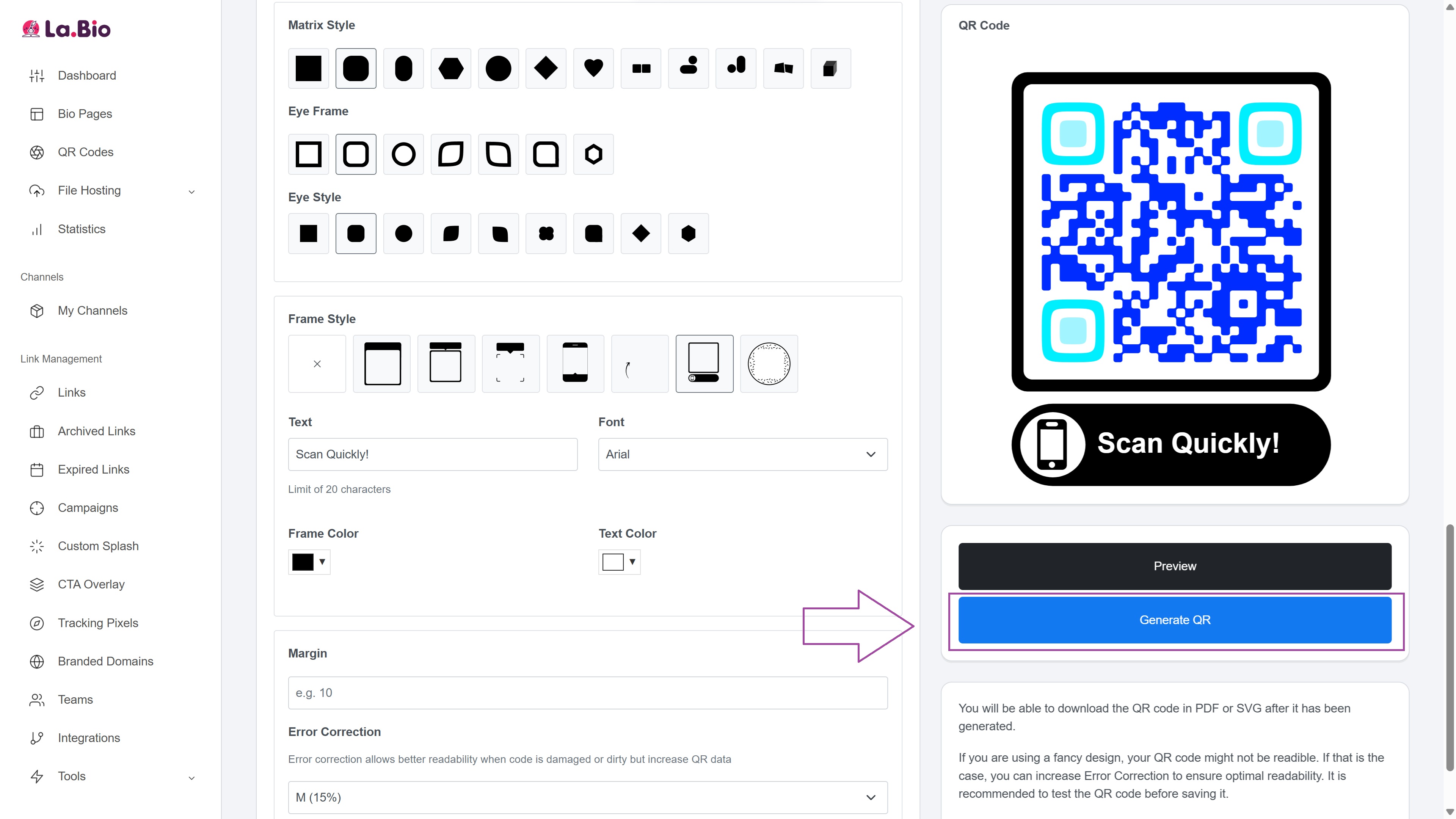
Customize your QR code! Add your logo, change the colors to match your brand, and choose a frame.
Download your new, professional QR code in the high-resolution format you need.
That's it! You now have a trackable, editable, and beautifully branded QR code ready to be deployed across all your marketing materials.