Quick Answer: To generate a free QR code, go to La.Bio, choose your QR type (like URL, WiFi, or vCard), and enter your information. Customize the colors and logo in the design tab, then click "Generate QR" to download it instantly in high-quality SVG or PNG format. No credit card required.
The Rise of QR Codes in Daily Life
From restaurant menus to bus stops, QR codes have become an unmissable fixture in our daily lives. These pixelated squares, once used for tracking automotive parts, saw a massive and rapid adoption, significantly accelerated by the global need for contactless solutions. They now offer instant access to a world of information, simplifying tasks like making payments, sharing contact details, or connecting to a Wi-Fi network. In fact, recent studies show that a significant percentage of smartphone users scan a QR code on a regular basis.
Our Promise: Master QR Code Generation in Minutes
Despite their ubiquity, the process of creating these practical tools can seem technical to the uninitiated. But it doesn't have to be. Generating a QR code is a surprisingly fast and straightforward process that anyone can master. Whether you are a marketer looking to enhance an advertising campaign, a small business owner wanting to easily share your details, or simply curious about this technology, this guide is for you. Our promise is simple: in just a few minutes, you will know exactly how to create a QR code tailored to your specific needs.
What is a QR Code, Anyway?

A Simple Definition of "Quick Response" Codes
At its core, a QR code—which stands for "Quick Response" code—is a two-dimensional barcode. Unlike the traditional one-dimensional barcodes you see on product packaging, which store information horizontally, a QR code stores data in a grid of black and white squares both horizontally and vertically.
This matrix-like structure allows it to hold significantly more information, ranging from simple text and website links to complex data like vCards (virtual business cards) and Wi-Fi network credentials.
The "Quick Response" name is no accident. These codes are designed to be read and decoded at high speed by a smartphone camera or a dedicated scanner. Once scanned, your device instantly performs the programmed action, such as launching a website, adding an event to your calendar, or composing an email. This seamless ability to link the physical world to the digital one is what makes QR codes such a powerful and versatile tool for communication and marketing.
Static vs. Dynamic QR Codes: Which One Should You Choose?
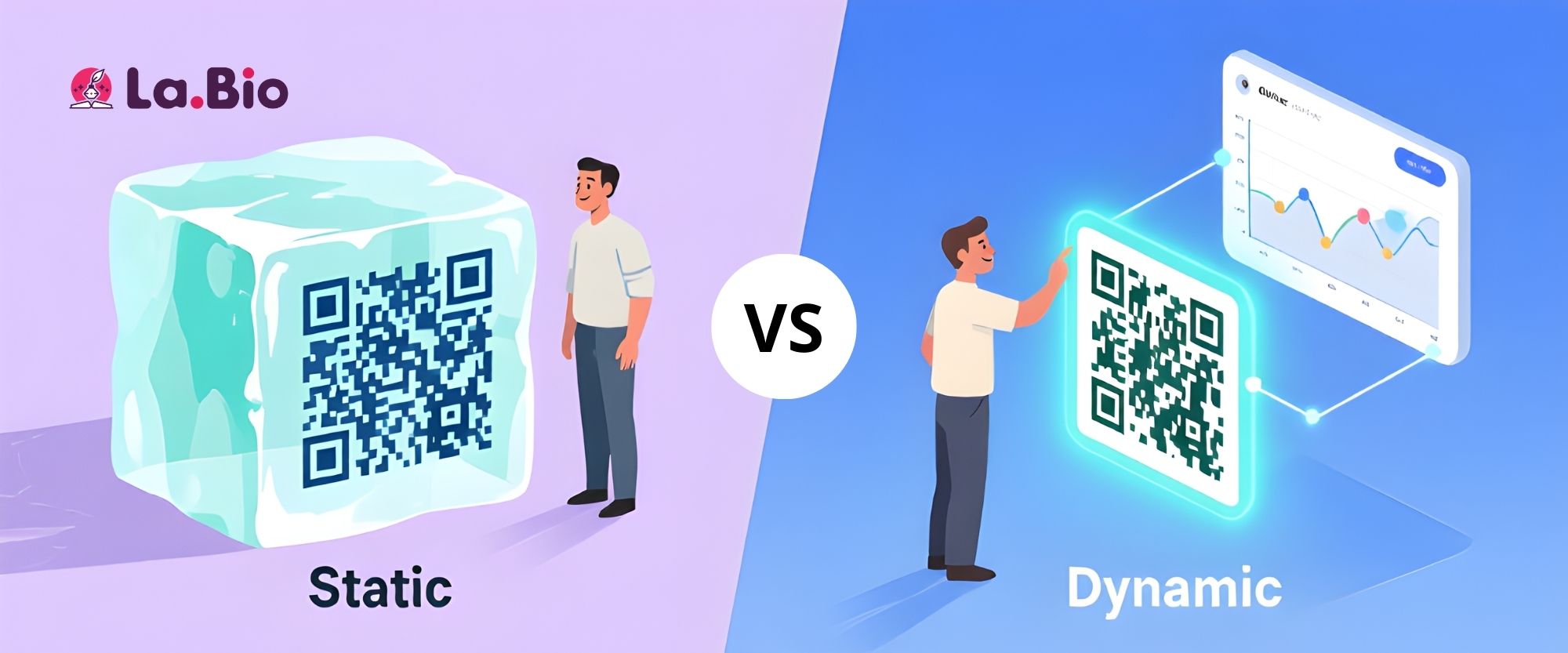
Before you create your first QR code, you need to make a critical decision: should it be static or dynamic? While they may look identical, their functionality is fundamentally different. Understanding this distinction is key to choosing the right option for your goals.
Understanding Static QR Codes: The Permanent Choice
A static QR code is the most basic type. The destination data (like a website URL or text) is encoded directly into the pixelated pattern itself. Once the QR code is generated, the information within it is fixed and cannot be changed. If you need to update the link, you must create an entirely new QR code.
Static QR codes are best for permanent information that will never need updating.
Best Use Cases: Wi-Fi login details, email addresses, personal contact information (vCards), or links to unchanging web pages like a terms and conditions document.
Pros: They are completely free to create and never expire.
Cons: You cannot edit the destination data or track any scan analytics.
Understanding Dynamic QR Codes: The Flexible & Trackable Option
A dynamic QR code offers much more flexibility. Instead of encoding the final destination data directly, it contains a short redirection URL. When a user scans the code, they are first sent to this short URL, which then instantly redirects them to the final destination you've set.
The magic here is that you can change this final destination link at any time without having to reprint your QR code. Furthermore, this redirection process allows the QR code generator service to collect valuable scan analytics, such as the number of scans, the location of the scan, and the device type used.
Best Use Cases: Marketing campaigns, business cards, event promotions, product packaging, and any situation where you might want to update the linked content or track user engagement.
Pros: The destination URL can be edited after printing, and you can track detailed scan analytics.
Pros: Unlike most competitors, La.Bio offers Dynamic QR Codes (editable and trackable) completely for FREE with unlimited scans.
Comparison Table: Key Differences at a Glance
Feature | Static QR Code | Dynamic QR Code |
Editability | No, the data is permanent. | Yes, you can change the destination URL anytime. |
Scan Analytics | Not available. | Yes, tracks scans, location, time, and device. |
Lifespan | Works forever. | Requires an active subscription to function. |
Cost | Almost always free. | Usually requires a paid plan “Completely free at la.bio”. |
Best For | Permanent information (Wi-Fi, vCard). | Marketing, business, and tracking purposes. |
What Can You Create with a QR Code Generator?
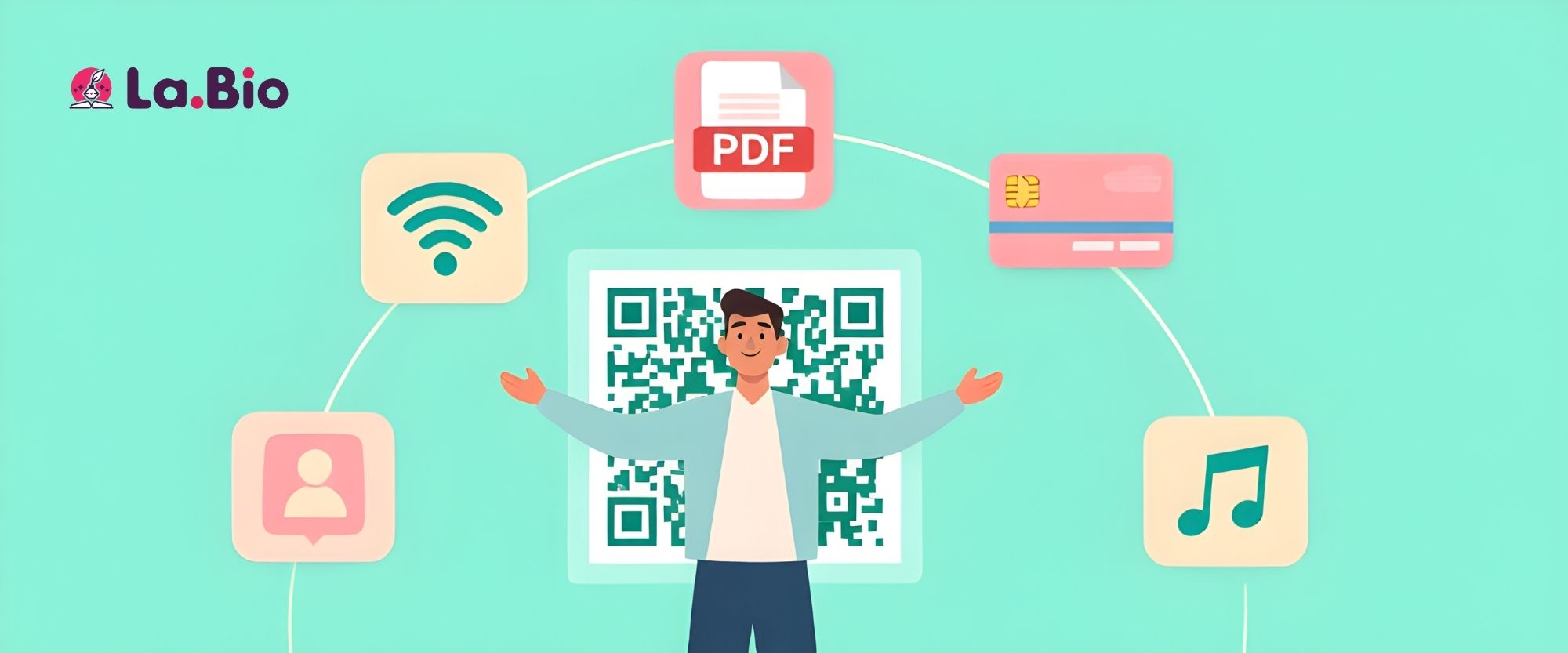
Modern QR code generators are incredibly versatile, allowing you to create a wide range of interactive links that go far beyond a simple website URL. Whether you need a permanent, unchanging code or a flexible, trackable one, there’s a solution for every goal. Here is a comprehensive list of the QR code types you can create.
Static QR Code Types
These are simple, direct codes where the information is permanently encoded. They are perfect for data that will not change.
Text: Display a plain text message, a special code, or any other simple information when scanned.
SMS & Message: Pre-fill an SMS with a specific phone number and message, making it easy for users to text you.
WiFi: Allow visitors to connect to your Wi-Fi network instantly without needing to manually enter the network name and password. Want to set this up for your guests? Read our specific tutorial on how to create a QR code for WiFi password.
Static vCard: Share your contact details. When scanned, it allows users to save your name, phone number, and email directly to their phone's address book. Learn how to make your own digital business card in our guide: how to create a free vCard QR code.
Event: Create a calendar entry with a pre-set event title, date, and time, which users can add to their personal calendar with a single tap. Promoting a concert or meetup? See how to create a QR code for an Eventbrite event.
Dynamic QR Code Types
These powerful codes can be edited after creation and provide valuable scan analytics. They are ideal for marketing and business purposes.
Link: The most popular option. Direct users to any website, landing page, social media profile, or online content. You can update the destination URL at any time.
Email: Open the user’s default mail app with a pre-filled recipient address, subject line, and message body.
Phone: Prompt the user’s phone to call a specific number, eliminating the need for them to dial it manually.
SMS: Similar to the static version, this pre-fills an SMS message, but with the added benefit of being trackable.
vCard: A flexible digital business card. You can update your contact information (phone, email, etc.) at any time without needing to reprint the QR code.
Application: Direct users to the correct download page for your app on the Apple App Store or Google Play Store.
File: Link directly to a downloadable file, such as a PDF menu, a product catalog, or a presentation. Need to share a menu or brochure? Check out how to create a QR code for a PDF document.
Whatsapp: Start a conversation on WhatsApp. When scanned, it opens the app and a chat with a pre-selected phone number. Let customers chat with you instantly. See how to add a WhatsApp button to your link in bio.
Cryptocurrency: Simplify crypto payments by sharing your wallet address. Users can scan the code to easily send Bitcoin or other cryptocurrencies.
How to Create a QR Code in 4 Simple Steps
Creating a professional, customized QR code is a quick and intuitive process. Follow these four steps to go from idea to a scannable, trackable code in minutes. For this example, we'll create the most common type: a Link QR code.
Step 1: Choose Your QR Code Type
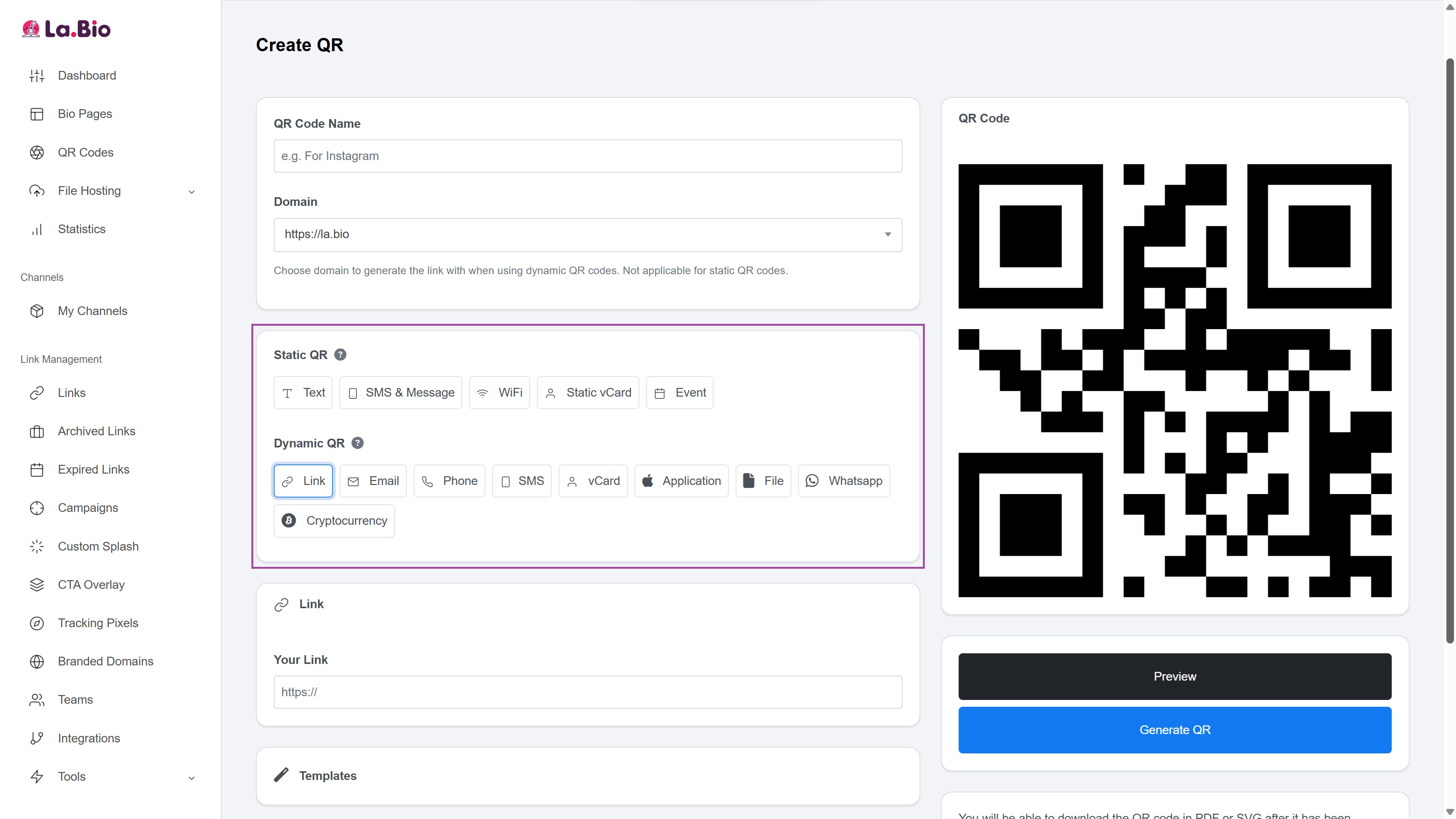
First, you need to decide what you want your QR code to do. In the generator, you will see a selection of types under the "Static QR" and "Dynamic QR" categories.
Since our goal is to direct users to a website and track its performance, we will select Link from the "Dynamic QR" options. This choice gives us the flexibility to change the destination URL later and access powerful analytics.
Step 2: Enter Your Data
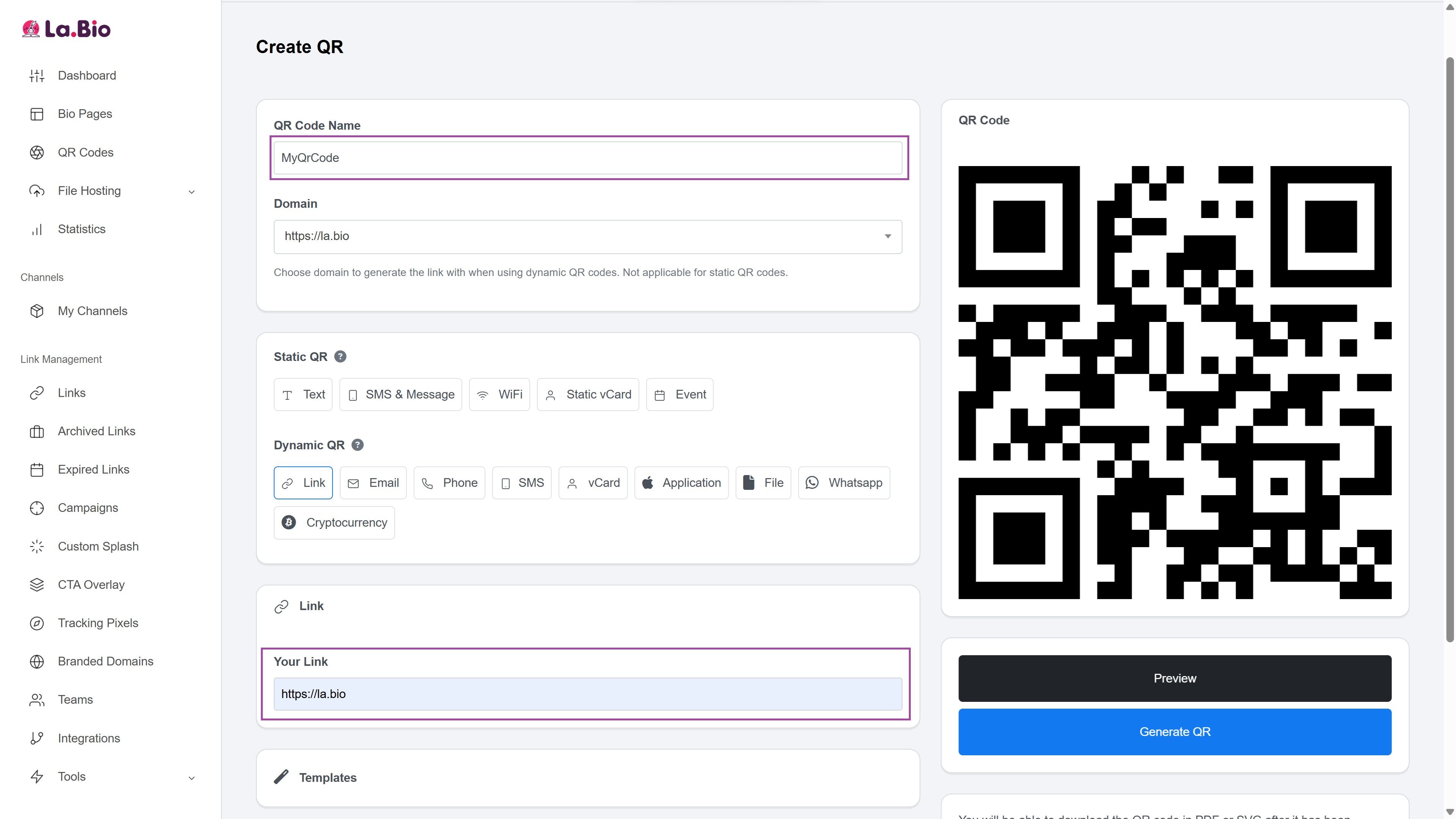
Next, provide the necessary information for your chosen QR code type. For a "Link" QR code, this is straightforward:
QR Code Name: Give your QR code a memorable name (e.g., "Website Homepage Link" or "Fall Marketing Campaign"). This is for your internal use and will help you identify it later in your dashboard.
Your Link: This is the most important field. Enter the full destination URL that users will be redirected to after scanning the code. Make sure to include https:// or http://.
Once you've filled in these fields, your basic QR code is instantly generated and ready for customization.
Step 3: Customize Your Design
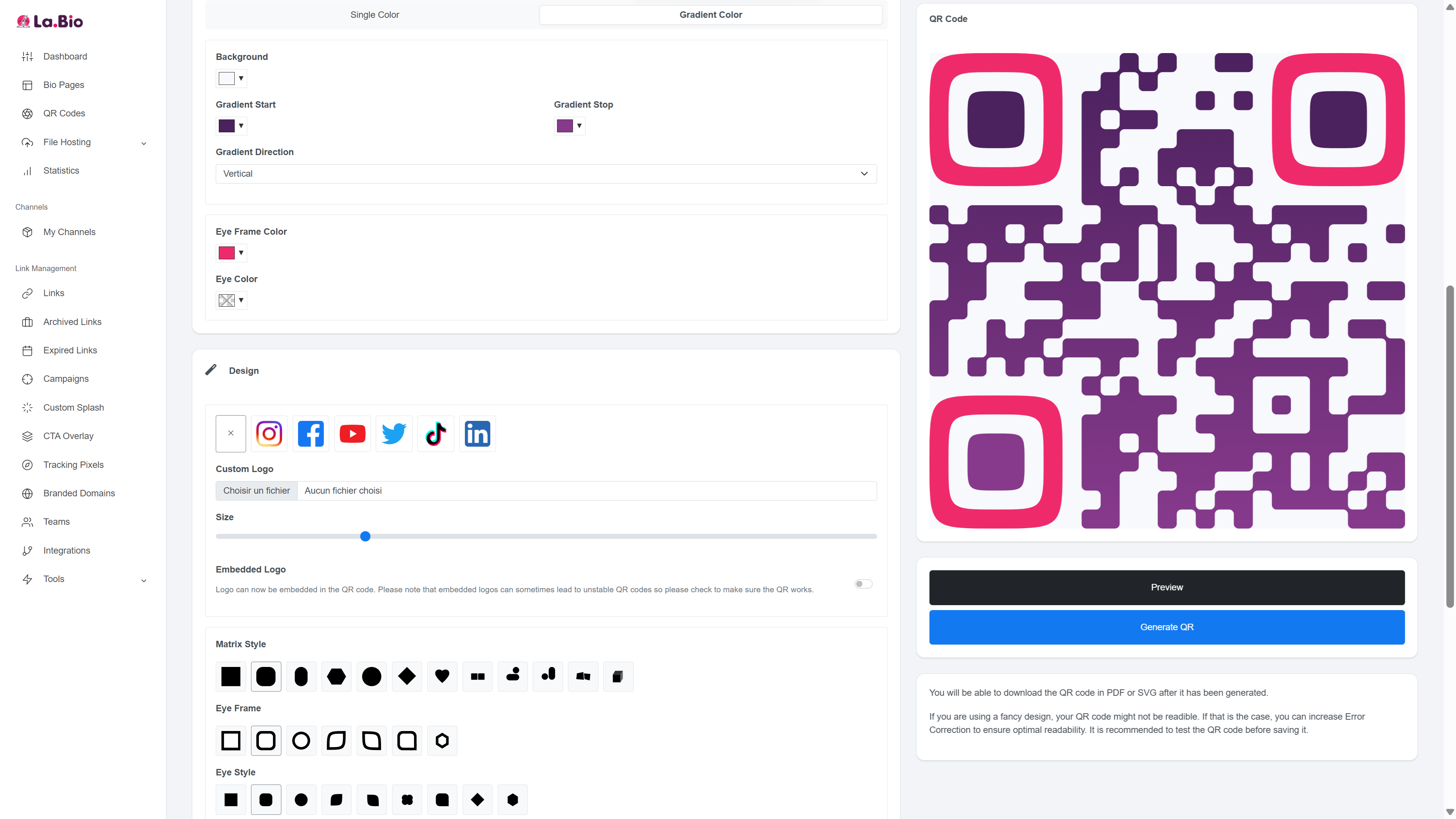
This is where you can transform a standard black-and-white square into a branded asset that grabs attention. A well-designed QR code can significantly increase scan rates. Here are the customization options available to you:
Colors: Move beyond monochrome. You can set a Single Color for the foreground and background or apply a beautiful Gradient Color. You can also customize the Eye Frame Color and Eye Color (the three corner squares) to make them stand out.
Logo: Brand your QR code by adding a logo. Choose from popular social media icons (Instagram, Facebook, YouTube, etc.) or upload your own Custom Logo. A slider allows you to adjust the logo's size for perfect placement.
Matrix, Eye Frame & Eye Style: Define the look of the code's pattern. You can change the shape of the data modules (Matrix Style) from squares to circles, dots, or diamonds. You can also customize the shape of the three larger corner squares with different Eye Frame and Eye Style options.
Frame & Call to Action: Add a customizable frame around your QR code. Choose a Frame Style, add compelling text like "Scan Me" or "View Menu," and select the Font, Frame Color, and Text Color to match your brand.
Margin & Error Correction: Add a "quiet zone" or Margin around your code to ensure it's easily scannable on any background. The Error Correction level allows the QR code to remain readable even if it's partially damaged or obscured. A setting of M (15%) is a reliable choice for most use cases.
Step 4: Download and Track Your Analytics
Once you are happy with your design, the final step is to save it and prepare it for use. Download your finished QR code in a high-quality format.
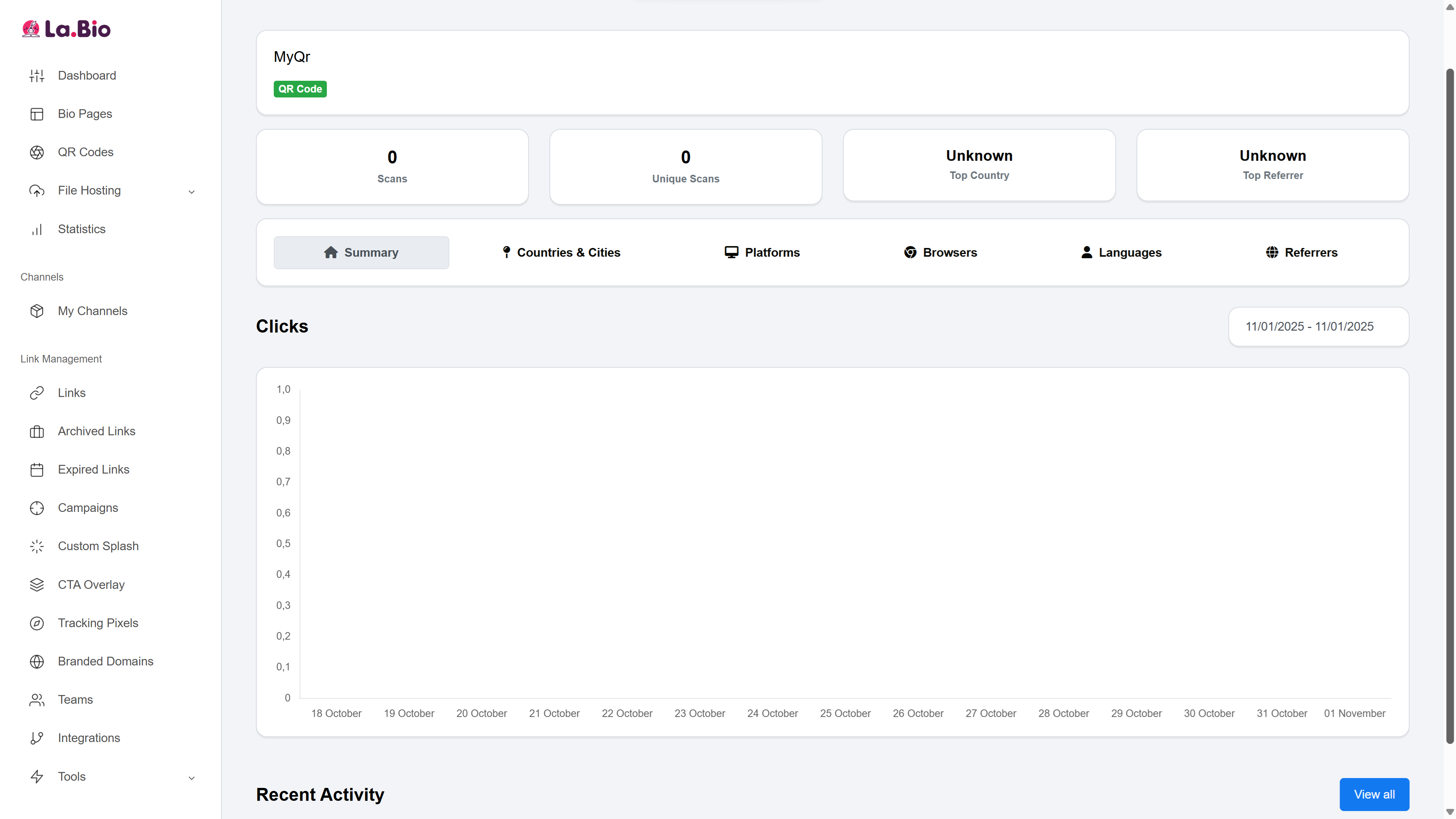
After your QR code is deployed in the real world—on a flyer, a business card, or a poster—you can measure its success directly from your dashboard. Because we chose a dynamic code, you have access to a rich set of analytics, including:
Clicks Overview: See a graph of total Scans and Unique Scans over any date range.
Geographic Data: Discover where your audience is scanning from with data on Countries & Cities.
Device Insights: Understand the technology your audience uses, including their Platforms (e.g., Android, iOS) and Browsers (e.g., Chrome, Safari).
Audience Demographics: Get insights into user Languages.
These analytics provide invaluable feedback, helping you understand user engagement and measure the ROI of your campaigns.
Best Practices for QR Code Success
Creating a QR code is only half the battle. To ensure it performs effectively and provides a great user experience, you need to follow a few key best practices for design, placement, and communication.
Tips for Sizing, Testing, and Design
Mind the Size and Placement: A QR code that's too small won't be scannable. For printed materials, a minimum size of 1 x 1 inch (2.5 x 2.5 cm) is a safe bet. However, the ideal size depends on the scanning distance. A code on a business card can be small, while one on a poster or billboard needs to be significantly larger. Always place it in a location where users can easily scan it without awkward angles or poor lighting.
Maintain High Contrast: The most critical factor for scannability is the contrast between the foreground and background colors. A dark code on a light background is always the best choice. While creative color combinations can look great, avoid light colors like yellow for the foreground or color combinations that are too similar, as they can make the code difficult for some cameras to read.
Include a "Quiet Zone": The margin, or "quiet zone," is the empty space around the edges of your QR code. This buffer helps scanners distinguish the code from other design elements around it. Your generator includes a Margin setting—be sure to use it and avoid placing other graphics or text too close to the code's edges.
Choose the Right File Format: When you download your QR code, you will typically have a choice between formats like PNG and SVG.
PNG: A pixel-based format that is perfect for web use, digital ads, and small-scale printing.
SVG: A vector-based format that can be scaled to any size—from a tiny business card to a massive billboard—without any loss of quality or sharpness. Always use SVG for professional printing.
Always, Always Test: Before sending your QR code to the printer or launching your digital campaign, test it thoroughly. Scan it with multiple devices (both Android and iOS) and with different QR code reader apps to ensure it works perfectly for everyone.
The Importance of a Call to Action (CTA)
Simply placing a QR code on your materials is not enough. You need to tell people what they will get when they scan it. A Call to Action (CTA) is a short, compelling instruction that removes hesitation and provides an incentive to scan.
A QR code without a CTA is a missed opportunity. Your audience has no idea if it leads to a website, a video, a coupon, or something else entirely.
Examples of effective CTAs:
Instead of nothing, write: "Scan to Download Our Menu"
Instead of nothing, write: "Scan for a 15% Discount!"
Instead of nothing, write: "Scan to Watch the Tutorial"
Instead of nothing, write: "Scan to Follow Us on Instagram"
Using the Frame feature in the generator is an excellent way to build your CTA directly into the QR code's design, making it clear, concise, and impossible to miss.
Use Our Free QR Code Generator
Now that you've mastered the theory, it's time to put it into practice. You have learned what QR codes are, the difference between static and dynamic types, and the four simple steps to create a fully customized and trackable code.
There's no need to wait. Start bringing your ideas to life right now.
Our QR code generator gives you all the tools you need—from custom colors and logos to powerful analytics—to create professional QR codes for any project. Whether for business or personal use, the process is simple, fast, and intuitive.
Click Here to Create Your Free QR Code Now
FAQ Section
Here are answers to some of the most common questions about generating QR codes.
Is it free to generate a QR code?
Yes, it is often free. Static QR codes (which link to permanent data like a Wi-Fi network or a specific URL) are almost always free to create and use forever. Dynamic QR codes, which offer advanced features like editable destinations and scan analytics, typically require a paid subscription because they are an ongoing service.
Do QR codes expire?
It depends on the type. A static QR code will never expire. Since the data is encoded directly into the pattern, it will work as long as the destination (e.g., the website link) is still active. A dynamic QR code, however, is tied to a service and an account. It will continue to function as long as your subscription with the provider is active. If the subscription lapses, the QR code's redirection link will be deactivated.
Can I edit my QR code after printing?
This is one of the key differences between static and dynamic codes. A static QR code cannot be edited once it has been generated and printed. If you need to change the embedded information, you must create a new code. In contrast, a dynamic QR code is fully editable. You can change the destination URL or the information it links to at any time through your dashboard, even after the code has been printed and distributed.
Conclusion
From their humble origins in manufacturing to their current status as an indispensable marketing and communication tool, QR codes have proven their value. They are the simplest and most effective bridge between the physical and digital worlds, offering an instant connection with just a quick scan.
As you've seen in this guide, you don't need to be a tech expert to leverage this technology. With a powerful QR code generator, anyone can create, customize, and track QR codes in just a few minutes. Whether you choose a simple static code for permanent information or a flexible dynamic code to measure a campaign's success, you now have all the knowledge needed to get started.