Quick Answer: To build a portfolio link in bio, create a page on La.Bio and click 'Add Link or Content'. Instead of standard buttons, choose the 'Image' widget (for 1-2 photos) or the 'Carousel' widget (for up to 5 photos). Upload your best shots and link them to your full gallery to convert visitors into clients.
You are a visual artist—a master of light, composition, and color. So why does your Instagram link in bio look like a boring spreadsheet of text buttons?
For photographers, graphic designers, and visual creators, the standard list of links simply doesn't work. Text doesn't sell art; visuals do. When a potential client clicks your bio link, you have mere seconds to impress them. If they have to click three different buttons just to see a sample of your work, you have likely already lost them.
The solution is to treat your bio link not as a directory, but as a Mini-Portfolio.
By using La.Bio, you can transform a static page into a dynamic visual experience. Visitors engage much deeper when they see high-quality visuals immediately. Instead of telling them you are a photographer, show them. By placing your best work front and center, you create an immersive entry point that compels visitors to click through and book your services.
Choosing the Right Widget: Image vs Carousel
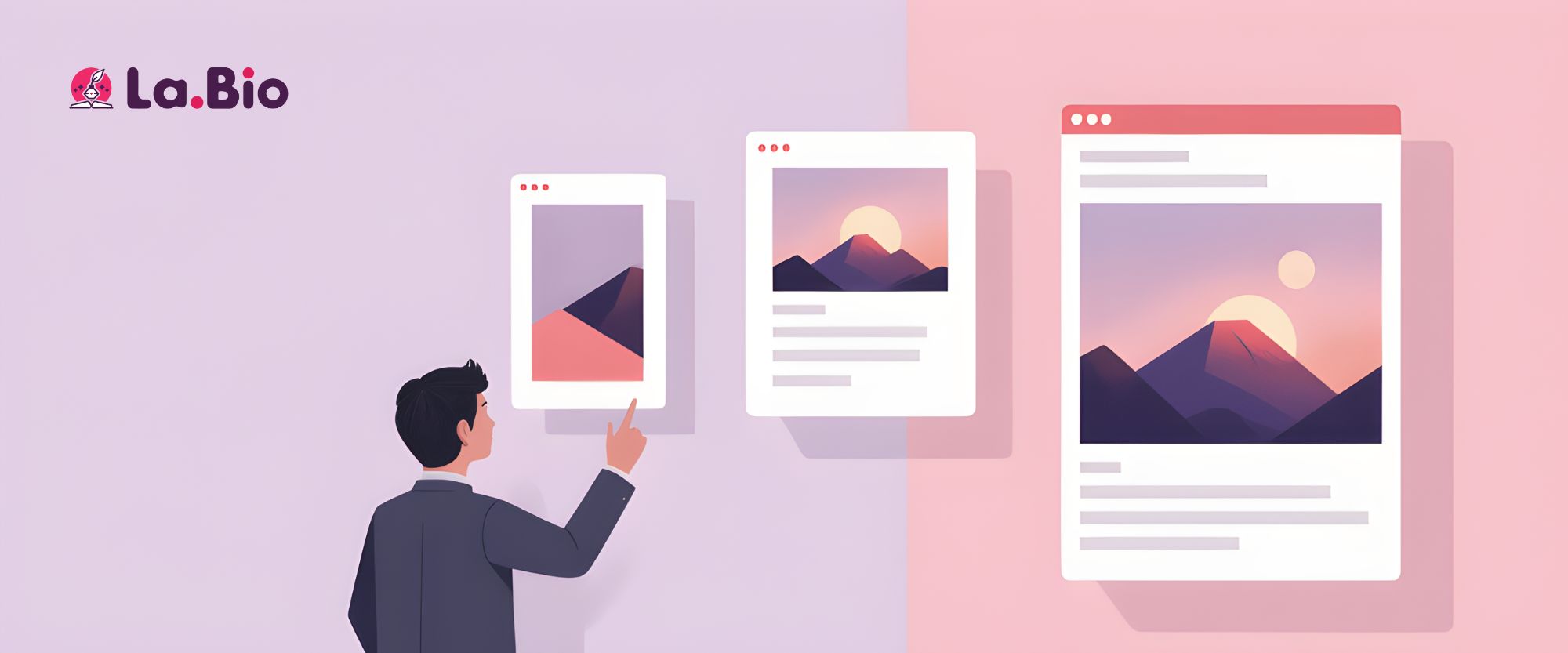
Most link-in-bio tools force you into a text-only layout, but La.Bio offers dedicated visual widgets designed specifically to help artists showcase their work. To build an effective portfolio link in bio, you need to choose the right format for your visuals.
Here are the two powerful options available to you:
1. The "Image" Widget
This widget is designed for high-impact, static visuals. It allows you to display either a single full-width image or two images side-by-side.
Best for a Hero Banner: Use a single, striking image at the very top of your page. This acts as a digital header, establishing your brand aesthetic the moment a visitor arrives.
Best for Categorization: Use the side-by-side layout to visually separate different services. For example, a photographer could place a photo of a bride on the left linked to "Weddings" and a studio shot on the right linked to "Portraits."
2. The "Carousel" Widget
If you want to tell a story or show depth without cluttering the screen, the Carousel is the perfect solution. This creates an interactive bio link image slider that allows you to upload up to 5 images.
Best for Collections: showcasing a recent editorial or project where one image isn't enough to tell the full story.
Best for Variety: highlighting the versatility of your portfolio (e.g., landscape, macro, and street photography) in a compact, swipeable format that keeps the user engaged.
Step by Step - Creating Your Visual Bio Page
Ready to turn your standard link list into a stunning photography landing page? Follow these simple steps to build your visual portfolio on La.Bio.
UX Note: Before you begin, ensure your files are optimized. You want high-quality images that look crisp on retina displays, but keep the file sizes reasonable. Heavy files slow down your page, and mobile users won't wait for a slow portfolio to load.
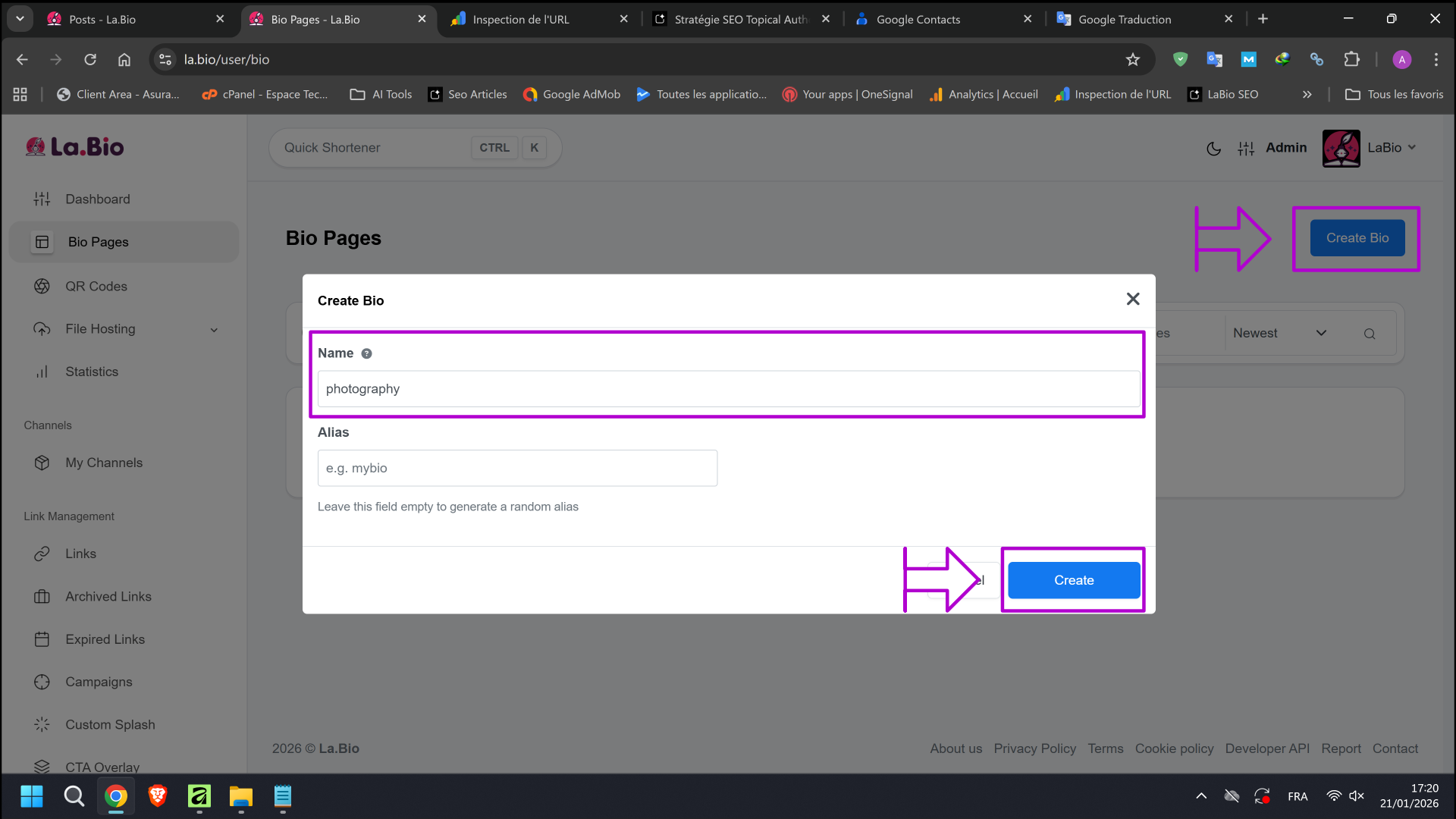
Step 1: Initialize Your Page
Log in to your La.Bio dashboard and click "Create Bio". Give your page a name that reflects your work (e.g., "Photography Portfolio").
Pro Tip: The system generates a unique URL for you automatically. However, if you have a Pro account, you can create a custom alias like la.bio/yourname. This looks much more professional on business cards and Instagram profiles.
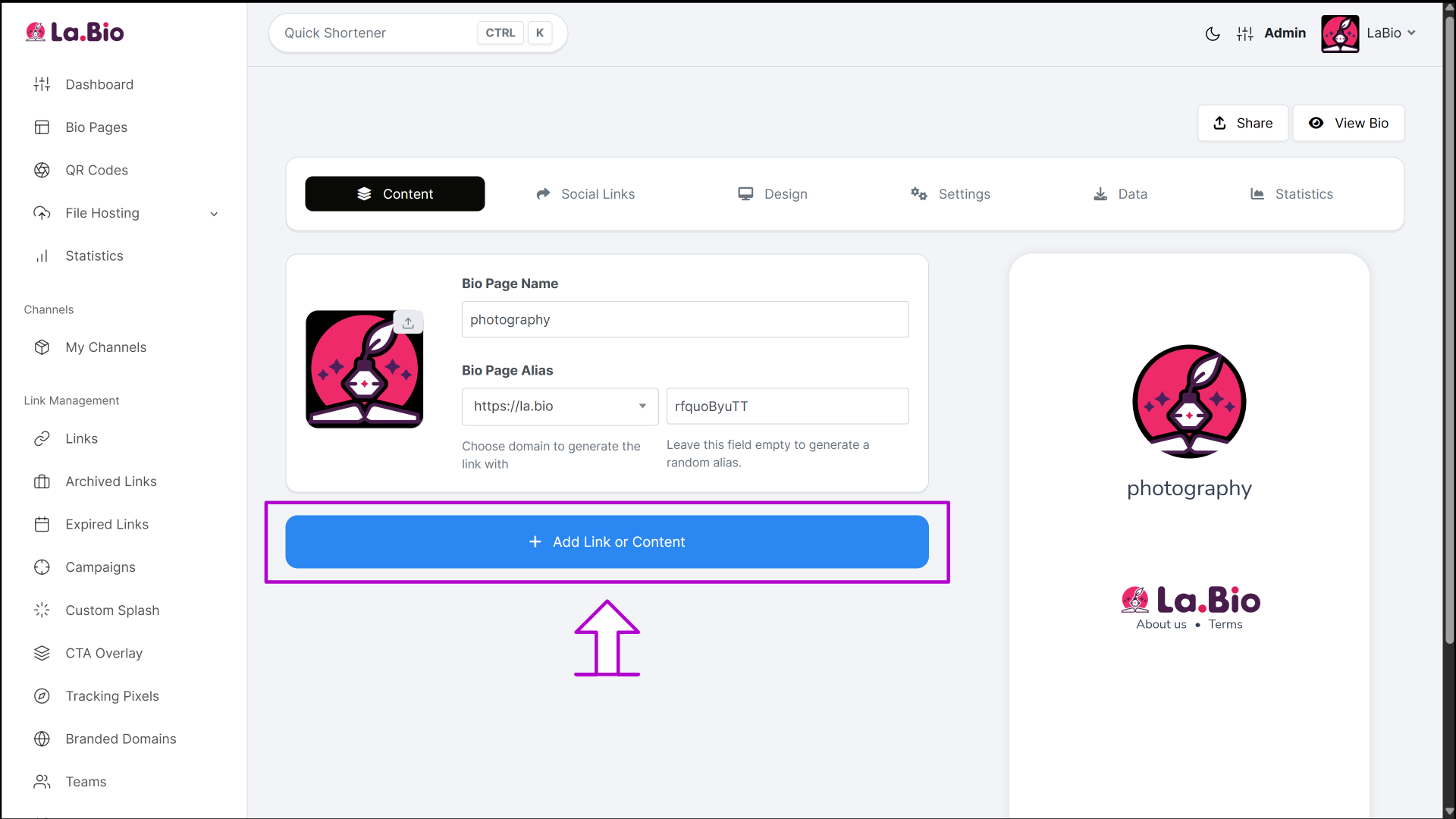
Step 2: Add New Content
Once inside the editor, click the purple "Add Link or Content" button. This is where you move away from standard buttons and start building a custom layout.
Step 3: Choose Your Visual Style
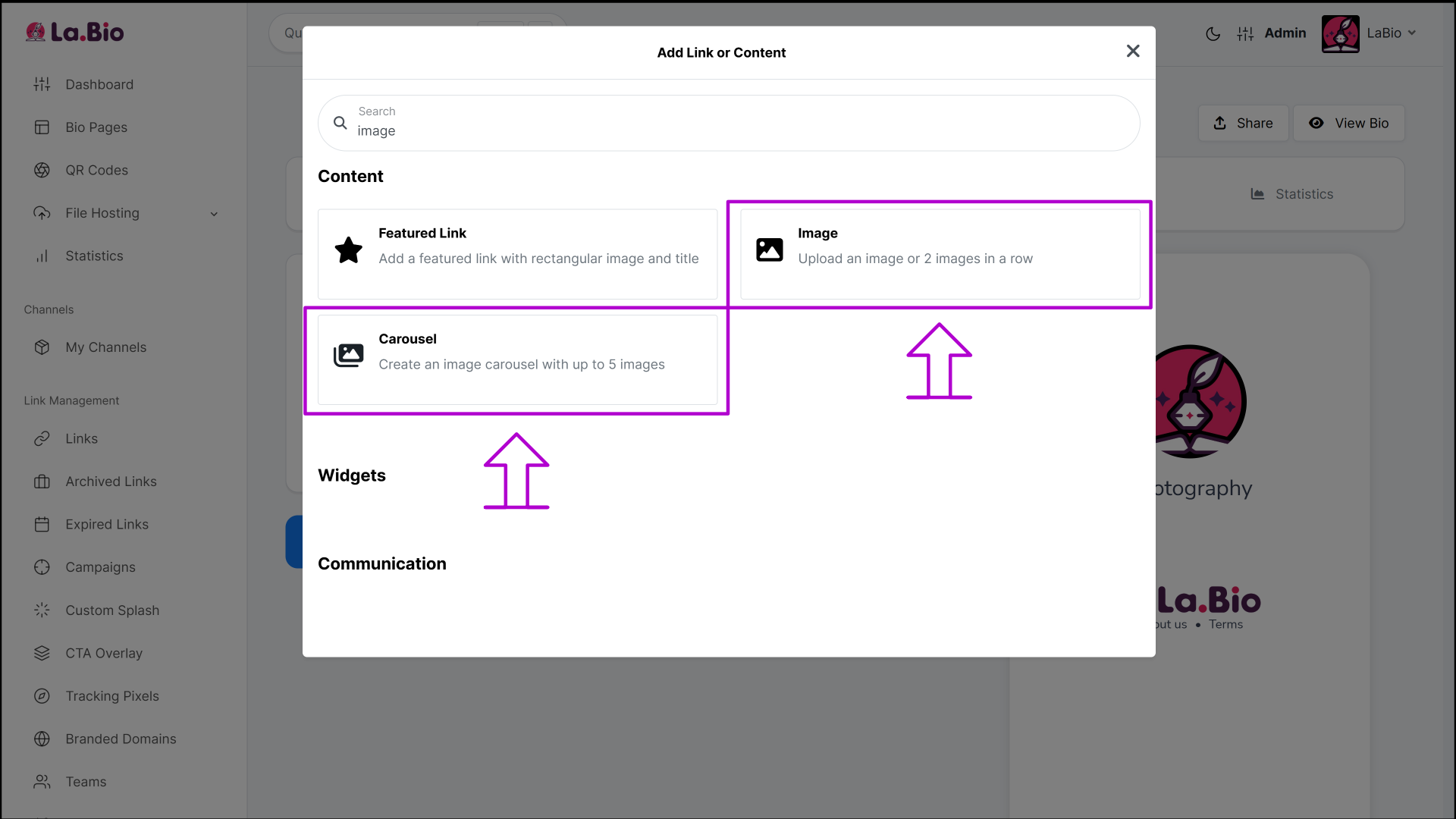
Select the widget that fits the content you want to display right now:
Choose "Image" for a static, full-width banner or a side-by-side comparison.
Choose "Carousel" to create a dynamic slider.
Step 4: Upload and Link
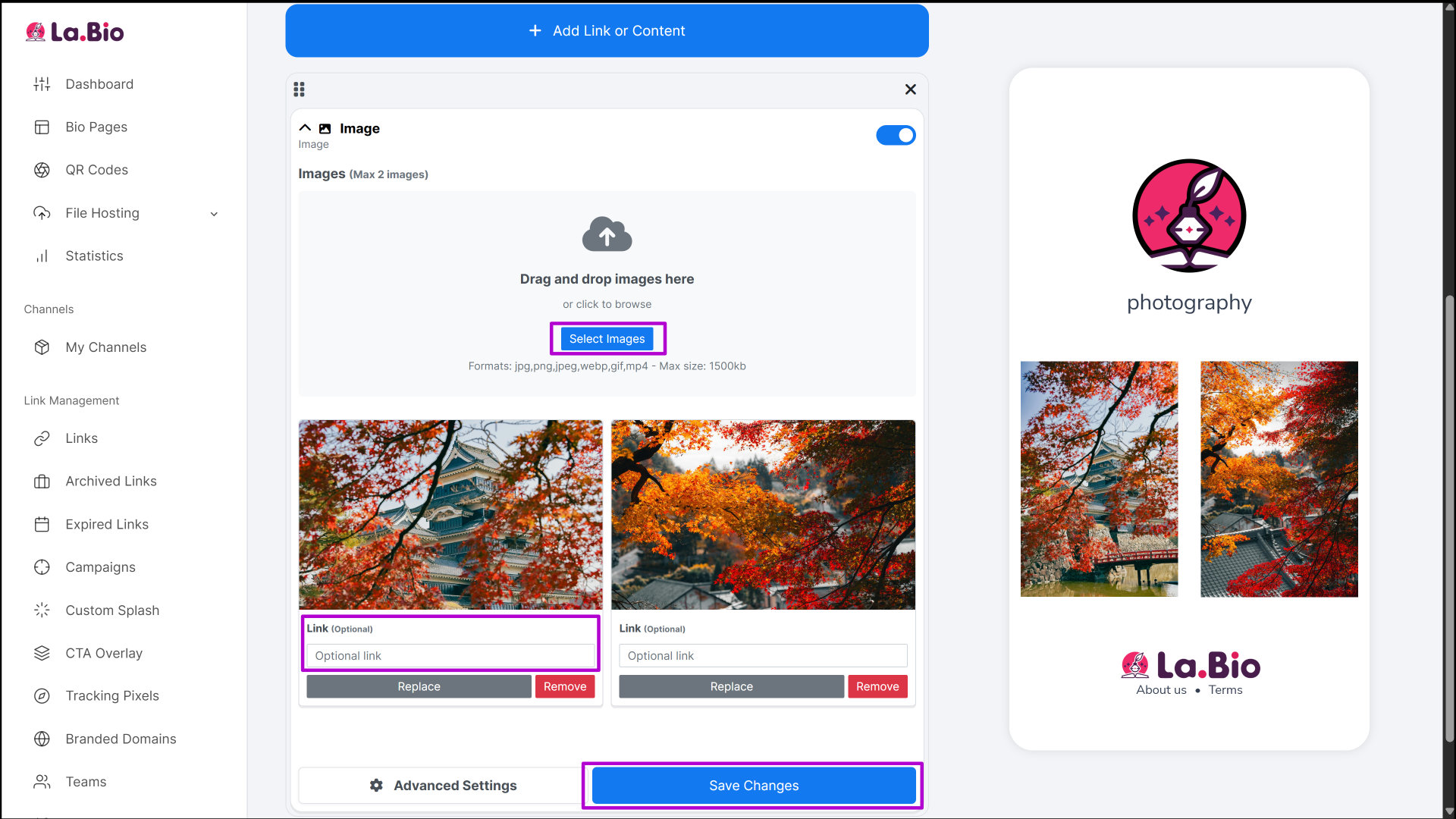
Click "Select Images" and upload your best shots.
Crucial Step: Do not just upload the photo—make it clickable! You will see a field for a Destination URL for each image. You must paste the link to the full project, gallery, or client delivery page on your main website here. This turns your bio link from a simple gallery into a traffic-driving machine.
Click "Save Changes".
Step 5: Stack Your Visuals
Repeat the process to create a vertical flow. You might start with a "Carousel" of your latest work, followed by two "Image" blocks side-by-side for specific categories. Stacking these visual blocks creates a scrolling website experience rather than a static list.
Step 6: Add Your Footer Details
Finally, add a Text block at the bottom of your page. Use this space for a short artist bio, your email address, or copyright information to ensure your page feels complete and professional.
How to Convert Visitors into Clients
A beautiful visual portfolio grabs attention, but your ultimate goal is to generate business. Once a visitor has engaged with your images, you need to provide an immediate, friction-free way for them to take the next step.
Don't make potential clients hunt for a contact form on a slow website. Use La.Bio's integration features to close the deal right inside your bio link.
Streamline Your Booking Process
If a visitor loves your portfolio, don't let the momentum die. Don't just show photos; let them book a shoot directly while their interest is high. The best way to do this is to embed a booking calendar directly into your page. By integrating a tool like Calendly, clients can see your availability and secure a session without endless back-and-forth emails.
Make Communication Instant
Sometimes a client wants to discuss rates or a specific vision before booking. Standard contact forms can feel impersonal and slow. To capture these leads, make it easy to discuss rates instantly. You can add a WhatsApp button to your bio page, allowing potential clients to message you directly on their phones with a single tap. This immediate connection often makes the difference between a lost lead and a paying customer.
Frequently Asked Questions
Q: Does uploading images reduce quality?
A: La.Bio automatically optimizes your images to ensure your page loads instantly on mobile devices—a crucial factor for user experience and SEO. However, the compression is carefully balanced to keep your photos sharp and vibrant enough to impress potential clients.
Q: Can I add videos to my portfolio?
A: Absolutely. If you are a videographer or want to share a "Behind the Scenes" reel, you don't need to rely solely on static images. You can use the dedicated YouTube or Vimeo widgets to embed your showreel directly into your bio link.
Q: Is the Carousel widget free?
A: Yes. Unlike many other platforms that lock visual tools behind a paywall, the Carousel and Image widgets are fully included in the free plan on La.Bio. You can build a stunning, professional portfolio without spending a dime.
Conclusion
Your bio link is more than just a utility URL—it is your digital business card and often the very first interaction a potential client has with your brand. As a visual artist, you simply cannot afford to be represented by a boring, generic list of text buttons. Your platform should be as beautiful as the work you create.
By moving away from standard lists and embracing visual widgets, you turn a passive link into an active portfolio that captures attention and drives bookings.
Showcase your work to the world. Create your Visual Portfolio on La.Bio today.