Quick Answer: To put multiple links in your Instagram bio, you need to create a landing page using a tool like La.Bio. Sign up, add all your destination links (YouTube, Website, TikTok) as buttons on your page, copy your unique La.Bio URL, and paste it into the 'Website' field of your Instagram profile settings.
If you are a content creator, business owner, or influencer, you know the struggle: you have a website, a new YouTube video, a TikTok account, and an affiliate store—but Instagram only gives you one clickable spot to share it all.
For years, the "Link in Bio" has been the most valuable piece of digital real estate on the internet. It is the only gateway to move your followers off the app and into your sales funnel.
The "5 Links" Update: Why it’s not enough
Recently, Instagram rolled out an update allowing users to add more than 5 links on Instagram natively. While this sounds like a win, there is a major catch.
These links are hidden behind a generic "text menu."
Users have to tap your bio to reveal a drop-down list.
There are no visuals, no thumbnails, and no branding.
It adds friction. Every extra click kills your conversion rate.
The Better Way: The Bio Link Page
Smart growth hackers don't use the native list. They use a visual Bio Page.
By using a free link in bio tool like [La.Bio], you can turn that single URL into a stunning mini-website. Instead of a boring text list, your followers get a visual experience where they can watch videos, listen to music, and click on unlimited buttons—all without leaving the "vibe" of your brand.
Ready to upgrade your profile? Here is the step-by-step guide on how to put multiple links in instagram bio correctly.
Step 1 - Create Your Central Bio Page
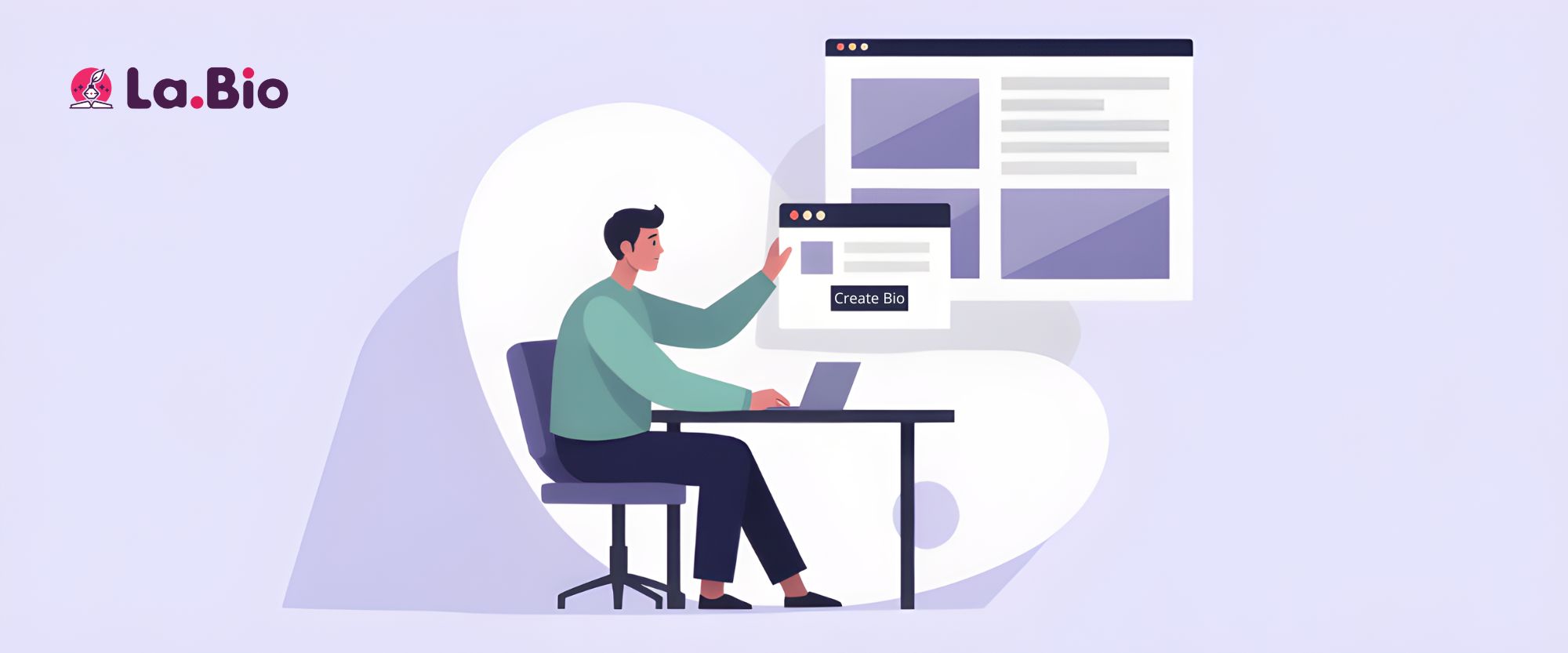
The first step to bypassing Instagram's limits is setting up your "hub." Think of this as a micro-website that loads instantly on mobile devices.
Here is how to set it up in under 2 minutes using [La.Bio]:
Log in to your Dashboard: Head over to [La.Bio] and sign in (or create a free account if you haven't already).
Start a New Page: Click on the "Create Bio" button.
Get Your Unique URL: A unique link will be generated for you automatically.
Note: If you want full brand consistency (e.g., la.bio/yourbrand), you can upgrade to PRO to choose a custom alias. If you are using the free version, simply use the unique link provided—it works perfectly!
Add Your First Links:
Click on "Add Link or Content".
Select "Link" from the menu.
Here, you can add standard buttons for your high-priority destinations. Paste the URL for your Website, Blog, or Online Shop.
Pro Tip: Give your buttons clear, action-oriented titles like "Shop the Sale" or "Read the New Post" instead of just "Website."
Once you hit save, your basic page is live. Now, let’s make it stand out with rich media.
Step 2 - Add Rich Media (Not Just Links)
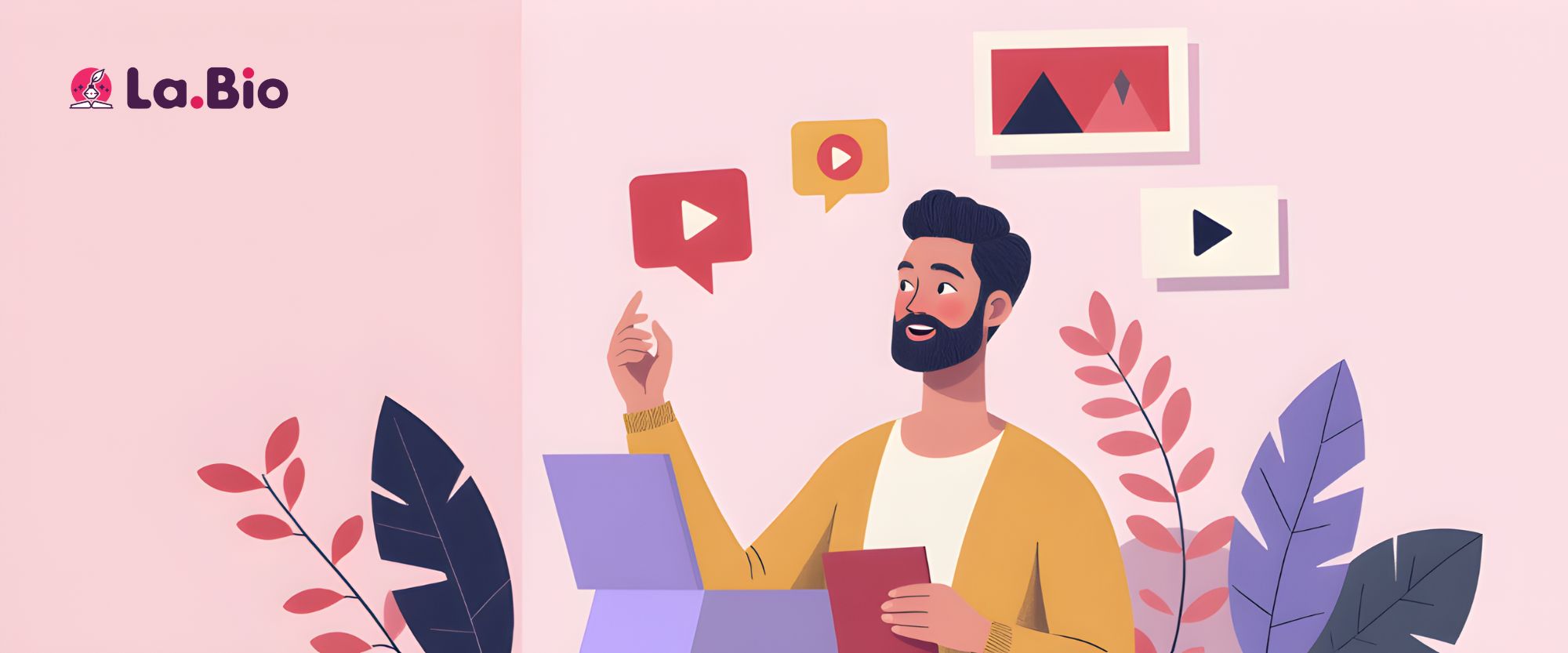
Here is where the magic happens. Instagram’s native "5 links" feature only gives you a boring text list. A [La.Bio] page gives you widgets.
Why send someone away to YouTube if they can watch your video right inside your bio? Keeping users on your page increases engagement and conversion. Instead of just "telling" people where to go, show them what you offer.
For Musicians: Don't just paste a link to Spotify or Apple Music. Use the Music Widget to embed the actual player. This allows fans to listen to your latest track immediately.
Read more: [How to create a Smart Music Link]
For Sellers: High-ticket items often require a conversation before the sale. Don't make customers hunt for your email. Add a direct chat button to close deals faster.
Read more: [How to add a WhatsApp Button to your Bio]
For YouTubers: Select the "YouTube" block and paste your video URL. Your latest vlog will play directly on the page, boosting your view count without forcing followers to switch apps or leave your profile.
By using rich media, you aren't just sharing links; you are building a mini-landing page that captures attention.
Step 3 - Add the Link to Your Instagram Profile

Now that your Bio Page is built and populated with content, it’s time to make it live on Instagram. This is the final technical step to unlock the "multiple links" capability.
Get Your Link: Go back to your [La.Bio] dashboard and copy your unique URL (the one you generated in Step 1).
Open Instagram: Launch the Instagram app on your mobile device and navigate to your main profile page.
Edit Profile: Tap the "Edit Profile" button located under your bio description.
Find the Links Section: Tap on "Links". You might see options to add a Facebook link—ignore that for now. Select "Add external link".
Paste and Save:
URL: Paste your [La.Bio] link here.
Title: You can name it something catchy like "My Links," "Shop & Watch," or "Everything Here."
Finish: Tap the checkmark (Done) in the top right corner.
That’s it! When you go back to your profile, you will see your new link prominently displayed. One tap now leads your followers to all your content, not just one destination.
Why [La.Bio] is Better Than Instagram Native Links
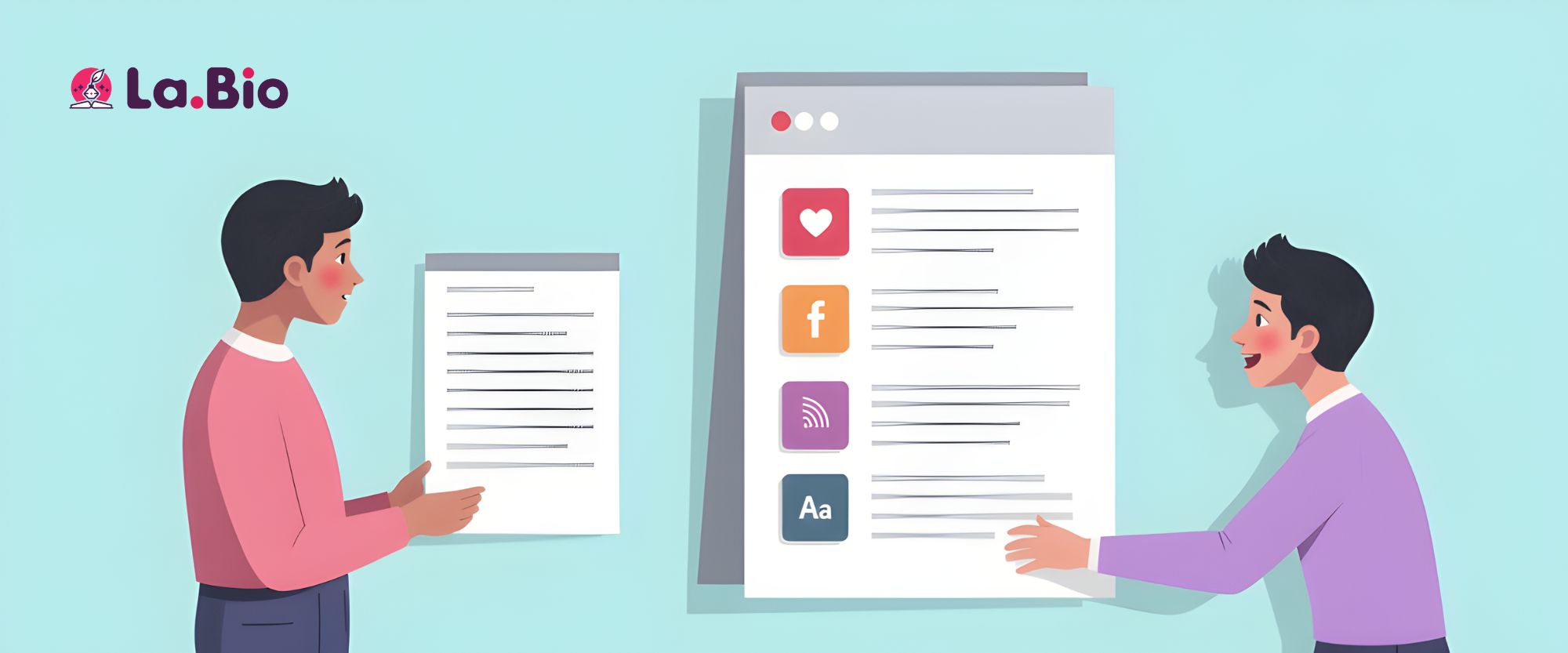
You might be wondering, "If Instagram allows 5 links now, why do I need a third-party tool?" The answer comes down to one word: Conversion.
Instagram's native feature is functional, but it is basic. If you want to grow your brand, you need more than a simple text list. Here is why a dedicated Bio Page wins every time:
Visual Customization & Branding:
Instagram’s native menu is just plain text on a white background. It has zero branding. With [La.Bio], you have total creative control. You can upload your own background image, match your brand colors, and add thumbnail images to your buttons. A visually appealing page builds trust and makes users more likely to click.Advanced Analytics:
Data is the fuel for growth hacking. Instagram Insights will tell you how many people tapped "external links," but it won't tell you where they went. Did they click your YouTube video or your shop? [La.Bio] provides detailed analytics, showing you exactly which buttons are getting clicks so you can optimize your strategy.One Link for Every Platform:
Instagram isn't the only app with restrictions. TikTok, Twitter (X), and LinkedIn all have their own limitations. Instead of managing different links for every app, you can use your single [La.Bio] URL across all your social media profiles. This creates a consistent experience for your followers, no matter where they find you.Struggling with other platforms? Read our guide on [How to add a link in bio on TikTok without 1000 followers].
Frequently Asked Questions
Q: Is there a limit to how many links I can add?
A: With Instagram’s native feature, yes—you are capped at 5. However, with [La.Bio], there are no limits. You can add as many links, videos, and music widgets as you need. Whether you have 10 products or 50 blog posts, you can list them all.
Q: Does this work for personal accounts?
A: Absolutely. You do not need a "Business" or "Creator" account to use a link in bio tool. Anyone can add a [La.Bio] URL to their profile, regardless of follower count or account type.
Q: Can I change my links later?
A: Yes, and the best part is you don't need to open Instagram to do it. Simply log in to your [La.Bio] dashboard, add or remove a link, and it updates instantly on your page. You never have to touch your Instagram profile settings again.
Conclusion
Your Instagram bio is more than just a few lines of text—it is your digital business card. In 2024, sending traffic to a generic list or a single home page is a wasted opportunity. You worked hard to get those views; don't lose them with a bad user experience.
By using a Bio Page, you are giving your followers a visual, professional, and easy way to engage with everything you do. It’s the simplest growth hack to instantly improve your conversion rates.
Stop choosing which link to share. Create Your Unlimited Bio Page for free now at [La.Bio].