Quick Answer: To create a universal app QR code, log in to La.Bio and click 'Create QR'. Select the 'Application' icon under the Dynamic QR section. Enter the URLs for your iOS App and Android App in their respective fields. Click 'Generate QR'. This single code will now automatically redirect users to the correct store based on their device.
The Scenario
You are finalizing the design for a new flyer, a subway poster, or your product packaging to launch your mobile application. You have a limited amount of "real estate" on the canvas, and you need to make sure the Call to Action (CTA) is clear, scan-friendly, and drives downloads immediately.
The Old Way
Traditionally, app marketers have been forced to clutter their designs. You’ve likely seen this before: a poster featuring two separate, ugly QR codes side-by-side. One is labeled "iOS" or "App Store," and the other is labeled "Android" or "Google Play." Not only does this ruin the aesthetic of your creative work, but it also forces the user to stop, think, and carefully aim their camera at the correct code. If they scan the wrong one, they hit a dead end, and you lose a download.
The New Way
There is a smarter solution: the Universal App QR Code. By using the specific "Application" widget on La.Bio, you can generate a single, intelligent QR code. This "Smart Redirect" technology simplifies the user experience by handling the routing for you. It keeps your design clean and ensures that every scan results in a potential download, regardless of the smartphone the user is holding. Best of all, this feature is free and unlimited on La.Bio.
How the "Application" QR Code Works
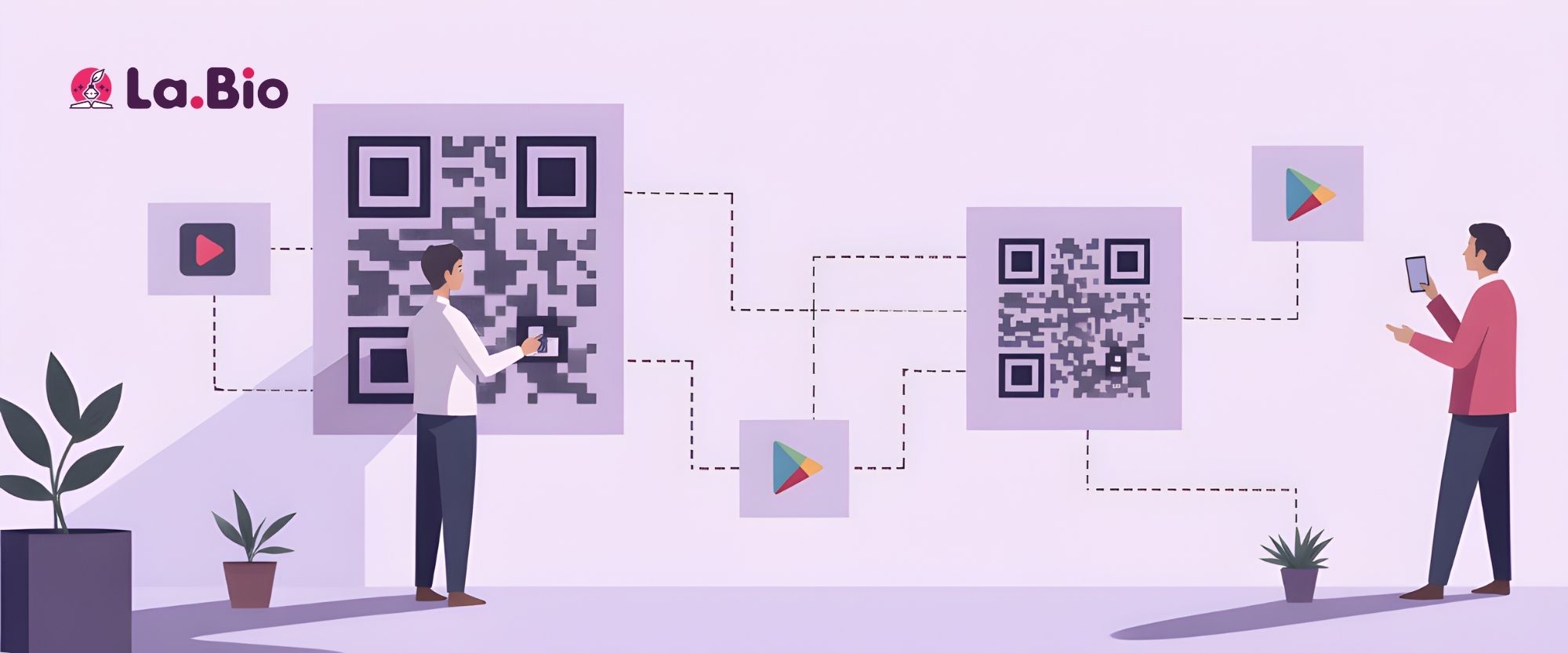
You might be wondering how one static image can successfully send people to different destinations. The magic lies in Smart Routing technology.
When a user scans your Universal App QR code, the link acts as a traffic controller. Before the user arrives at a destination, the La.Bio system instantly detects the device's operating system (OS). This happens in a split second and is invisible to the user.
iPhone Users: If the system detects iOS, it automatically forwards the user to your specific page on the Apple App Store.
Android Users: If the system detects an Android device (like a Samsung, Pixel, or Xiaomi), it routes them directly to the Google Play Store.
Tablet/Other: You also have the option to set a specific link for devices that don't fit the standard mobile criteria, such as iPads or desktops. This "Other" link is perfect for redirecting users to your main website or a dedicated landing page.
This process ensures that no user ever lands on an error page or a store they cannot use.
Step by Step - Creating Your Smart App Code

Follow this simple guide to generate your universal qr code for app download using the La.Bio platform.
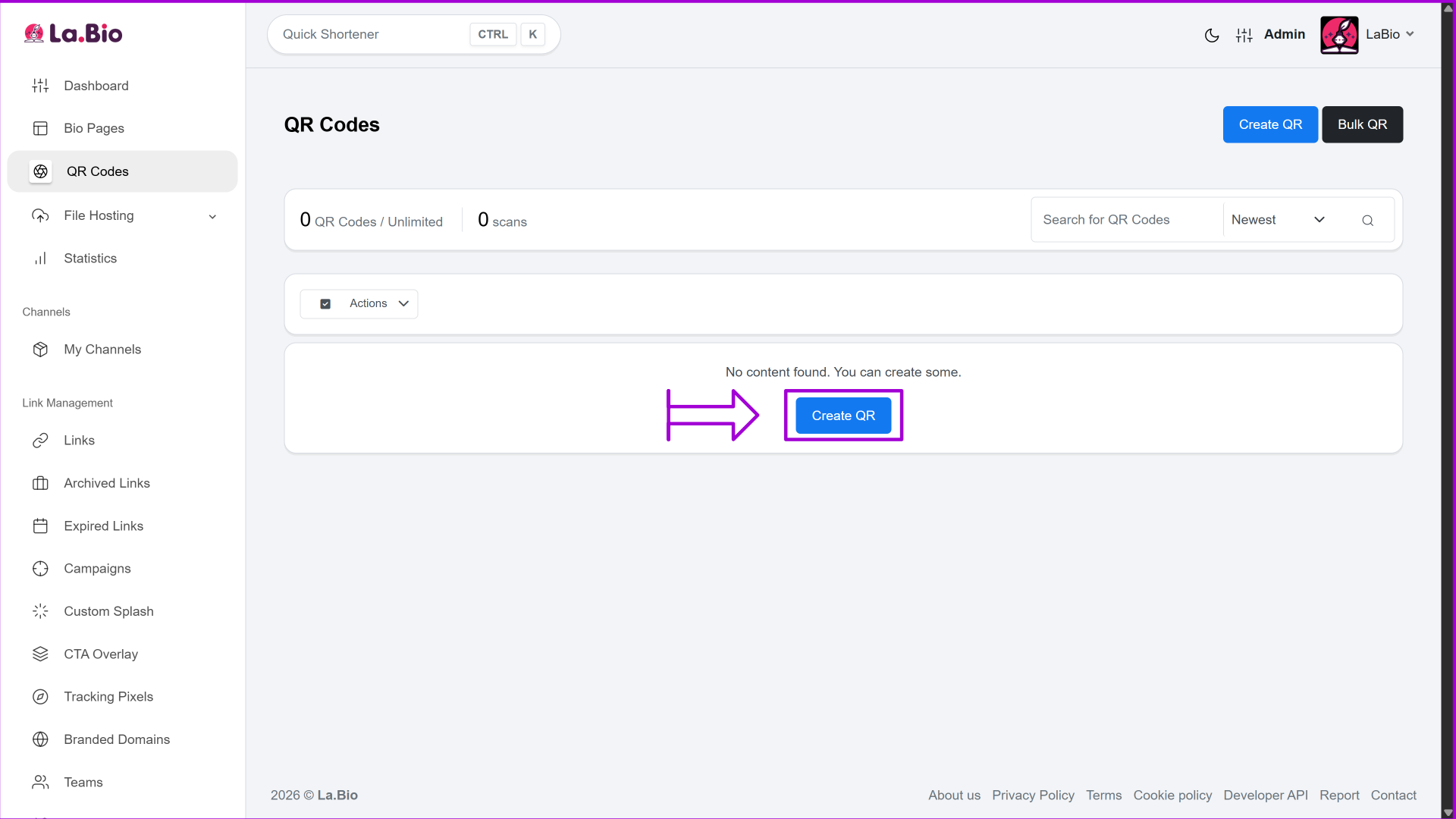
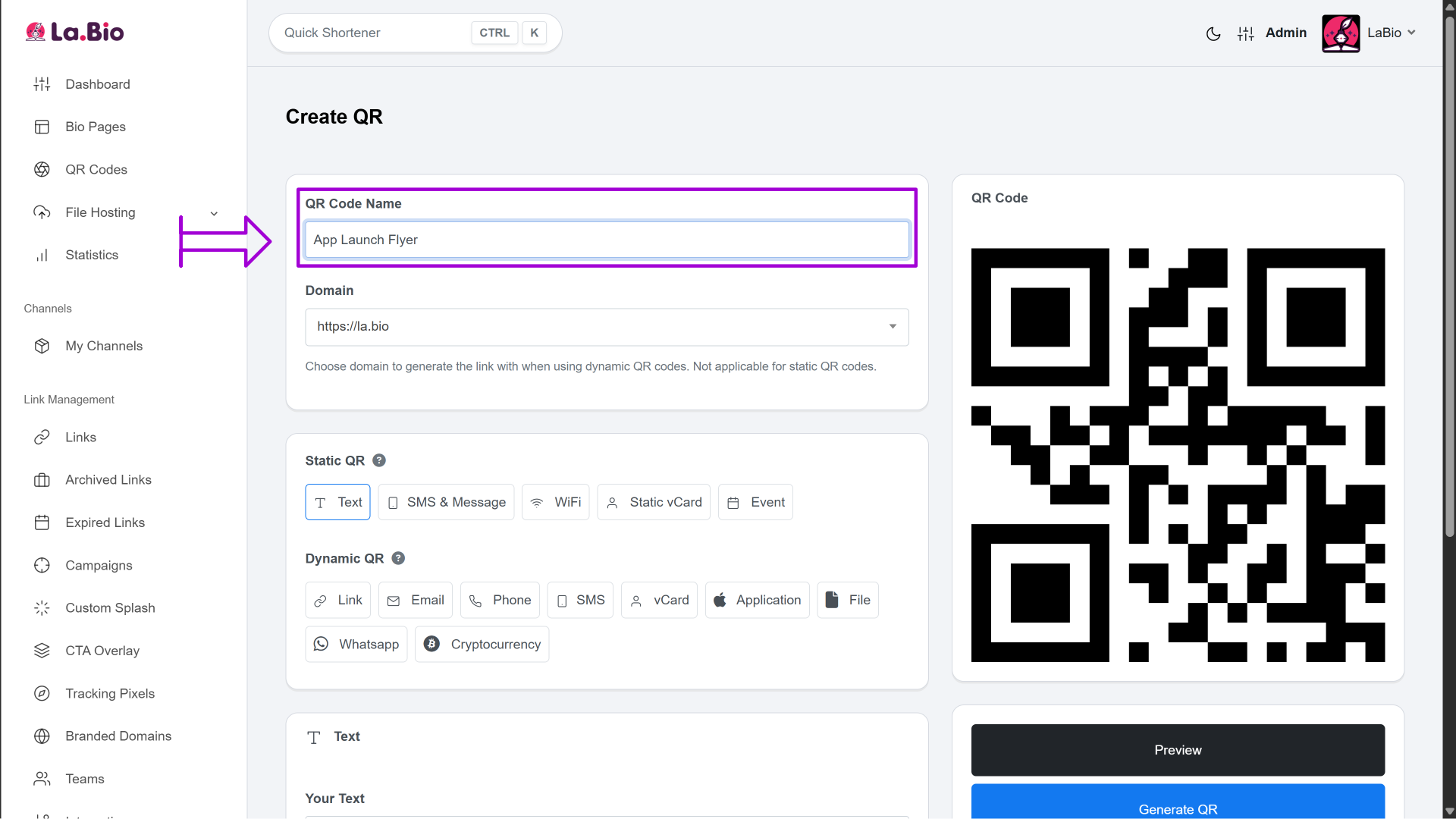
Step 1: Log in to your La.Bio account and click on the "Create QR" button located on your main dashboard.
Step 2: Name your project. Choose a descriptive title (e.g., "App Launch Flyer" or "Product Packaging") so you can easily organize your assets and track performance later.
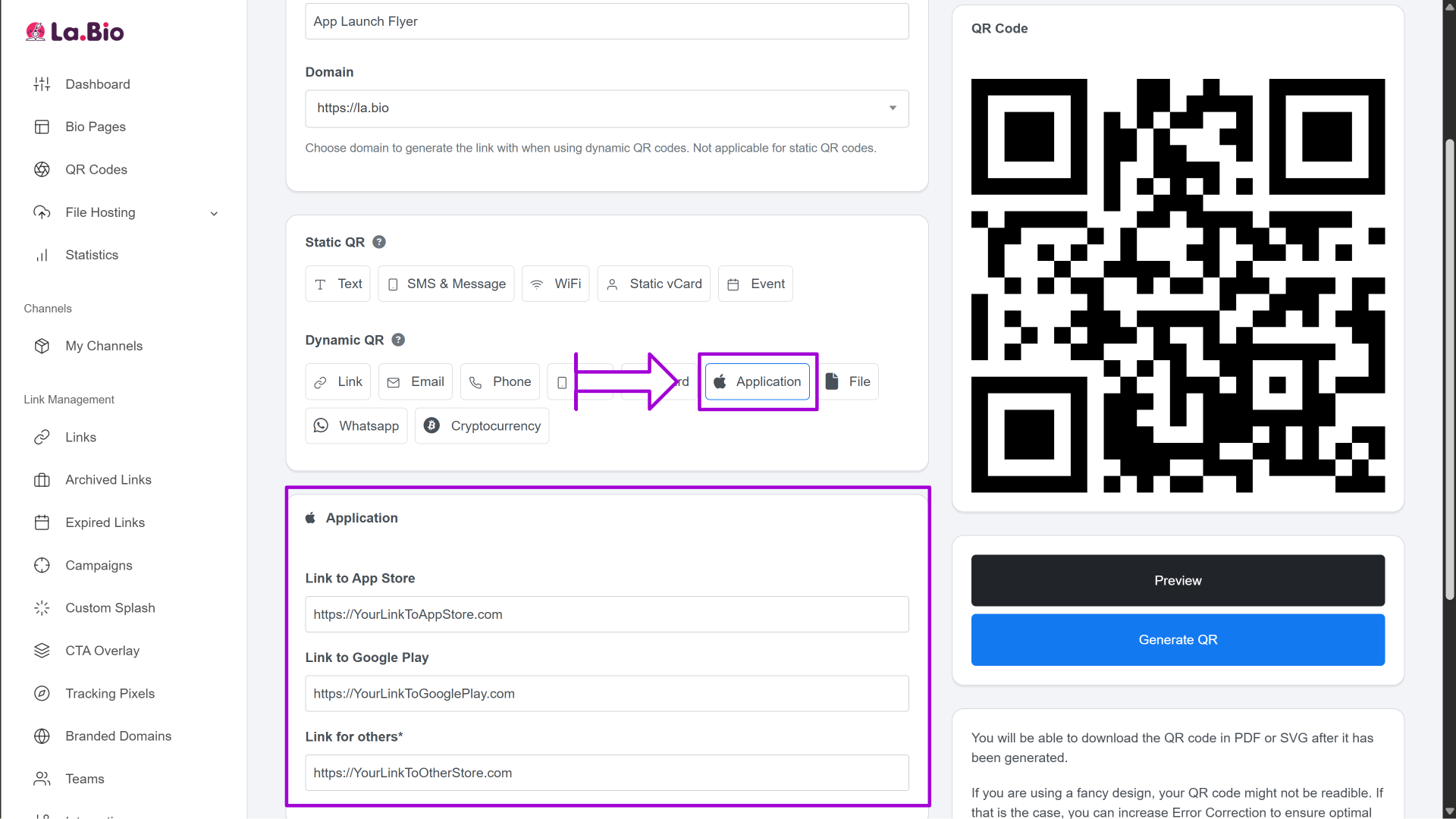
Step 3: Scroll to the "Dynamic QR" section. Locate and select the "Application" option (the icon usually depicts an App Store logo or a mobile phone).
Enter your download links in the corresponding fields:
Paste your App Store URL in the iOS field.
Paste your Google Play Store URL in the Android field.
(Optional) Paste a destination link for "Other". This serves as a fallback for desktop users or unsupported devices, allowing you to redirect them to your main website home page instead of a dead end.
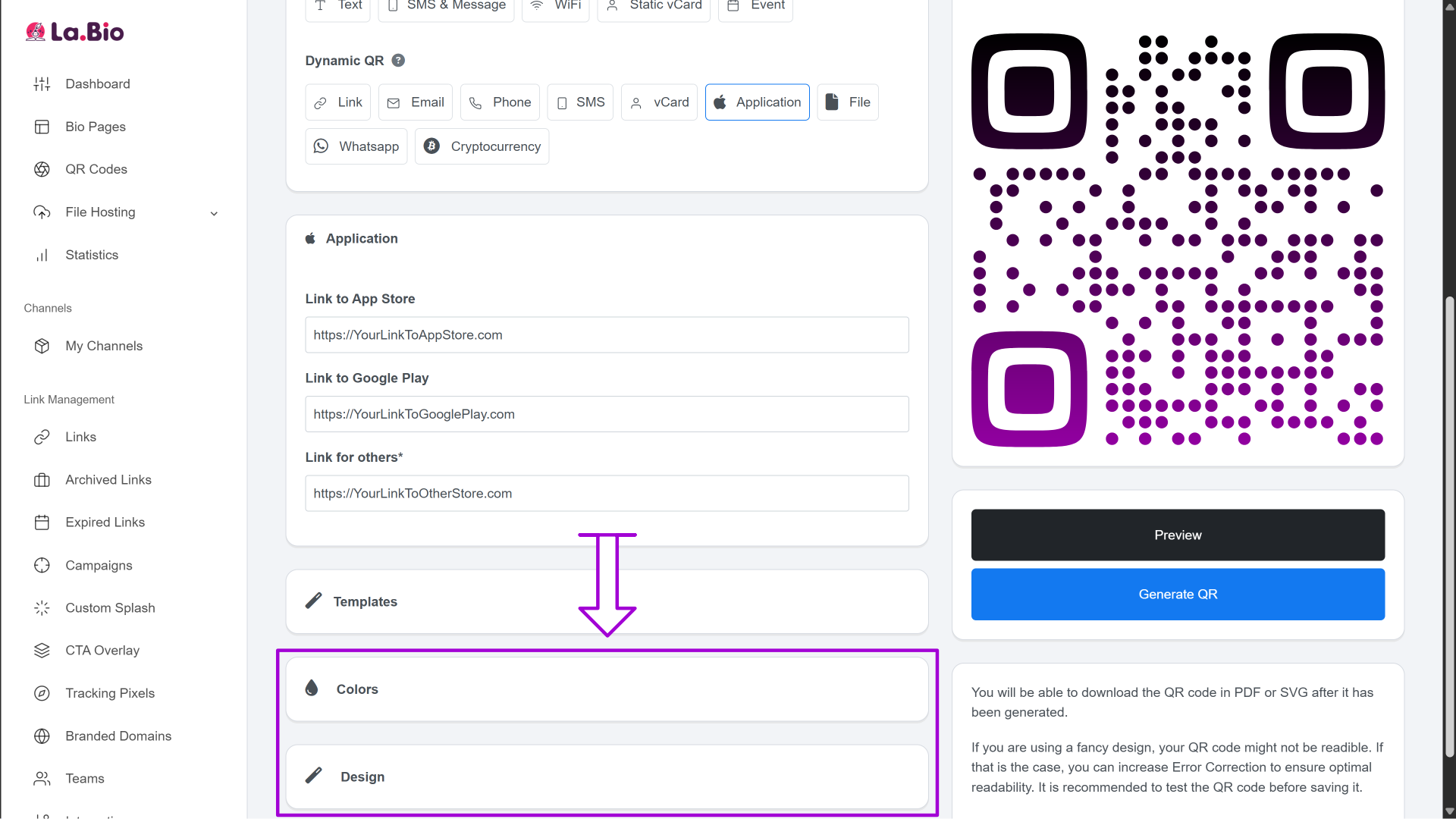
Step 4: Customize the look of your code. Use the 'Colors' and 'Design' tabs to align the code with your brand. Tip: We highly recommend uploading your App Icon as the logo in the center of the QR code. This instant visual recognition increases user trust and scan rates.
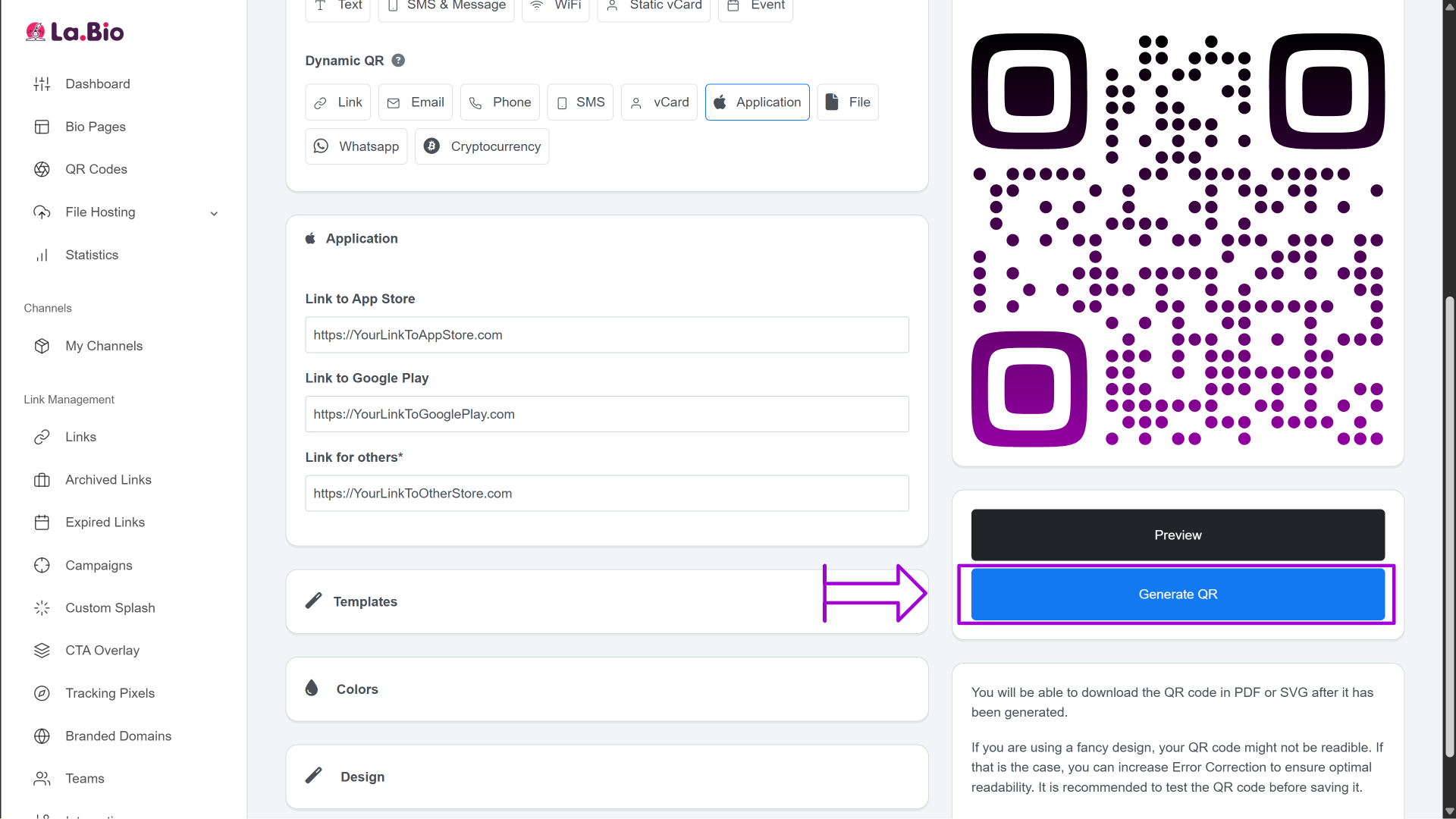
Step 5: Click "Generate QR" to finish. Your smart, universal code is now ready to download and print.
Best Places to Use App Download QR Codes
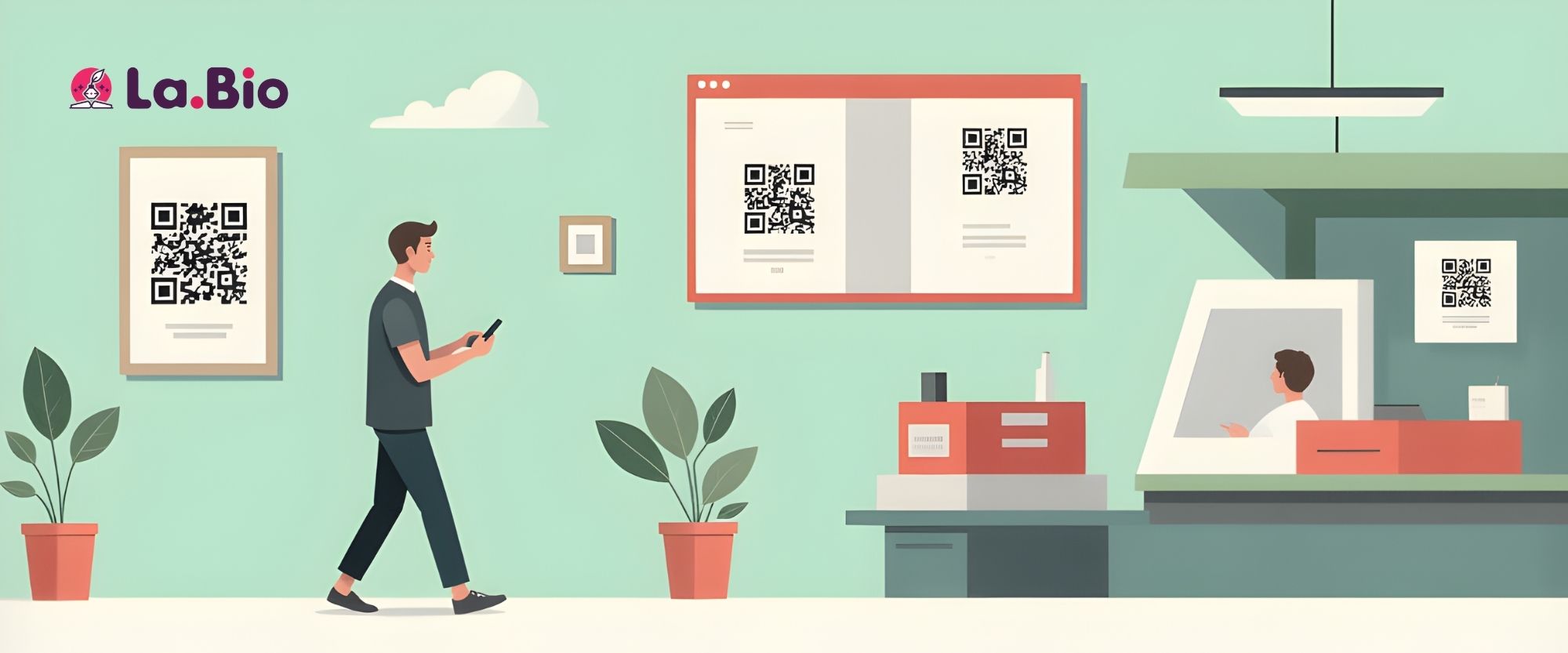
Once you have generated your universal code, the next step is strategic placement. Because this single code handles all devices, you can place it in high-traffic areas without worrying about cluttering your design with multiple links.
Product Packaging
This is essential for IoT devices, smart appliances, or subscription boxes. Place the QR code on the back of the box or inside the instruction manual with a clear call to action like "Scan to download companion app." It ensures customers can immediately connect their new product to their phone.
Print Advertising
Whether you are running ads in magazines, on billboards, or on subway posters, space is money. A single smart app download link allows you to maximize your visual impact. Commuters and readers can scan the code instantly without having to search for your brand name manually in the store.
Desktop Website
It is a common friction point: a user visits your website on a laptop but wants to install your app on their phone. Instead of making them type a URL, place your Universal QR Code in your website’s footer or on a "Download" landing page. They can simply point their phone at their computer screen to grab the app immediately.
Social Media & Bio Links
While QR codes are great for physical media, you should also promote your app on social media using a Bio Link to capture traffic from Instagram and TikTok. For a deep dive on organizing your digital links, check out our guide on creating an effective link in bio page.
Frequently Asked Questions
Q: What happens if I scan it with a computer or a device that isn't iOS or Android?
A: This is where the "Other" field becomes vital. If a user scans the code with a desktop webcam, or using a device OS that isn't recognized, the system will redirect them to the link you entered in the "Other" field. We recommend setting this to your website's home page or a dedicated landing page so you never lose a visitor.
Q: Can I track downloads?
A: You can track the scans directly within your La.Bio dashboard. You will see how many people scanned the code, their location, and which device type they used. However, to track the actual installation of the app, you will need to rely on the analytics provided by Apple (App Store Connect) and Google (Google Play Console).
Q: Is it free?
A: Yes. The "Application" widget and the Smart Redirect technology are included in the free plan on La.Bio. You can generate unlimited scans without hitting a paywall.
Conclusion
Marketing a mobile app is hard enough without having to worry about complex design restraints or confused users. By switching to a Universal App QR Code, you remove friction from the user journey. You save space on your print materials, improve the aesthetic of your ads, and most importantly, ensure that every potential user gets to the right store with a single scan.
Simplify your marketing and maximize your download rates today.
Launch your app the right way. Create your Universal App QR Code now.