Quick Answer: To make a Google Reviews QR Code, first copy your specific "Ask for reviews" link from your Google Business Profile. Then, log in to La.Bio, click "Create QR," select the "Link" option (Dynamic), and paste your review URL. Add the Google "G" logo in the design tab, generate, and print it for your customers.
The Reality: Happy customers often forget to leave reviews. Unhappy ones rarely forget.
For any local business owner—whether you run a bustling restaurant, a boutique salon, or a real estate agency—Google Reviews are digital gold. They determine whether a new client calls you or your competitor. However, there is a major problem getting those 5-star ratings: Friction.
The Friction: If you ask a happy customer to "Search us on Google and leave a review," they might say yes, but they rarely follow through. Why? Because it requires too many steps: unlocking their phone, opening a browser, typing your name, finding the profile, scrolling down, and clicking "Write a review." By the time they leave your shop, the moment is gone.
The Solution: You need to remove the work. By using a Google Reviews QR Code generated with La.Bio, you can put a direct link right in front of them—on the counter, the receipt, or the table. One scan opens the rating box instantly. This simple change eliminates friction and can drastically increase the number of 5-star ratings you receive.
Step 1 - Get Your Direct Google Review Link

Many business owners make the mistake of linking their QR code to their website homepage or their general Google Maps listing. This forces the customer to hunt for the "Reviews" button, which kills conversion rates.
To get the 5-star rating effectively, you need the specific "Deep Link" that triggers the review pop-up box automatically.
Here is how to find it:
Search for Your Business: Go to Google.com and search for your exact business name. Ensure you are logged into the Google account used to manage your business.
Locate Your Dashboard: You will see your business dashboard appear directly on the search results page (this is the Google Business Profile interface).
Find the Button: Look for a button labeled "Ask for reviews" or "Get more reviews" inside the dashboard icons.
Copy the Link: Click that button. Google will provide a short, specific URL (it usually starts with g.page/r/... or search.google.com/...). Copy this link to your clipboard.
Pro Tip: Do not type this link manually later. Copy and paste it to ensure there are no typos. This is the magic link that sends customers straight to the star-rating screen.
Step 2 - Turn that Link into a Dynamic QR Code
Now that you have your direct review link, it is time to package it into a scannable code. We will use La.Bio for this because it allows you to create Dynamic QR Codes. Unlike a static code, a dynamic code allows you to track exactly how many people scan it, so you can measure which signage works best.
Follow these simple steps:
Log In: Go to [La.Bio] and sign in to your dashboard. Click the "Create QR" button.
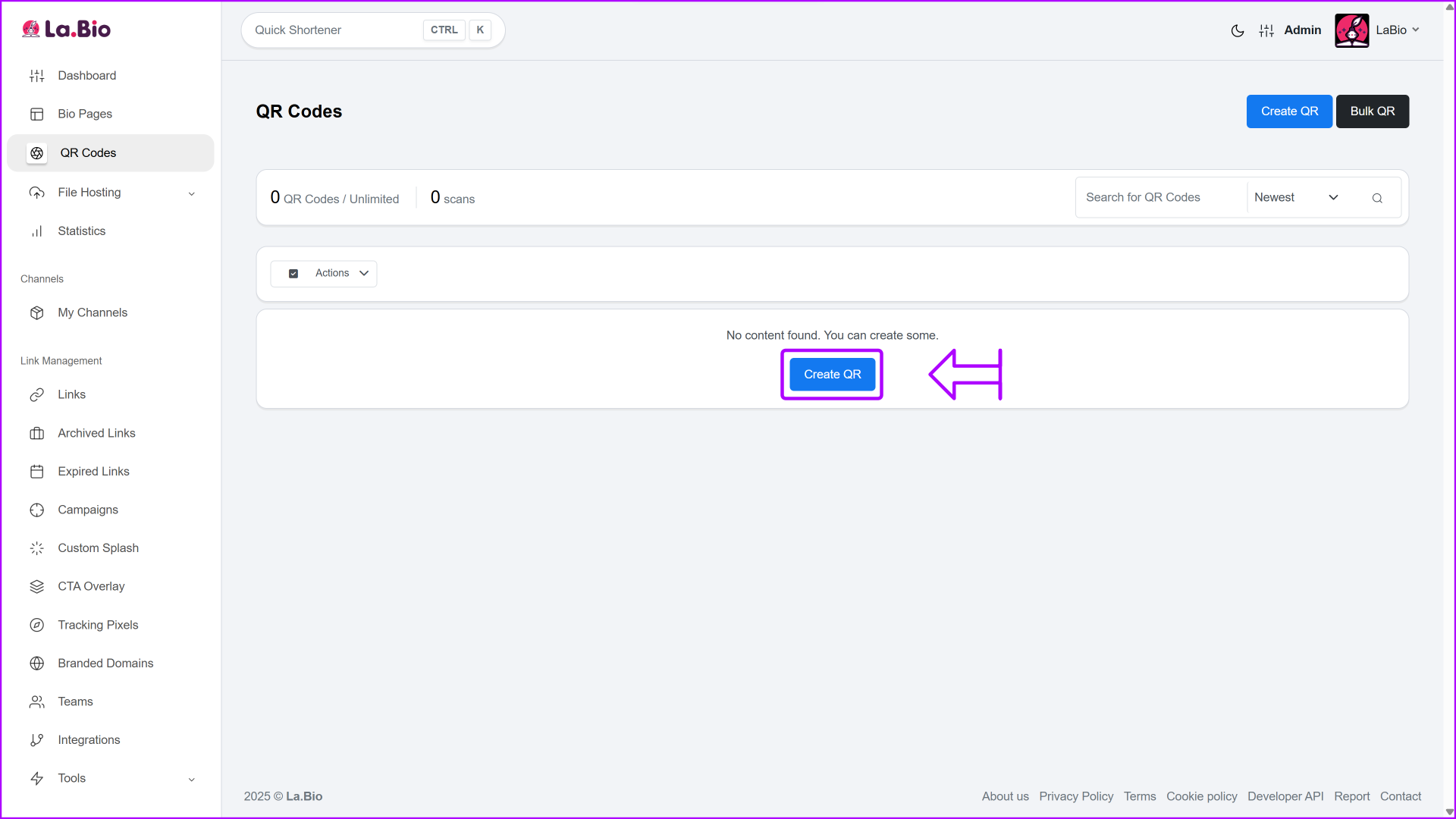
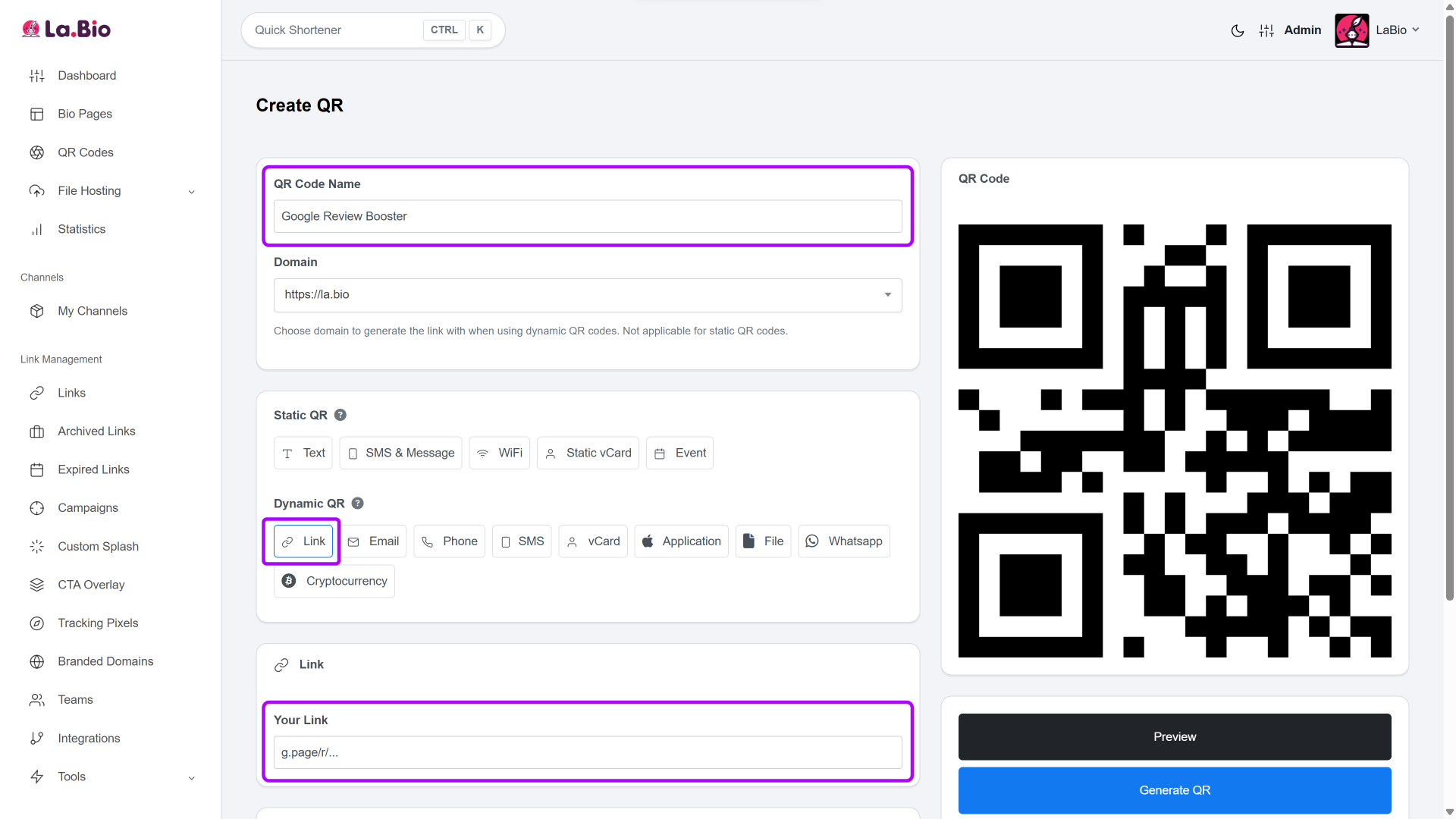
Name, Select Type & Paste URL:
Give your code a clear name (e.g., "Google Review Booster") so you can find it easily later.
Under the Dynamic QR section, select the "Link" icon. Note: Using the Dynamic option is crucial as it allows you to track scans and edit the link later.
Paste the specific Google Review link you copied in Step 1 into the URL field.
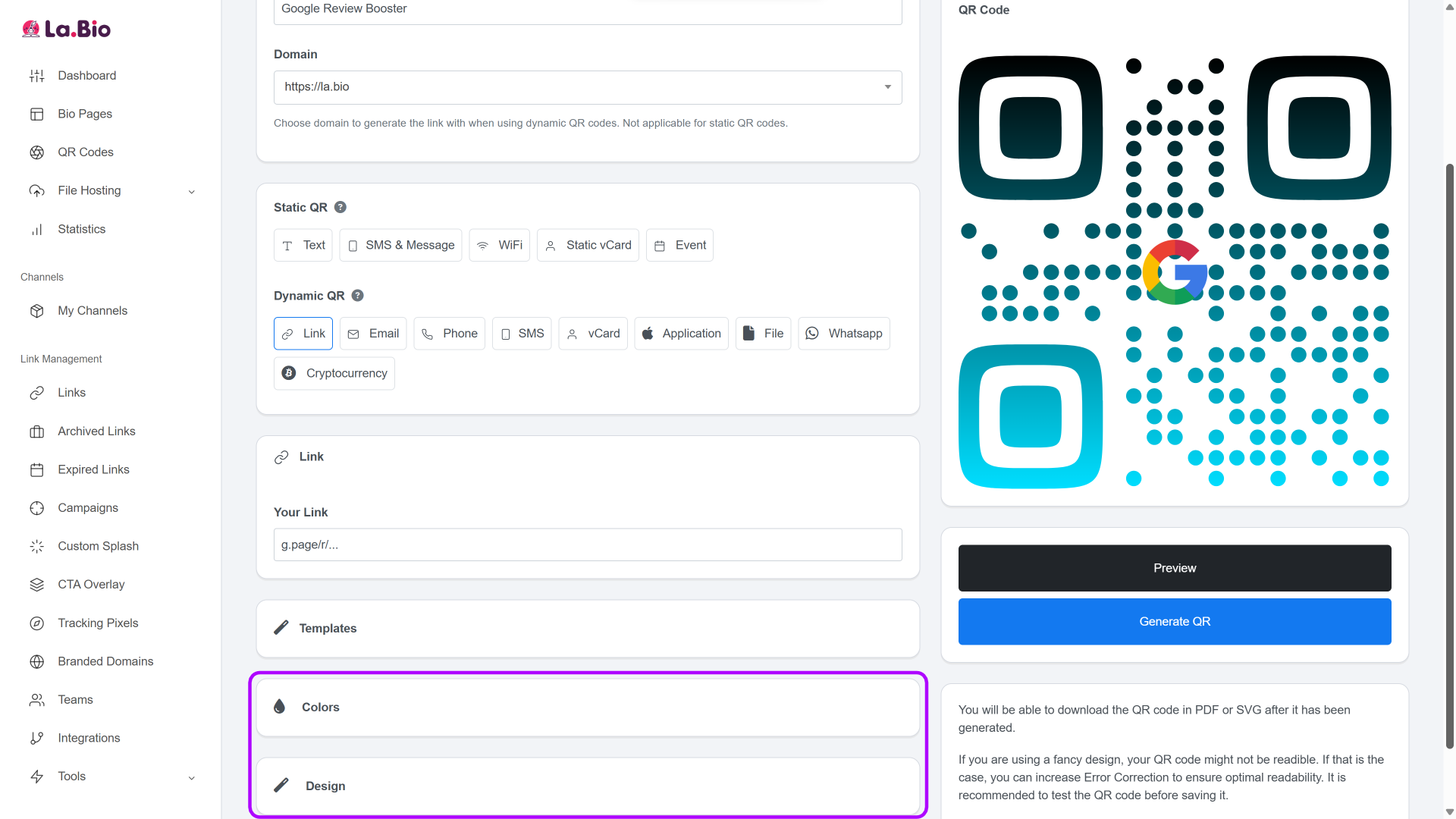
Customize for Trust: This is the most important part for design. Go to the 'Colors' or 'Logo' tab.
Upload the Google "G" logo or a generic 5-Star icon and place it in the center of the QR code.
Why? When customers see the Google logo, they immediately recognize the brand and trust that the code is safe and relevant.
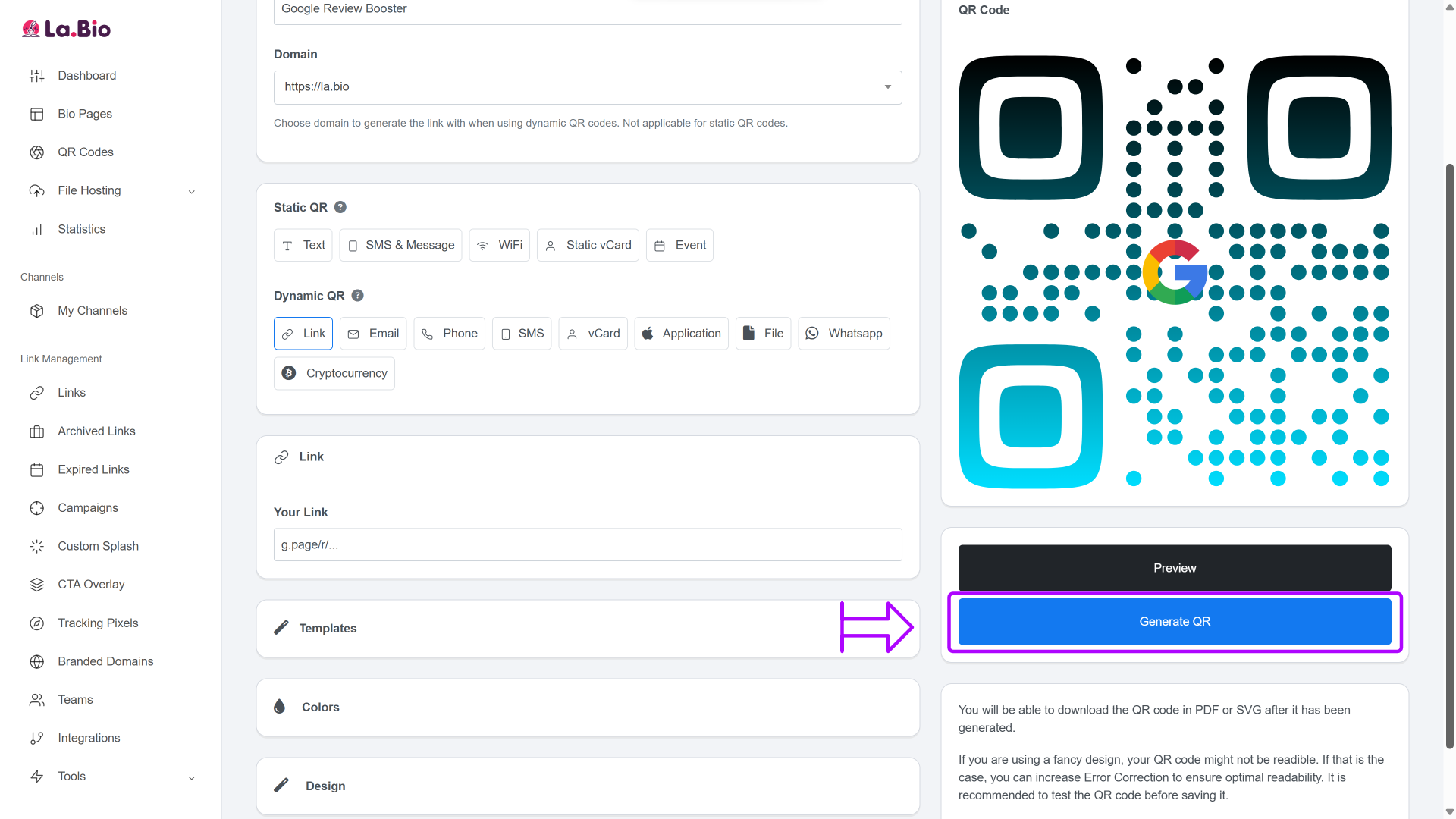
Generate & Download: Click "Generate QR" to finish. Download the file (SVG or PNG format is best for printing).
You now have a professional, trackable tool ready to capture customer feedback.
Best Places to Display Your Review QR Code

Having the code is only half the battle. You need to place it where customers are most likely to engage with it. The goal is to catch them when they are satisfied and have a moment of downtime.
Here are the highest-converting spots to place your new QR code:
On the Counter or Checkout: This is the prime spot. Place a small acrylic sign next to the register that says, "Love your visit? Scan to rate us!" This catches them right after a positive transaction when their experience is fresh.
Table Tents: For restaurants and cafes, the best time to ask is while customers are waiting for the check. A table tent allows them to leave a review casually without feeling pressured by staff.
On Receipts: Most modern POS systems allow you to print an image on the footer. Add your QR code there as a reminder for customers when they get home or check their expenses.
Business Cards: If you are a real estate agent, freelancer, or consultant, put the code on the back of your business card. Hand it over after a successful meeting or closing.
Pro Tip: If you run a physical location like a cafe or shop, you also need to share your internet access easily to keep customers happy. You can create a WiFi QR code to display right next to your review code, making your table tents even more useful.
Frequently Asked Questions
Q: Do customers need a Google account to leave a review?
A: Yes. To ensure that reviews are authentic and to prevent spam, Google requires users to be signed in to an account. However, since the vast majority of smartphone users already have a Gmail app or use an Android device, they are likely already logged in, making the process seamless.
Q: Is the QR code generator really free?
A: Yes. Unlike many other platforms that charge for "Dynamic" codes or tracking features, La.Bio allows you to create this QR code 100% for free. You can track how many people scan your code without paying a subscription.
Q: Can I change the link later if I move locations?
A: Absolutely. Because you used the "Dynamic" option in Step 2, you can log back into your La.Bio dashboard and update the destination URL at any time. Your printed QR codes will continue to work without needing to be replaced.
Conclusion
Online reviews are digital gold. They are often the deciding factor between a customer choosing your business or your competitor. However, relying on customers to remember to search for you when they get home is a losing strategy.
By placing a Google Reviews QR Code right at the point of sale, you bridge the gap between a happy experience and a 5-star rating. It is a simple, free, and effective way to automate your reputation management.
Start climbing the Google rankings today. Create your Google Review QR Code now and watch your ratings grow.