Quick Answer: To shorten links for Bullhorn SMS, log in to La.Bio and use the 'Shorten Link' card. Paste your long destination URL, set a custom alias (optional), and use the 'Customize' tab if you need specific device targeting. Click 'Shorten' to generate a compact URL that saves character space in your texts.
You are crafting the perfect outreach SMS in your Bullhorn automation workflow, but you hit a roadblock: your meeting link is over 50 characters long.
In the high-volume world of recruitment, every character counts. SMS messages are generally limited to 160 characters per segment. When you include long, raw URLs—such as direct links to job descriptions, Microsoft Teams meetings, or Calendly schedules—you run into two critical issues.
First, long URLs look messy and suspicious to candidates, often triggering spam filters before the message is even read. Second, and perhaps more importantly for your budget, these long links often push your message over the 160-character limit. This splits the message into two parts, effectively doubling your carrier costs for every candidate you contact.
The solution is to use a dedicated external shortener like La.Bio. By converting bulky URLs into compact, trackable links, you can reduce SMS character count, ensure better deliverability, and keep your staffing agency's costs in check.
Why Recruiters Must Use Short Links in SMS
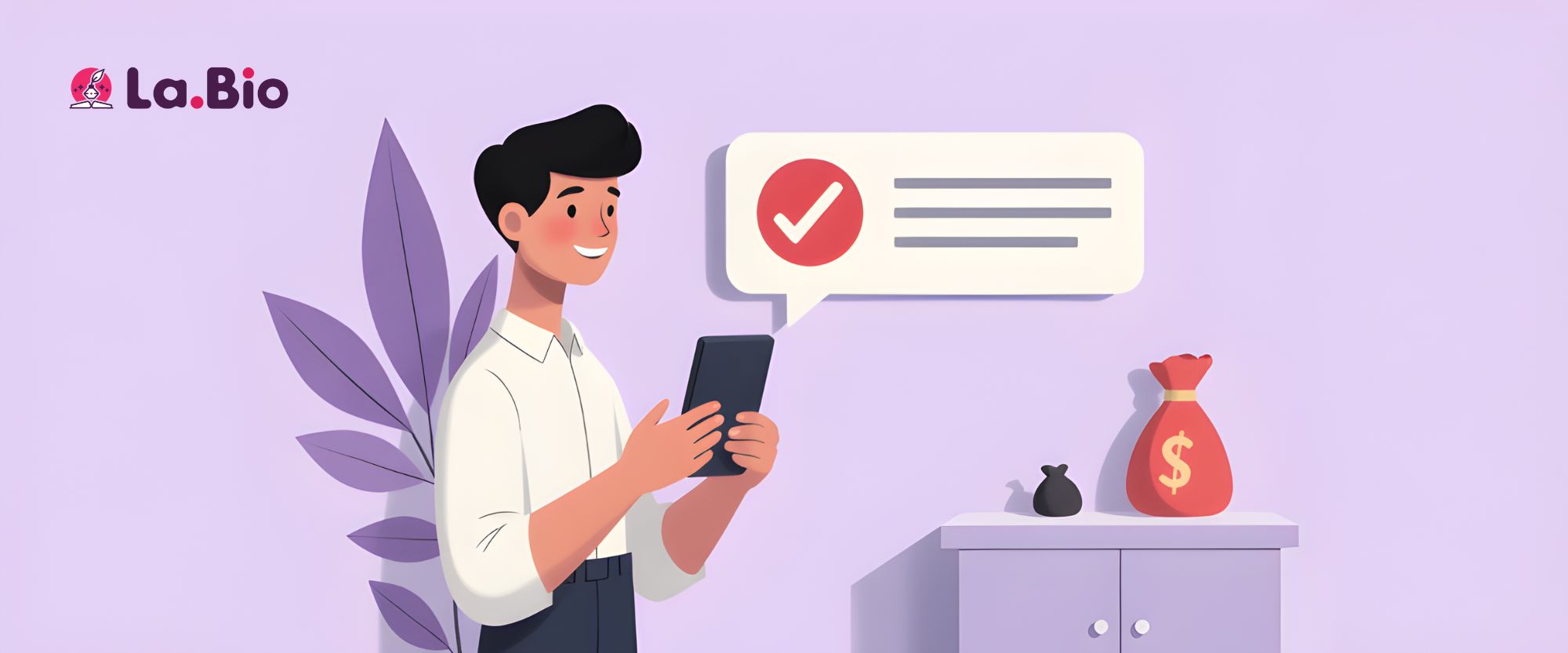
When managing high-volume campaigns in Bullhorn, efficiency is the name of the game. Shortening your URLs isn't just an aesthetic choice; it is a strategic necessity for three key reasons:
Cost Efficiency & Segment Management:
SMS billing is based on "segments." A standard text message segment is limited to just 160 characters. If your message exceeds this limit by even one character, carriers charge you for two messages. Long URLs can easily consume 50 to 80 characters, leaving you with little room for your actual pitch. By compressing your links with [La.Bio], you ensure your message stays within a single segment, effectively cutting your SMS costs in half.Improved Deliverability & Trust:
Candidates are wary of phishing attempts. Long, raw URLs—especially those filled with UTM parameters or random strings of code—often look suspicious and unprofessional. These "ugly" links are more likely to trigger spam filters on mobile networks, preventing your message from ever reaching the candidate. A short, clean link establishes trust and ensures higher delivery rates.Actionable Click Tracking:
Sending the text is only half the battle; you need to know if it worked. Unlike a standard text, using [La.Bio] allows you to track engagement. You can monitor exactly which candidates are clicking your links, giving you valuable data to measure interest and refine your follow-up strategy.
Step by Step - Creating Short Links for Your Campaigns
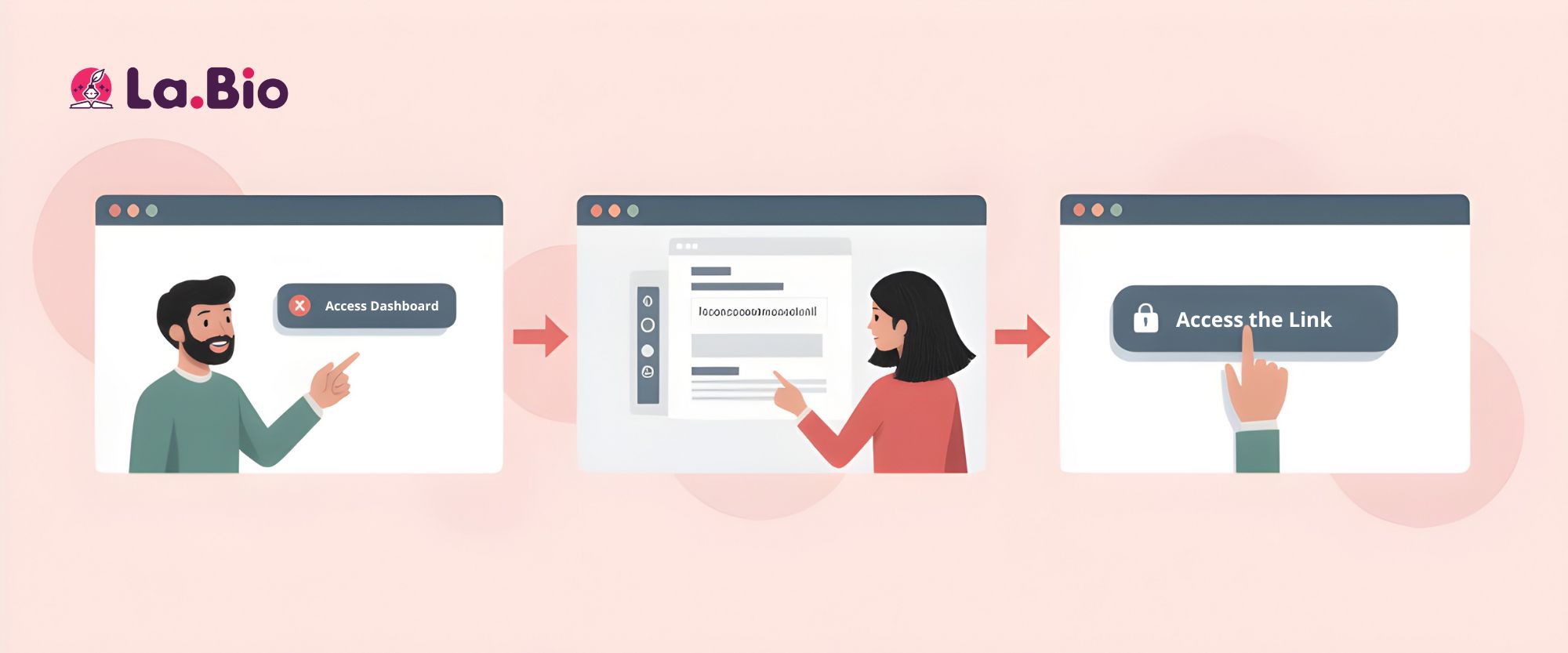
Follow this process to generate clean, trackable links ready for your Bullhorn automation templates.
Step 1: Access the Dashboard
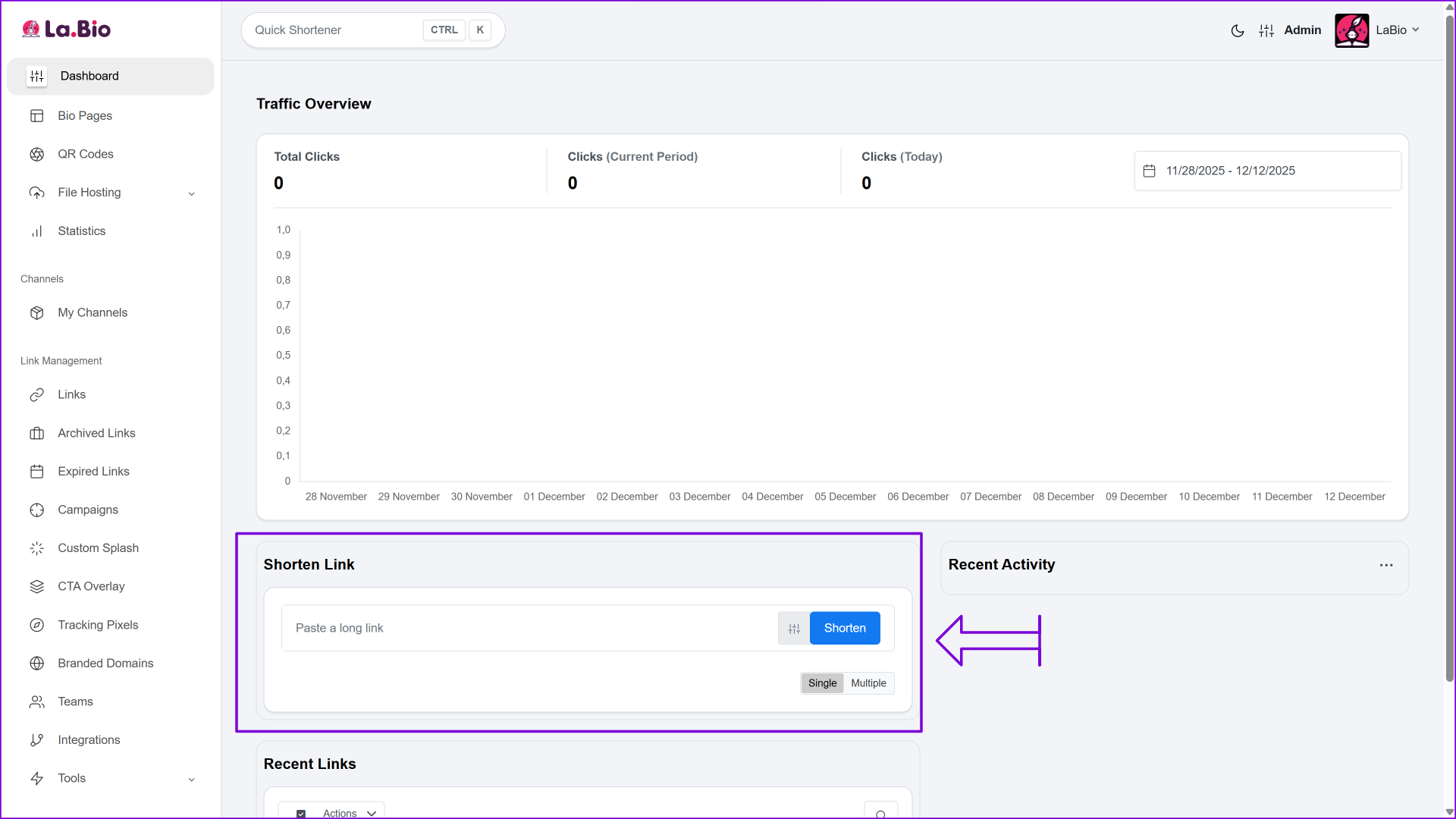
Log in to your [La.Bio] account. Once inside, scroll down the main dashboard until you locate the "Shorten Link" card.
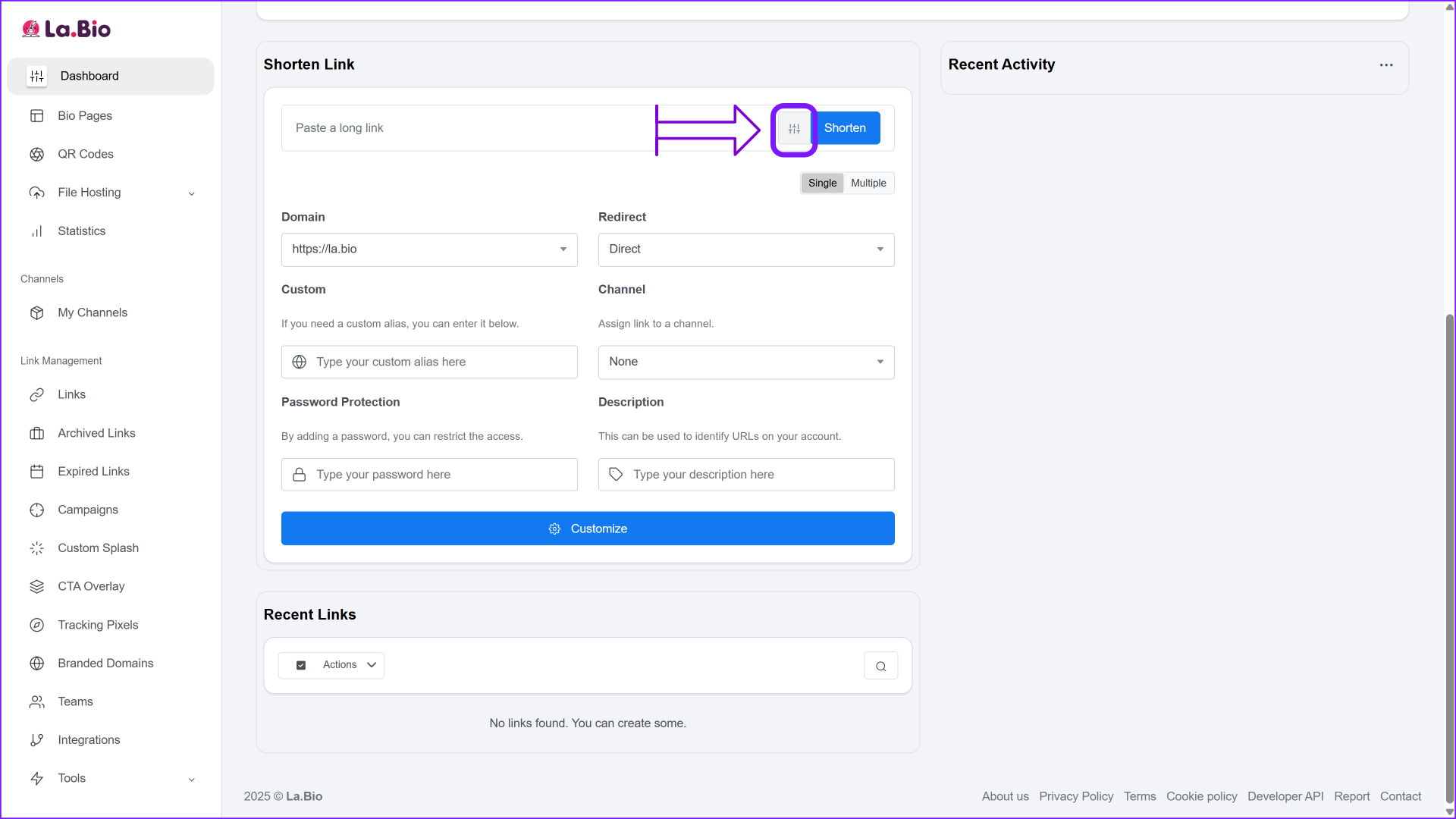
Step 2: Open Advanced Settings
Click the "Advanced Options" icon (represented by the settings sliders) on the card. This will reveal the extended features necessary for customization.
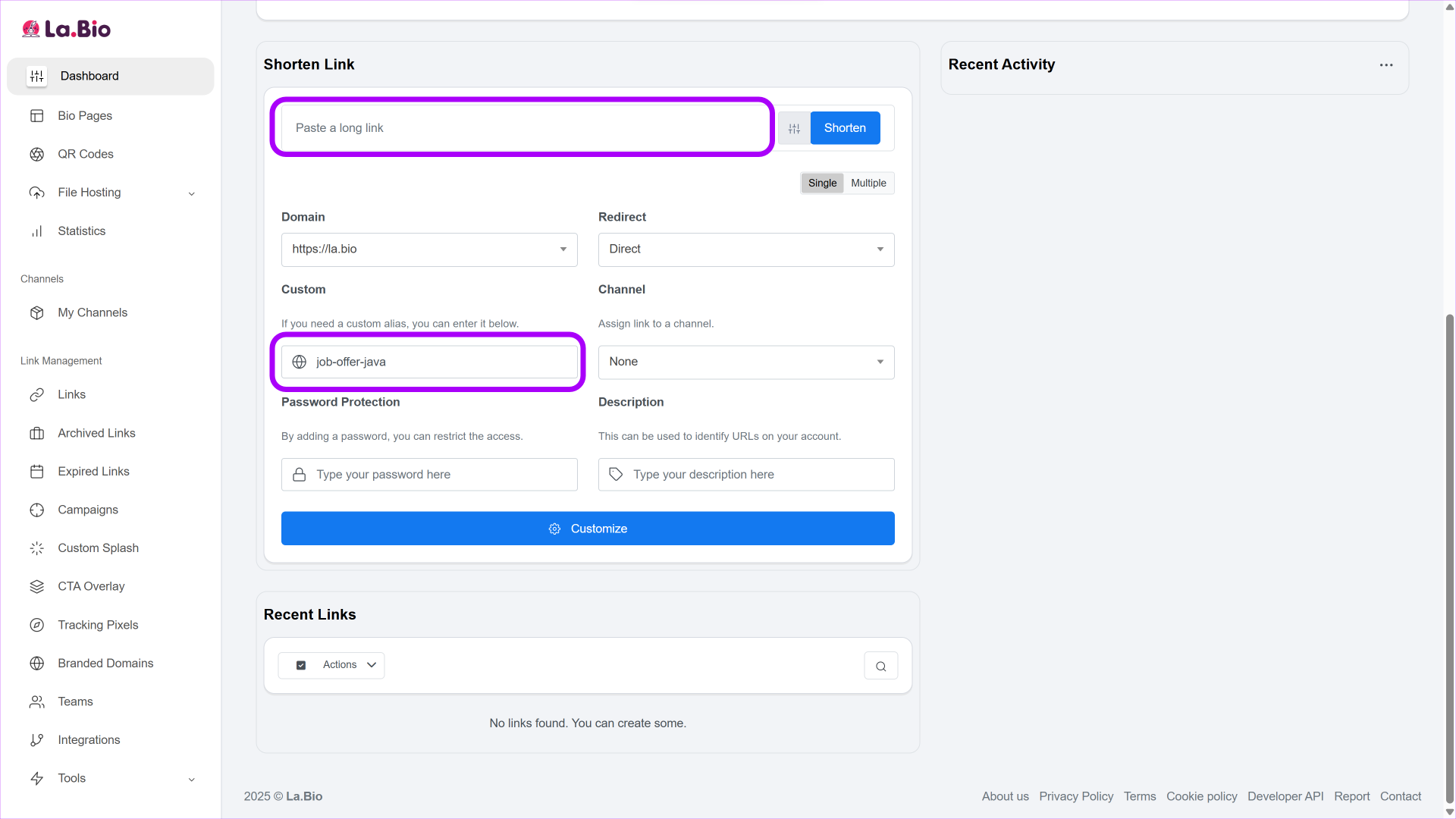
Step 3: Enter Your Destination
Paste your long URL into the main input field. This should be the actual destination you want the candidate to reach, such as your Microsoft Teams meeting link, a Calendly booking page, or a specific Bullhorn Job Board URL.
Pro Tip: You can create a Custom Alias (e.g., la.bio/job-offer-java) rather than using a random string of characters. Custom aliases look more professional and increase the likelihood of a candidate clicking the link.
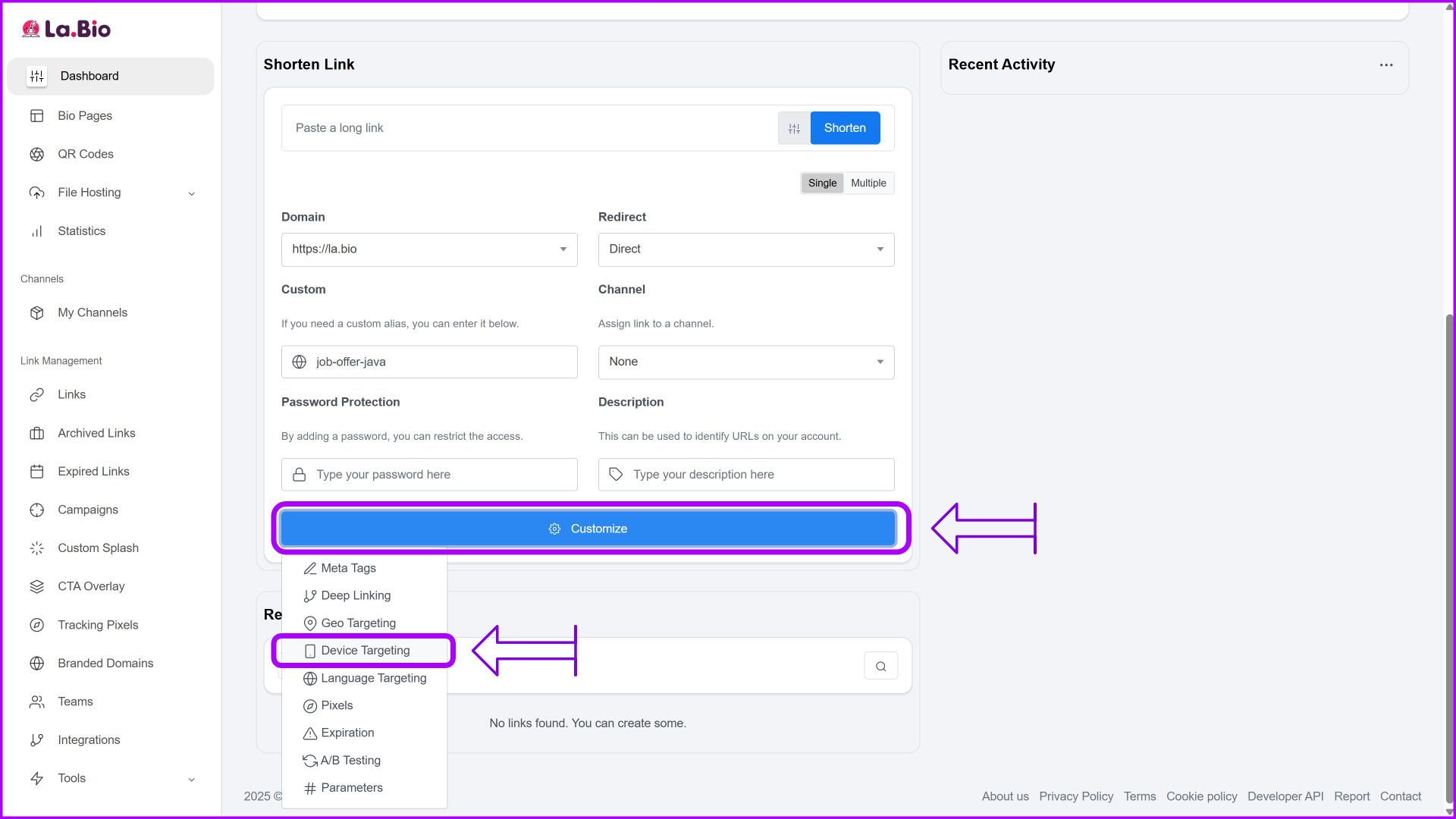
Step 4: Configure Device Targeting (Pro Feature for Free)
This feature is a game-changer for mobile recruitment. Click the "Customize" button to enable Device Targeting. This allows you to redirect users to different destinations based on the device they are using—a feature often locked behind paywalls on other platforms.
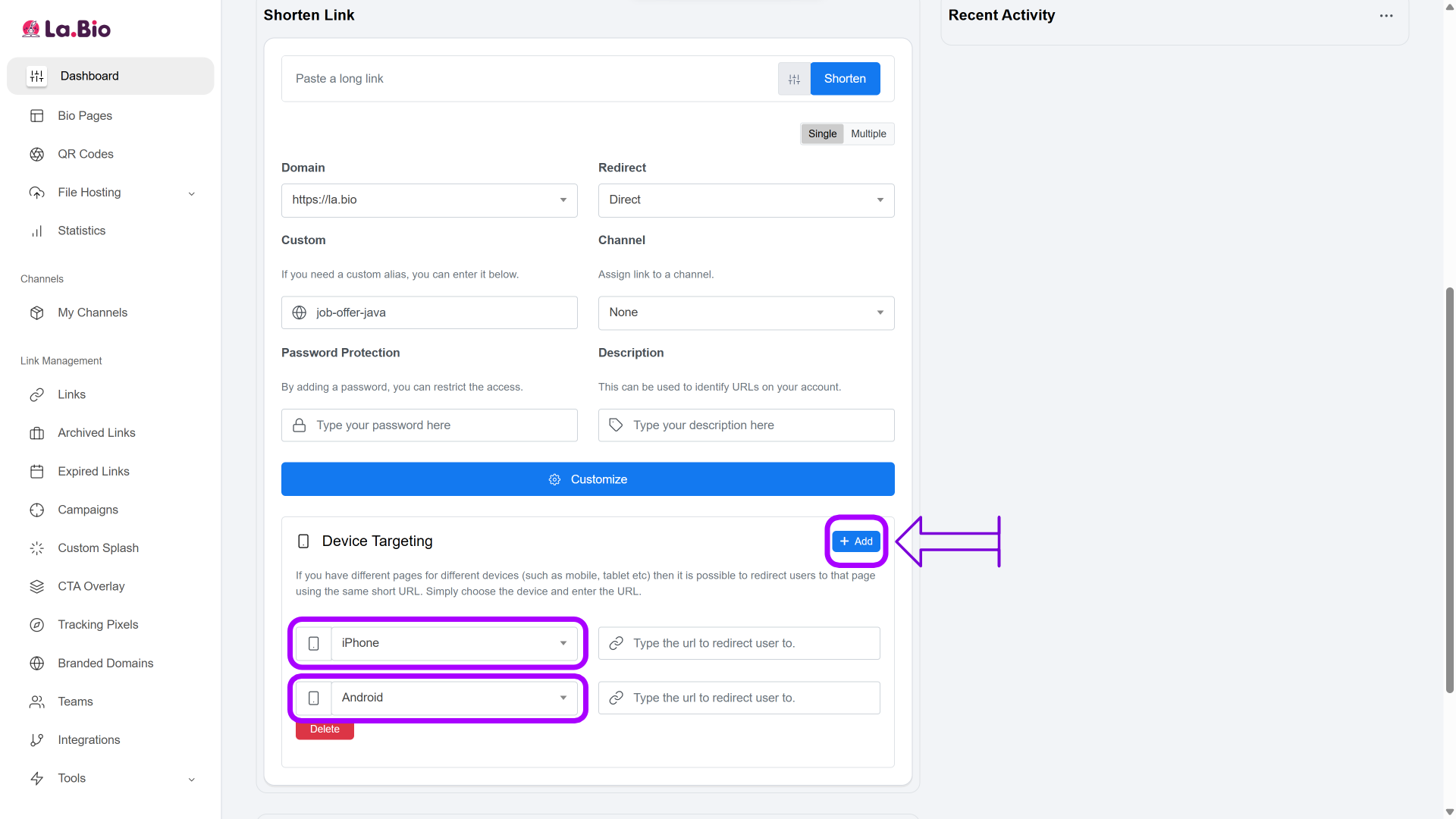
Click the small Add icon to select iPhone, Android, or both.
Enter the specific destination links for each device type. This is particularly useful if you need to deep link to a specific mobile app or direct candidates to different app store pages.
Step 5: Generate and Deploy
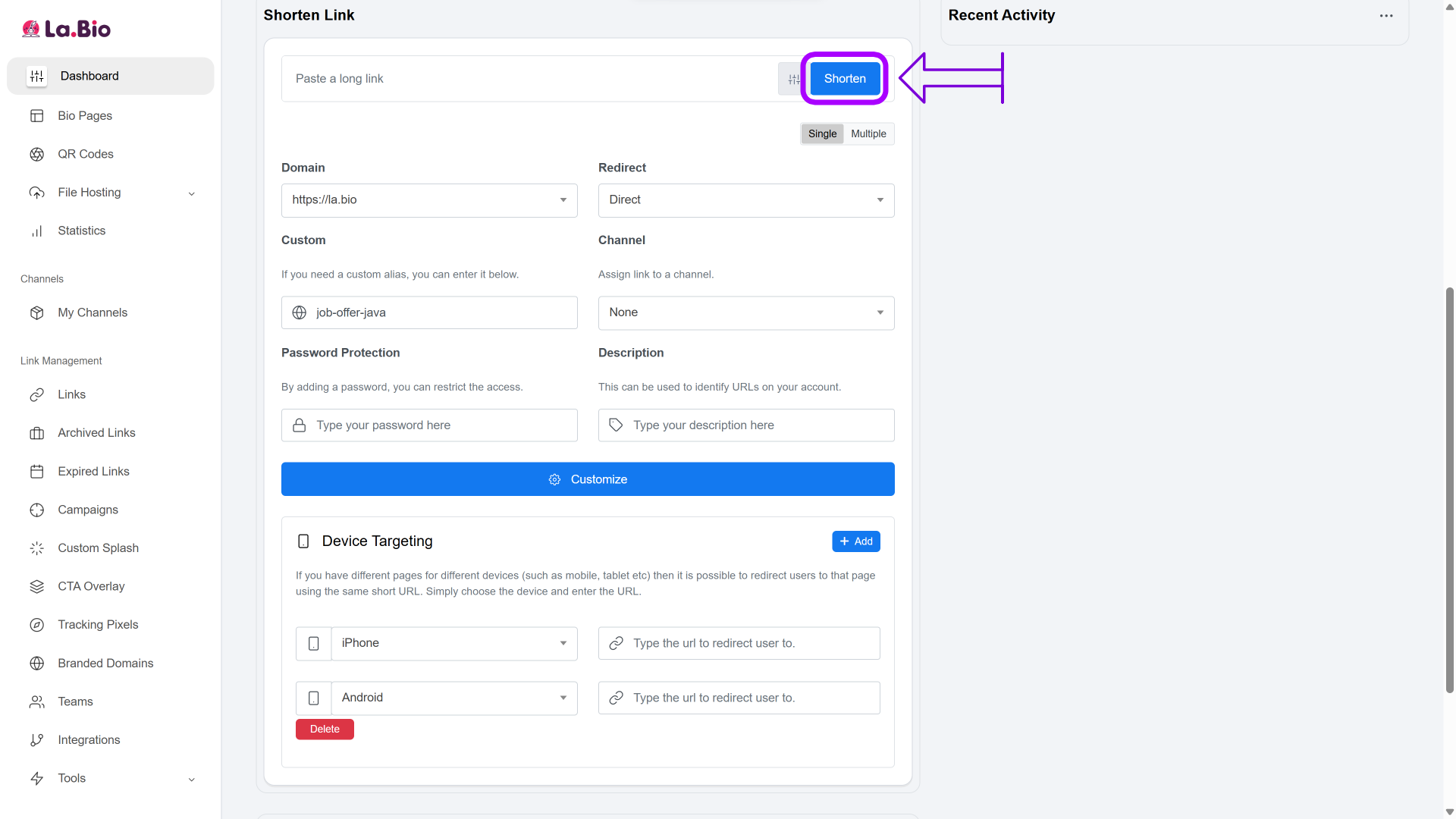
Click the "Shorten" button. Your new, optimized URL will generate instantly. Copy the link and paste it directly into your Bullhorn SMS template to start saving character space immediately.
Best Practices for Bullhorn SMS Templates
To maximize engagement and minimize confusion, how you format your Bullhorn SMS is just as important as the link itself.
Strategic Link Placement
Always place your shortened link at the very end of your text message. This ensures the candidate reads your value proposition first without distraction. Furthermore, placing the link at the end often helps mobile devices generate a clean link preview card below the message, rather than breaking up the text body.
Clear Call to Action (CTA)
Don't just paste a standalone link; tell the candidate exactly what to do with it. Use concise, imperative language immediately before the URL to drive clicks.
Example: "View full job details here: [ShortLink]"
Example: "Book your interview slot: [ShortLink]"
Streamline Your Contact Info
Optimizing your initial outreach is crucial, but maintaining that connection is equally important. Once you are in touch with a candidate, you need to share your contact info easily. You should create a digital business card to send them a downloadable vCard, ensuring your number is saved correctly in their phone for future calls.
Frequently Asked Questions
Q: Will these links expire?
A: No, links created with [La.Bio] are permanent. Unlike some temporary shorteners that recycle URLs after a few weeks, your links will remain active indefinitely. This is crucial for recruitment, as candidates often search for old text messages months later when looking for contact details.
Q: Can I edit the destination later?
A: Yes. This is one of the most powerful features for recruiters. If a job post URL changes or a position is filled, you can simply log in to [La.Bio] and update the destination URL behind the short link. The link in the SMS you already sent remains the same, but it will now redirect candidates to the new page. This saves you from having to send a correction SMS, which looks unprofessional and costs extra segments.
Conclusion
Integrating a link shortener into your Bullhorn workflow is a small change that delivers significant results. By moving away from long, clunky URLs, you not only improve the candidate experience but also protect your agency's budget by keeping SMS segment counts low.
With features like device targeting, click tracking, and custom aliases, you gain full control over how candidates interact with your job offers—all while ensuring your messages actually land in their inbox.
Optimize your recruitment campaigns today. [Create Unlimited Short Links for Bullhorn now].