Quick Answer: To use QR codes in the classroom, teachers create codes that link to digital resources like videos, google forms, or answer keys. Simply paste the resource URL into the La.Bio generator, create the code, and print it directly on student worksheets or display it on the smartboard for instant access.
We have all been there. You have a fantastic digital resource to share with your students. You stand at the front of the room and say, "Okay class, please open your tablets and type in http://www.bit.ly/xyz..."
Then, the chaos begins. One student types a comma instead of a dot. Another forgets the backslash. Half the class gets a "404 Error," and hands shoot up everywhere. Before you know it, 10 minutes of valuable instructional time have evaporated just trying to get everyone on the same page.
There is a simple fix for this classroom nightmare: QR Codes.
By placing a QR code directly on a paper worksheet or projecting it on your whiteboard, you remove the friction of typing long, complex URLs. Students simply point their device's camera at the black-and-white square, scan, and are instantly transported to the learning material.
This method works for every age group. It allows kindergarteners who cannot type yet to access audio stories, and it streamlines complex research links for university students. With tools like La.Bio, creating these codes is free, unlimited, and takes seconds, ensuring you can focus on teaching rather than troubleshooting technology.
5 Creative Ways to Use QR Codes in Education
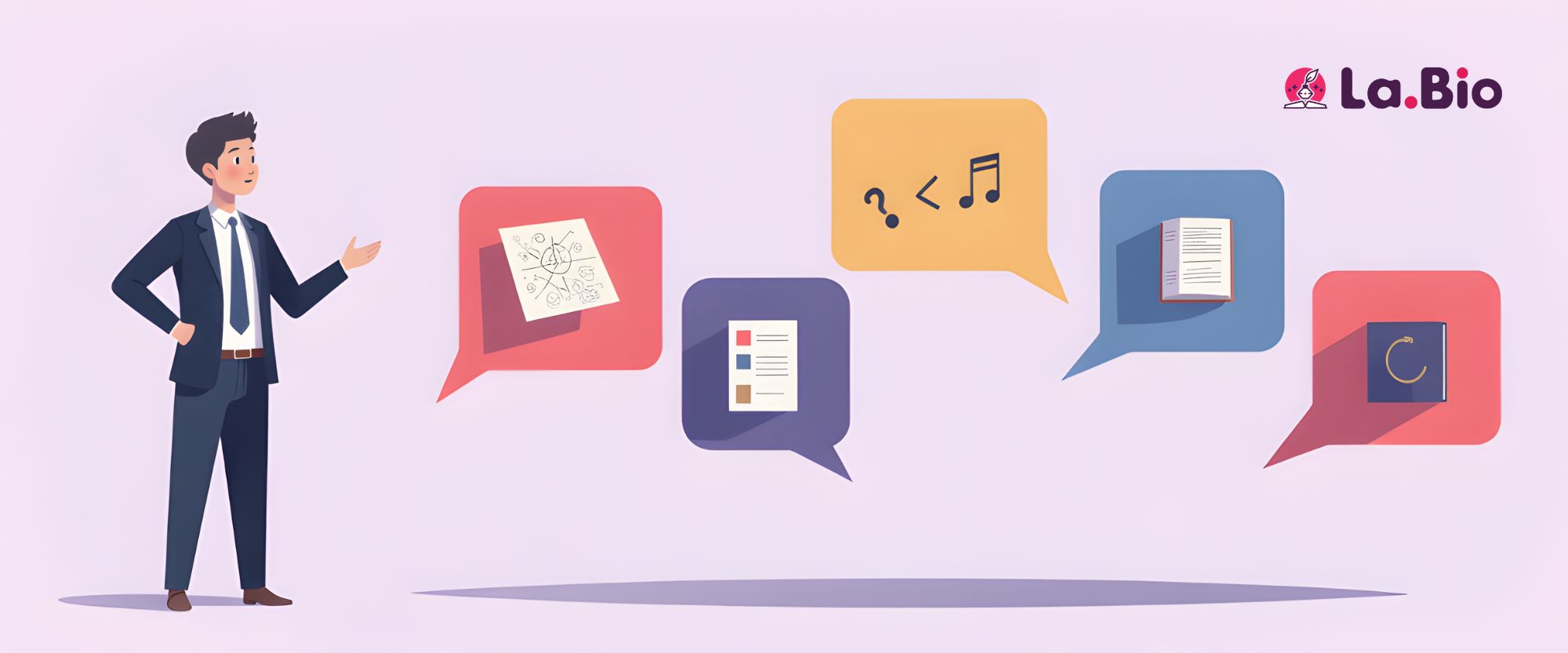
Integrating qr codes in the classroom doesn’t require a total curriculum overhaul. Here are five practical, high-impact ways to use them to support differentiation, engagement, and classroom management.
1. Interactive Worksheets (Videos)
Teachers often struggle to help every student simultaneously during independent practice. QR codes act as a "cloned teacher." You can place a small QR code next to a difficult math problem or a complex reading passage. When a student gets stuck, they scan the code to watch a specific YouTube video tutorial or access a hint. This allows advanced students to work ahead while providing immediate support for those who need it.
2. Digital Handouts (PDFs)
School paper budgets are often tight, and photocopiers are notoriously unreliable. Instead of printing a 30-page reading packet or a long syllabus for every student, simply print one QR code on a small slip of paper or project it on the board. Students scan it to instantly download the full document to their tablets or laptops. It is eco-friendly and ensures students never "lose" their homework.
3. Scavenger Hunts
Get students out of their seats and moving. A qr code scavenger hunt is perfect for review sessions or introducing new topics. Hide QR codes around the classroom or school hallways. When students find and scan a code, it can reveal a "Text" clue (using a Static QR code) or a digital question they need to answer to find the next location. It turns a boring review sheet into an adventure.
4. Instant Quizzes and Games
Paper exit tickets take ages to grade, and typing in game codes for Kahoot takes time. To speed things up, project a giant QR code on your whiteboard at the start or end of the lesson. Students scan it to jump immediately into a Google Form exit ticket or a live Kahoot/Quizizz game lobby. You get instant engagement and data without the setup delay.
5. Parent Access (vCard)
Communication is key to student success. Instead of hoping parents type your email address correctly from a crumpled newsletter, put a QR code on your classroom door or your "Meet the Teacher" handout. This code can link to a vCard, which automatically saves your name, email, and phone number into the parent's phone contacts with a single click.
Step by Step - Creating a Classroom QR Code
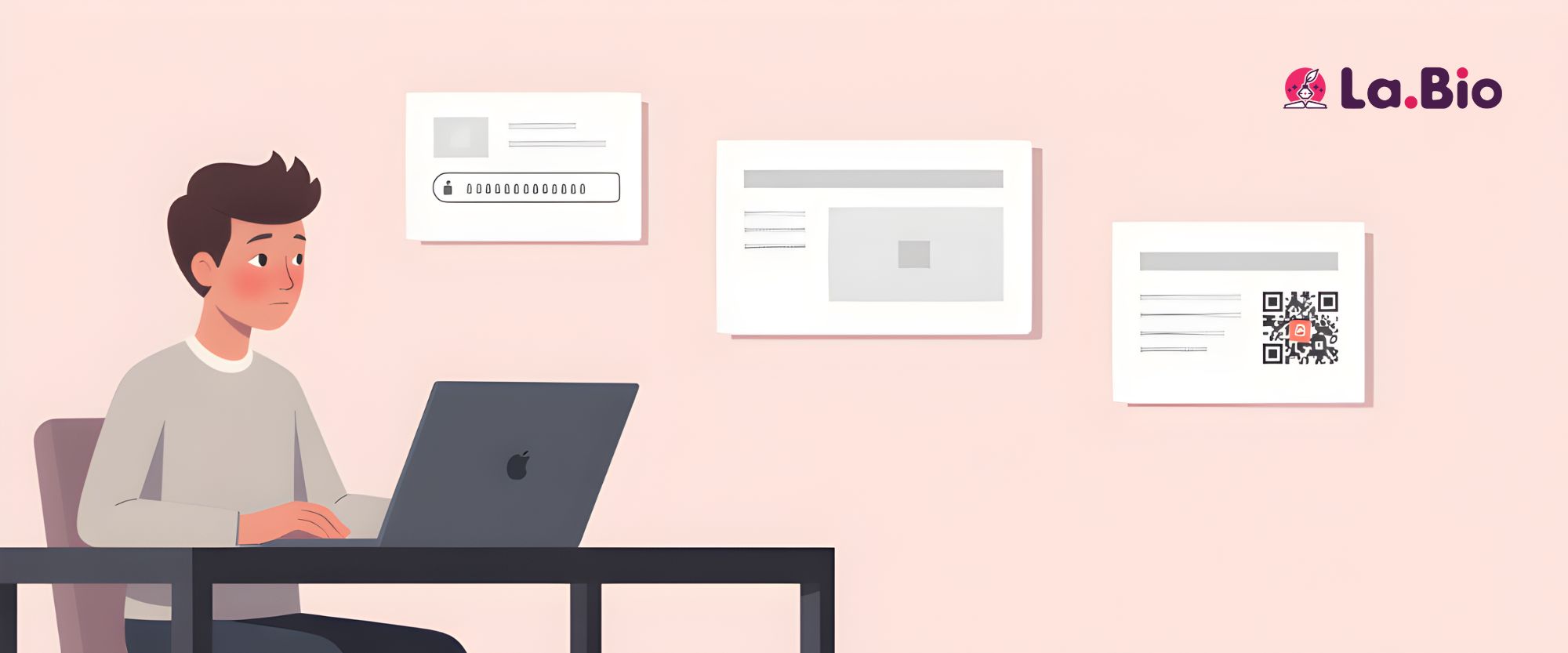
You don't need to be a tech wizard to create a QR code. With La.Bio, the process is intuitive and fast. Follow this simple workflow to generate your first educational code.
1. Log in to [La.Bio]
Navigate to the La.Bio dashboard. Creating an account ensures you can save your codes and track how many times they have been scanned.
2. Click "Create QR"
Find the creation button on your dashboard to start a new project.
3. Choose Your Type
This is the most important step. You have two main options for the classroom:
Select "Link" (Dynamic): Use this for websites, YouTube videos, Google Drive folders, or online quizzes. Pro Tip: Dynamic links allow you to change the destination URL later without changing the physical QR code.
Select "Text" (Static): Use this for scavenger hunts. When scanned, the code displays a short message or clue directly on the student's screen without needing internet access.
4. Enter Your Content
Paste your URL (e.g., the YouTube video link) or type your text clue into the box.
5. Customize Your Design (Teacher Tip!)
While colorful codes look nice, keep it simple. Select the standard Black & White design.
Why? Schools often have limited access to color printing. Black and white codes have the highest contrast, meaning they photocopy perfectly and are easier for older tablet cameras to scan in dim classroom lighting.
6. Download and Print
Click download to save the file as a PNG. You can now drag and drop this image into your Word document, PowerPoint slide, or Canva worksheet just like any other picture.
Why [La.Bio] is Perfect for Schools

There are hundreds of QR generators online, but many are "freemium" traps that ask for payment after a few days. [La.Bio] is designed differently, making it the ideal free QR code generator for education.
1. 100% Free – No Budget Approval Needed
School budgets are tight, and teachers often end up paying for classroom supplies out of their own pockets. [La.Bio] is completely free to use. You do not need to ask your principal for a credit card or worry about a "free trial" expiring halfway through the semester.
2. Unlimited Scans for Unlimited Students
Many generic generators break the link after 10 or 20 scans, forcing you to pay to reactivate it. In a school setting, this is disastrous. Whether you have a small class of 15 or you are printing a code for a school-wide assembly with 500 students, [La.Bio] codes never expire due to traffic. They are reliable enough for high-volume use.
3. Dynamic Editing Saves Paper (and Sanity)
This is the most valuable feature for teachers. Teachers often laminate resources to use for years. But what happens if the YouTube video you linked to gets deleted next year?
With Dynamic QR Codes on [La.Bio], you don’t need to throw away your laminated worksheets. You simply log into your dashboard and change the "Destination URL" to a new video. The physical QR code on the paper remains the same, but it now sends students to the new content. It saves trees and saves you time at the photocopier.
Frequently Asked Questions
Q: Do students need to download a specific app to scan the codes?
A: No, and this is great news for classroom management! On almost all modern devices (iPads, iPhones, and Android tablets), the default camera app acts as a scanner. Students simply open their camera, point it at the code, and a notification pops up to open the link. No third-party account or app download is required.
Q: Can I use QR codes for taking attendance?
A: Yes, this is a popular strategy for older students (High School and University). You can link a QR code to a simple Google Form where students enter their name. By projecting the code at the start of class, students "check in" instantly. The Google Form automatically timestamps their entry, giving you an accurate record of who was on time without calling out names.
Conclusion
Technology in the classroom should effectively make your job easier, not add extra layers of complexity. QR codes are the perfect bridge between the physical world of worksheets and books and the digital world of videos and interactive quizzes. They eliminate the frustration of typed URLs and reclaim valuable minutes for what matters most: learning.
Don't let technical hurdles slow down your lesson plan.
Modernize your classroom today. [Generate Free Educational QR Codes on La.Bio].